Bill of Materials (BOM) Upload
Last updated: May 4, 2026
One of the first things many organizations do to get rolling in Cofactr is to upload a product's or part's Bill of Materials. Cofactr provides a BOM uploader to make it as easy and automated as possible to find sourcing options on all the parts you need.
Uploading an Existing BOM
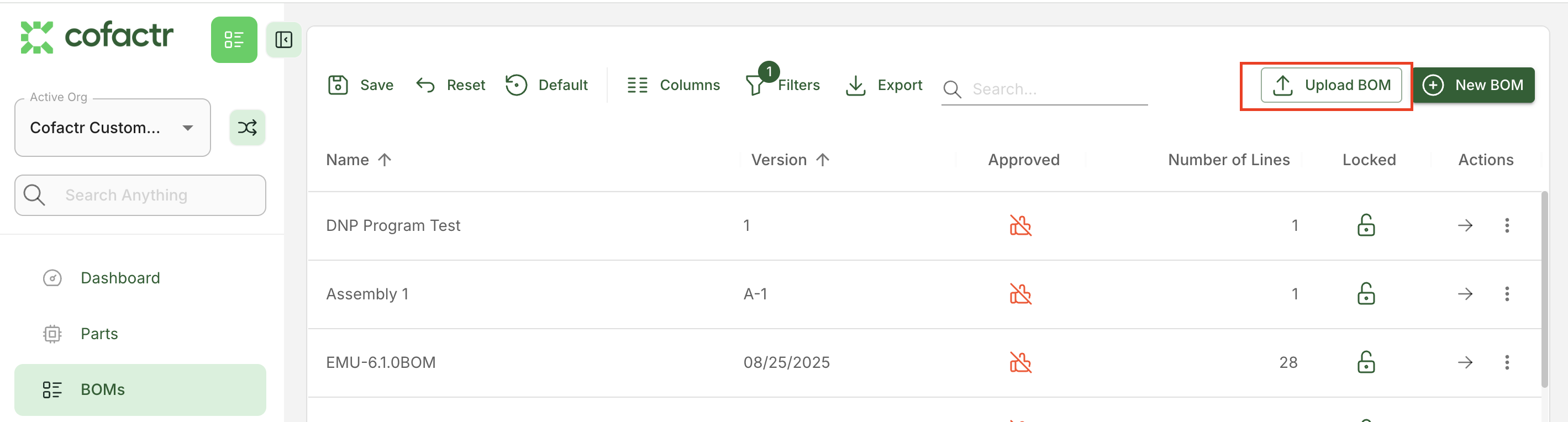
To upload a BOM, log into Cofactr and use the BOMs button on the Dashboard or the BOMs tab in the navigation bar on the left side of the platform to get to your BOMs. If it's your first uploaded BOM the list will be empty. Click on the button in the upper right corner labeled "Upload BOM".
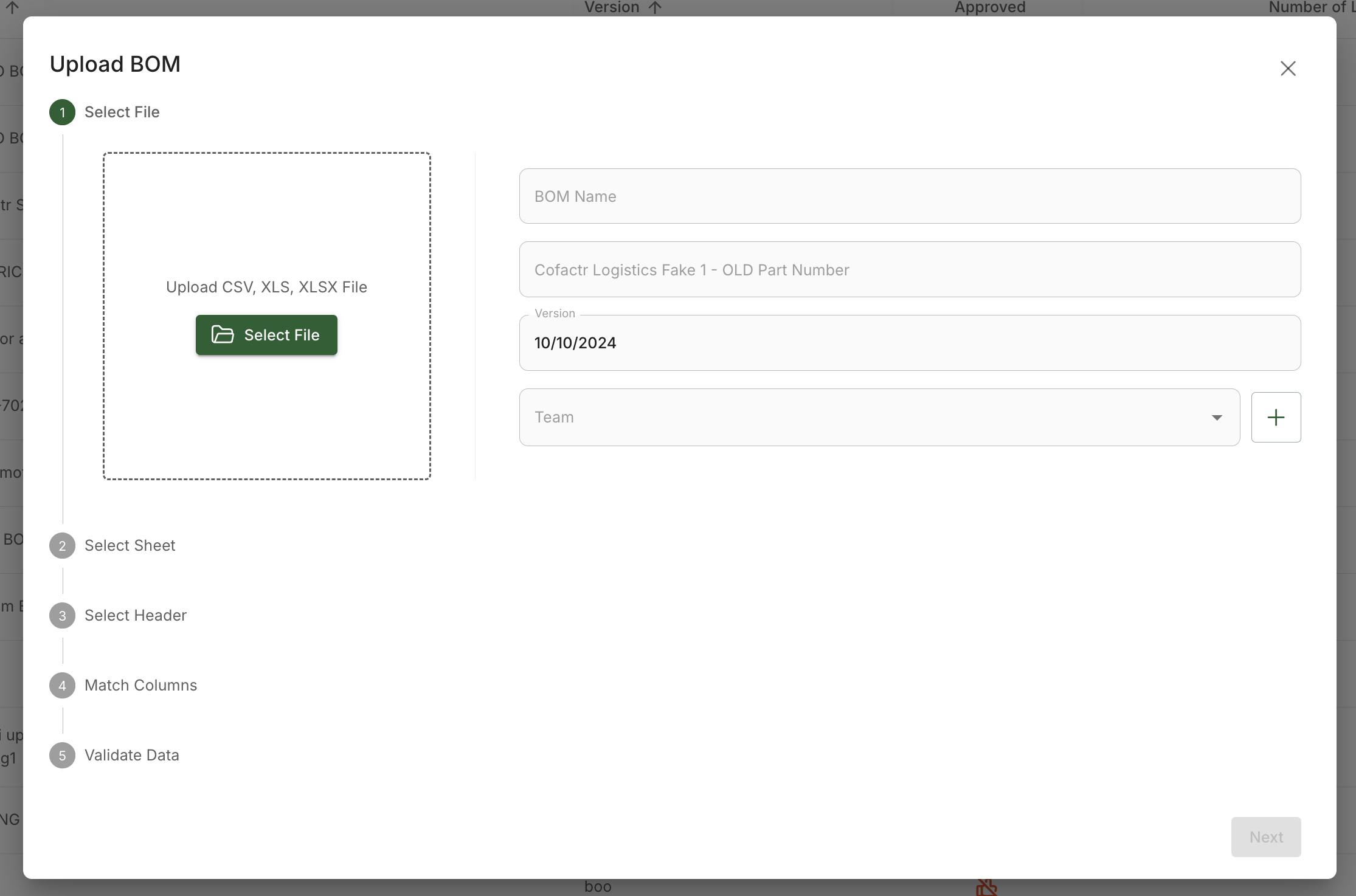
From there, upload your BOM, and create your BOM Name, Part Number, Version, and Team.
***Note: The only required fields here are BOM Name and Version.***
You can upload your BOM as a .xlsx, .xls, or a .csv file. This can be done by clicking "Select File" and using your finder, or you can drag a BOM directly into the dashed frame around the upload prompt.
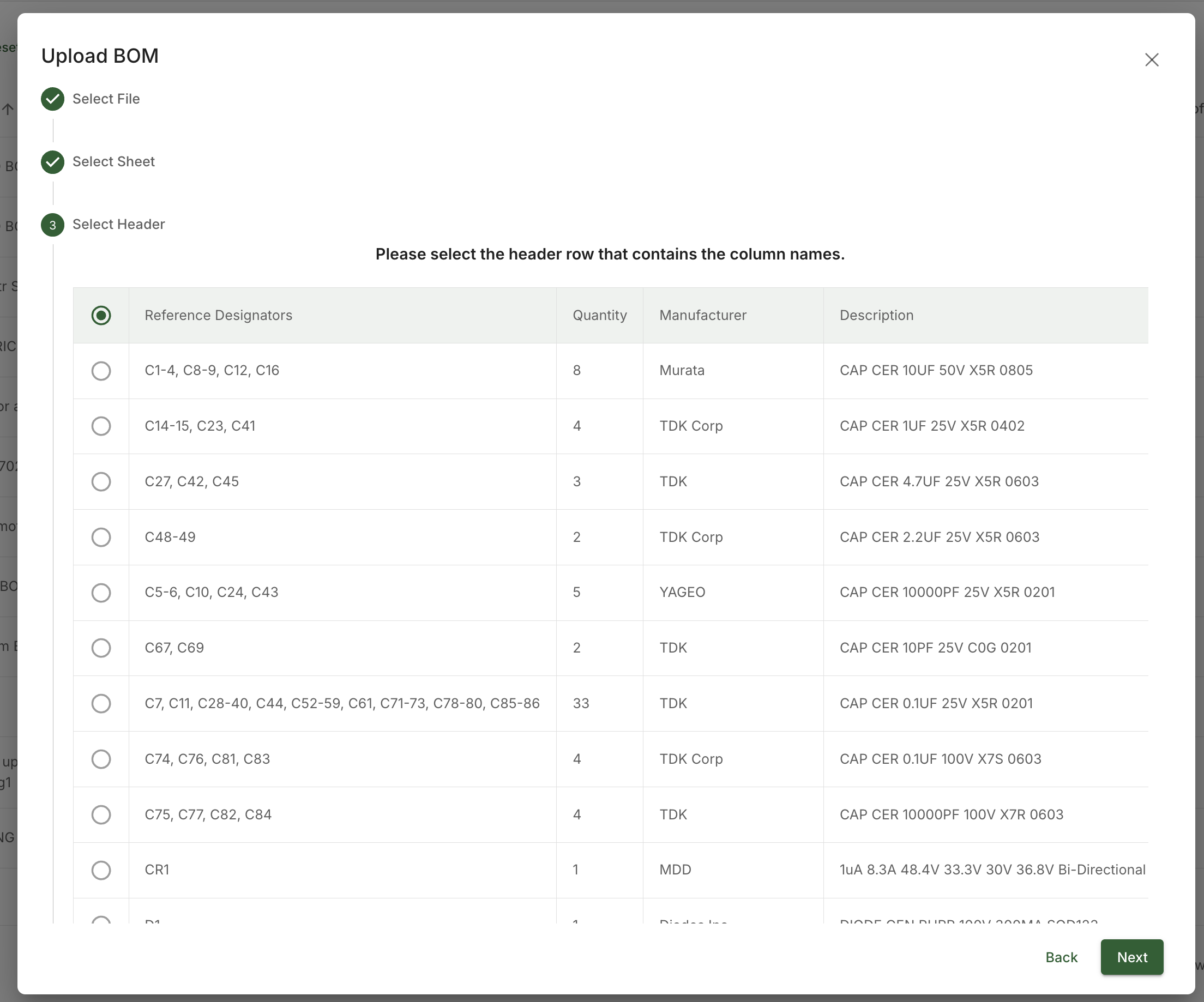
Once you upload a file you'll be asked to select a header row.
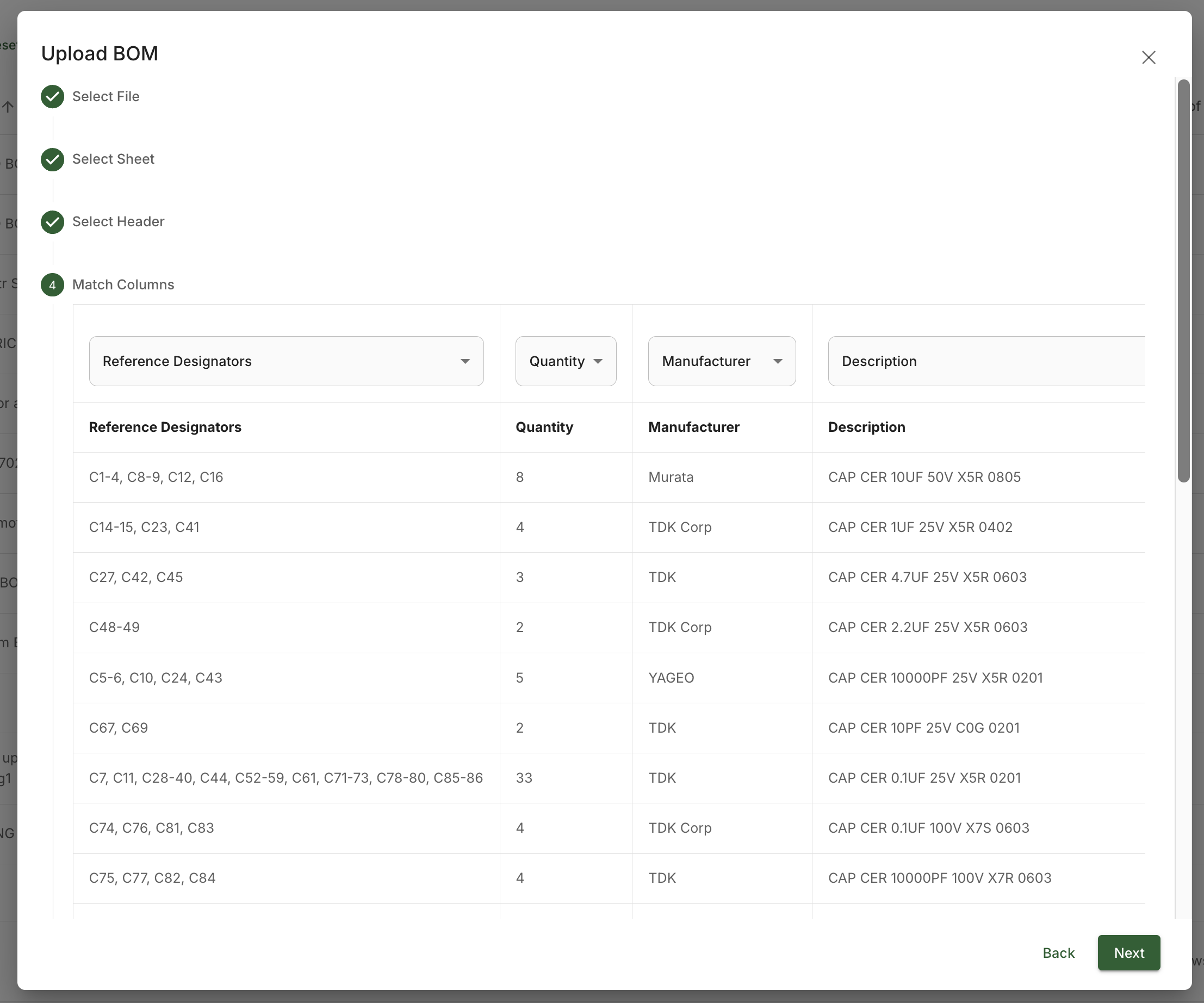
Once you've selected your header row click the "Next" button. Cofactr will now attempt to match headers to Cofactr's nomenclature. Make sure you are matching columns for the MPN and either Quantity or Reference Designators.
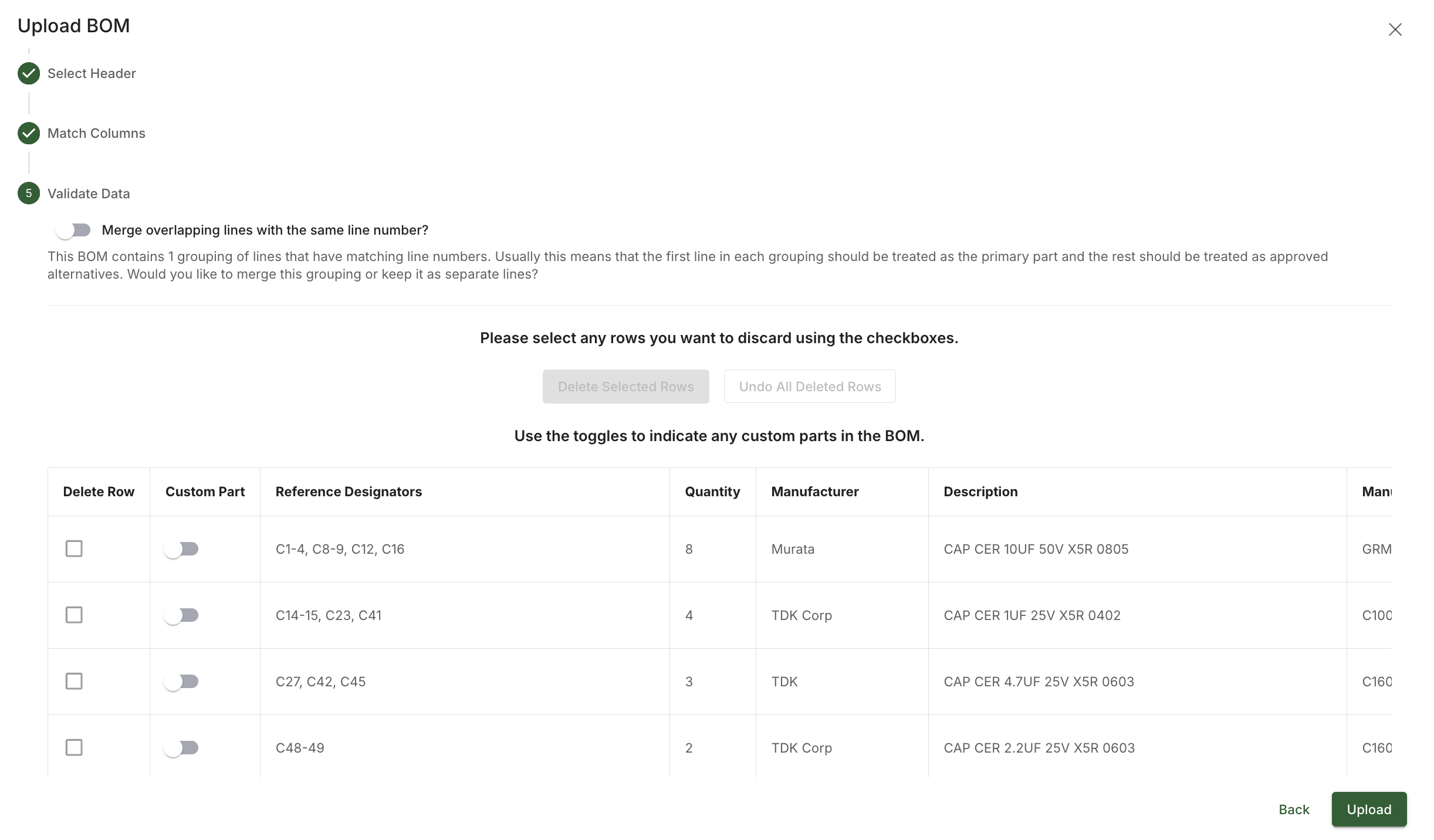
Once you've matched columns click the "Next" button. The upload wizard will now give you a chance to exclude any specific rows. You can also mark any BOM line as a custom part now to avoid errors in the future, but its not required.
If you are including alts in your BOM, make sure to toggle on the "Merge overlapping lines with the same line number" toggle.
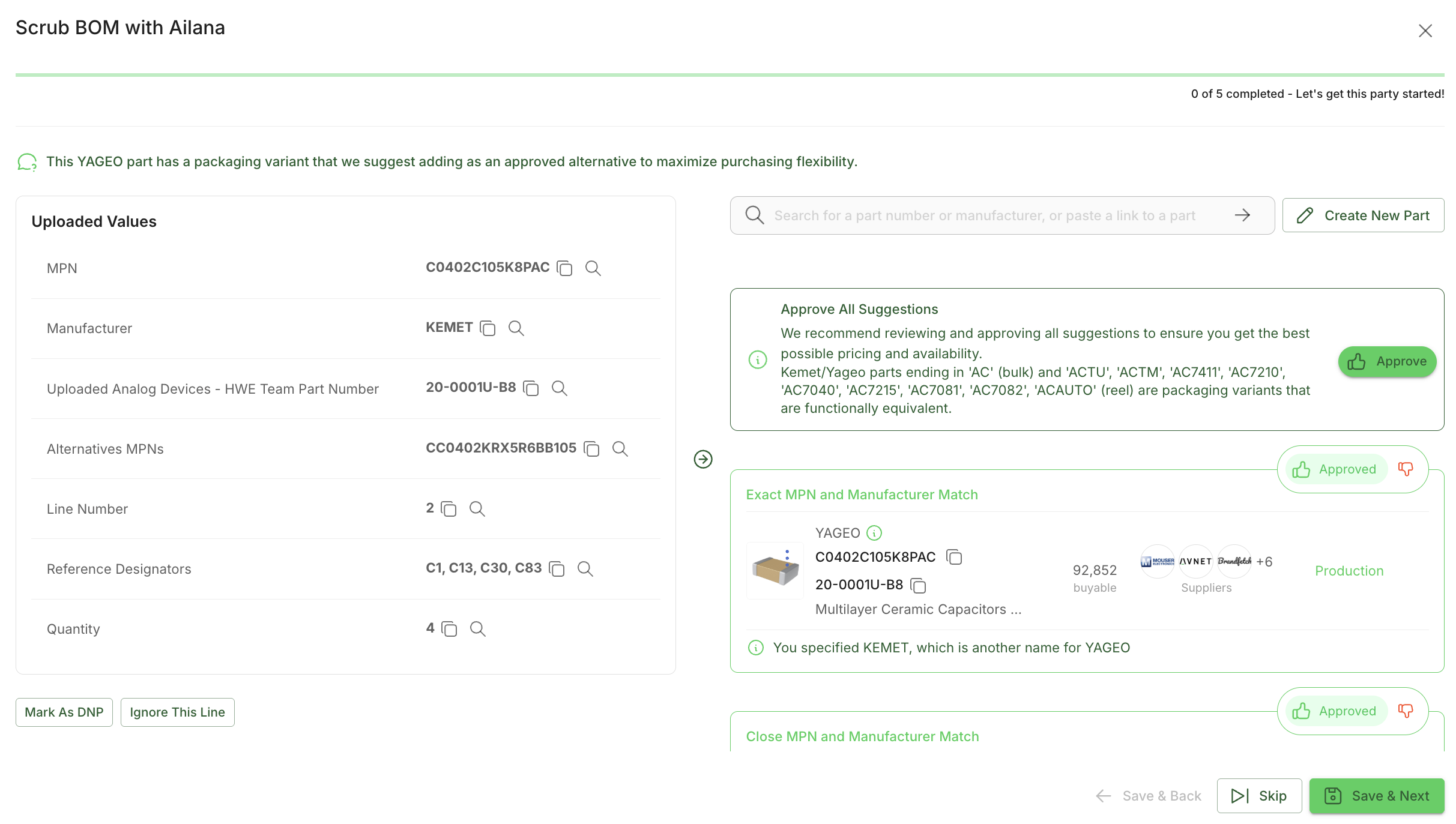
Once you are finished editing click the "Upload" button. You'll be taken back to the BOM view that is now populated with your BOM data. From here, if there is scrubbing that needs to be done, the Ailana popup will appear and start asking you to scrub your BOM with our AI suggestions, including confirming packaging types. Do not skip this section, as packaging types can directly affect attrition at the program level.

Part Status in BOMs
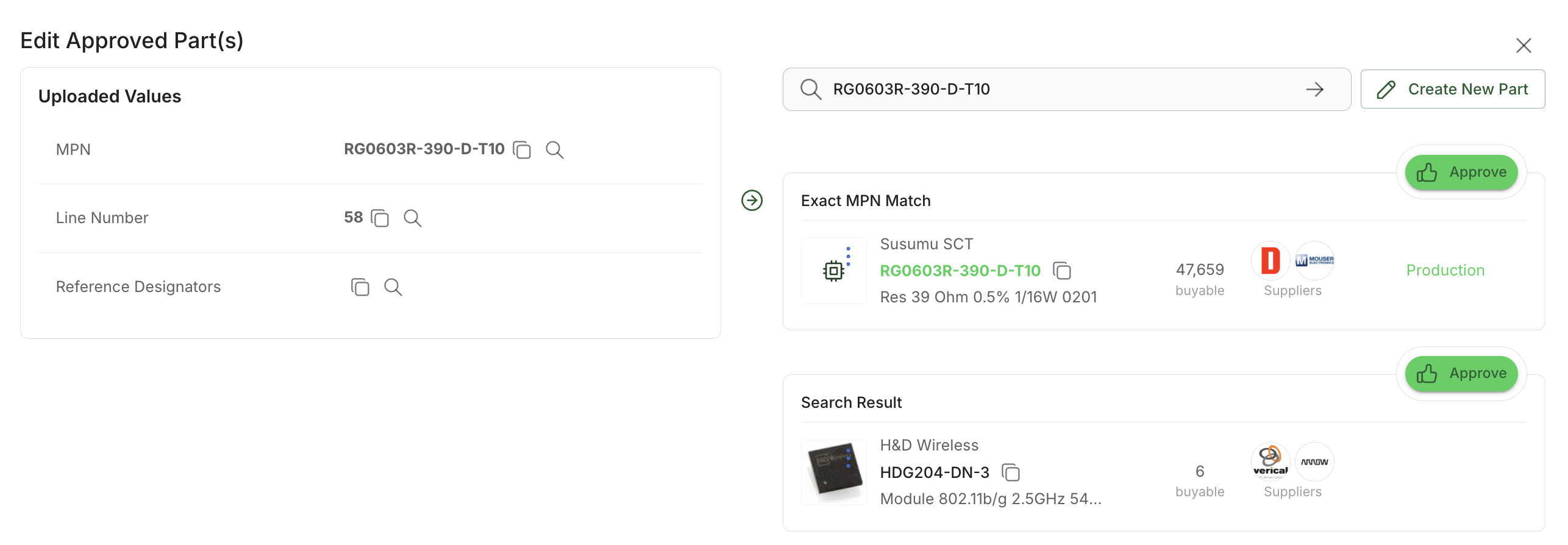
Parts marked as "No Match" in your BOM will not flow into the program until they are resolved. Click on the pencil icon to the right of the part to edit it

From here, you will approve/select the correct MPN by clicking "Approve", and then "Save." In the case that this is a custom part, you can click "Create New Part" and add the new part to your part library. This will ensure Cofactr remembers this part in the future.
Parts marked with "Needs RFQ" are letting you know that we believe this part requires you to submit a request for quote for that part. This could be due to the part having limited inventory, unknown LTs, etc. Parts with Needs RFQ will flow into the associated program, from which you will create an actual RFQ.

Creating an Empty BOM (BOM Shell)
Although uploading a BOM is preferred method for most customers, you can also create a BOM in Cofactr to add parts one by one.
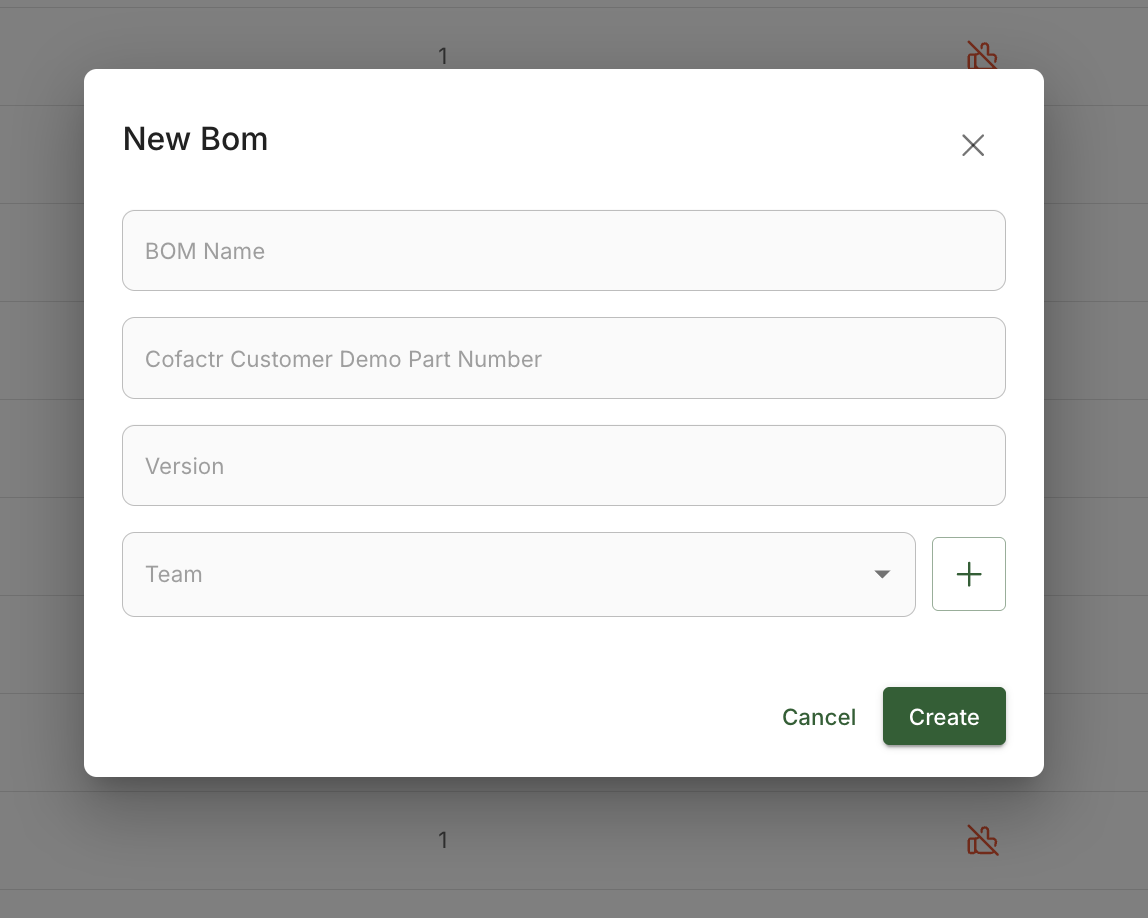
Click on "+ New BOM." You'll see a window appear that asks for the BOMs name, part number, version, and team (if applicable). The name and version are the only necessary fields. BOM name should be anything that makes sense to you and your organization and version it as appropriate.
Now you know how to upload a BOM! Unsure about the BOM requirements? Click here to learn more!