Getting Started: General Navigation, Data Grid Tools, Tips, and Tricks
Last updated: December 8, 2025
Getting Around Cofactr: Your Guide to the UI
Discover how easy it is to navigate Cofactr. This overview will walk you through the key features of the platform, showing you where everything lives and how to get the most out of each tool. From tracking parts to managing orders, you’ll learn how to move around with confidence and uncover the shortcuts that make your workflow faster, smoother, and, dare we say, more enjoyable.
The Cofactr Apps
The widgets and the navigation bar on the left side are mirrored. Each section is one of the apps inside Cofactr.
Please note that depending on what subscription you pay for, some of these will not be available to you. On your Dashboard page, you can see which apps you have (in green) and which you do not (greyed out).
Parts is where you can search for individual parts in your part library, the Cofactr Component Cloud, or both locations at once! If you find a part in the Cofactr Component Cloud but not in your library and want it there, you can easily add it to your part library with a few simple clicks. You are also able to get more details on individual parts here, such as part health and availability.
BOMs are where your Bills of Material live. You can upload, view supply options for whole BOMs, buy whole BOMs at multiples, or add BOMs to other parts of the platform (like a program).
Programs is the place to manage your build! A program is a run, a build, etc, and is where you can add multiple BOMs for the entirety of your project.
Reporting is where you can go to create report templates, or query and visualize your Cofactr data through SQL Explorer.
Requisitions are essentially a formal request for parts or materials that your team needs. Think of it as the first step in turning an identified need into an actionable purchase. A requisition creates a structured request that can be reviewed, approved, or adjusted before it becomes a purchase order.
Sourcing is how you find and secure availability/pricing by sending, receiving, and approving quotes from suppliers.
Purchasing is where you go to manage all of your direct supplier orders, and soon to be your Cofactr supplier orders as well, making it easy for different members of the team to see the different statuses of POs, as well as manage supplier billing all in one platform
DocAI is Cofactr's AI-driven document processing engine. It automates extraction, reconciliation, and management of key document data—cutting out manual data entry and dramatically streamlining procurement workflows.
Orders is where you can see all orders you have placed directly in Cofactr. From placing an order through our Pricing Solver and seeing the overall status of the order (Carts), to checking in on the status of those orders per supplier (All Supplier Orders), and even drilling down to see statuses on individual line items in your order (Supplier Order Status).
Suppliers is where you come to see your suppliers you've added to the system. You can see quotes, POs, and RFQs related to each of these suppliers. You can also come here for Purchase Rules to set specific purchasing rules for your org.
Kitting and Shipping
Kits are shipments being sent from Cofactr
Ship to Warehouse is where you go to view and handle shipments to a Cofactr facility.
For info on kits from Cofactr, you will navigate to kits.Addresses is where you store addresses of locations you ship inventory to within Cofactr.
Stock
Part Stock is the total stock you have of a designated part including things like expected inventory, allocated inventory, etc.
Stock Lots are the specific lots where your stock is located in the designated warehouse. It includes information like quantity and location.
Allocations show the total allocations of any searched MPN you have in the platform.
Managed Inventory
Handling Tasks are any handling tasks you've requested for your stock, including things like status, description, requested date and completion date.
Stock Locations are the general locations in your designated warehouse where stock lives. It includes fields like type, name, and address.
Warehouse
An application used only by our Warehouse customers that have their own facilities they manage.
Settings
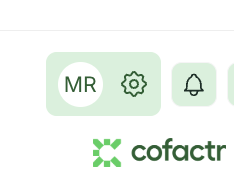
To access settings in Cofactr, click on the gear icon by your initials (seen below).
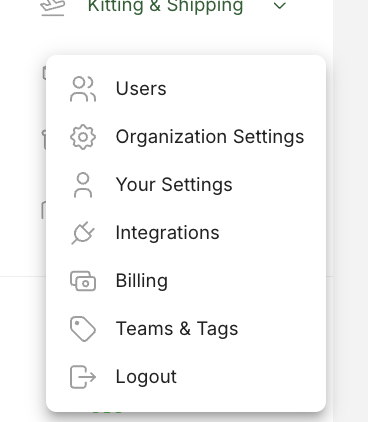
From here, you will see a list where you can click on different aspects of the system like Users, Organization Settings, Your Settings, Integrations, Billing, Teams & Tags, as well as where you can logout of the Cofactr Platform.
Overarching Form and Function of Cofactr
When you dive into an app you'll see a pretty standard format. A grid of data, maybe a few tabs to view different info, some filters, some things you can do with the information, a chat icon in the lower right to find help, and the navigation bar always to the left.
Let's look at a Program as an example:
In the upper right you see "+ New Program". This is an action. Actions are always on the right side of the screen. There you can see anything action oriented you can do in the app. There are lots of actions in Cofactr like uploading a BOM, purchasing parts, splitting a stock lot, you can quote and buy a part, and more.
Now lets dive into the next level of Programs. If you double click on a Program, you see that Program's info:
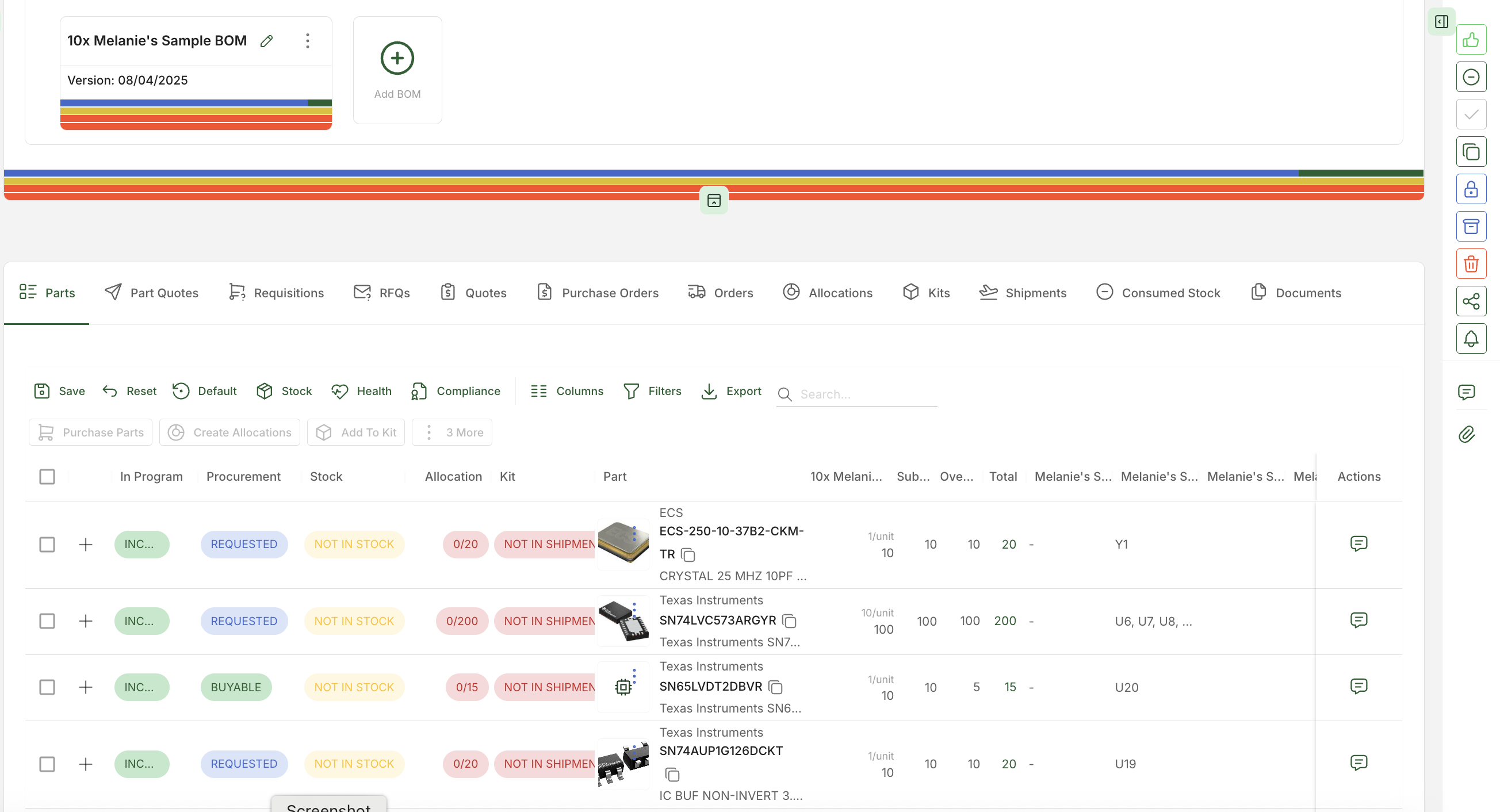
You can see the available tabs for a Program which are things like Parts, Requisitions, RFQs, Allocations, Kits, and more, which will take you to those areas of the platform that are tied with this Program.
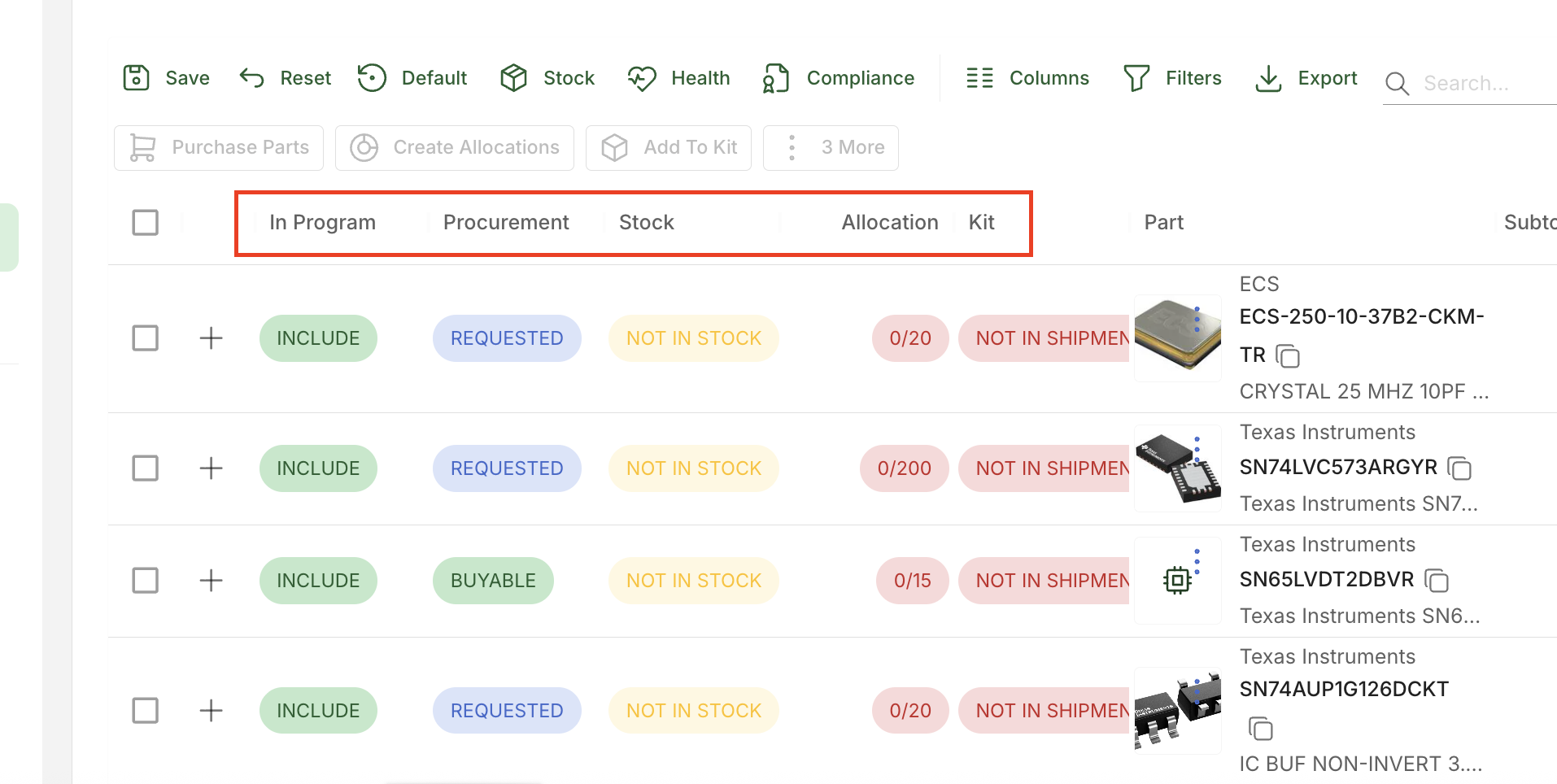
Below that are the different columns, each having a unique header title that represents different statuses in Cofactr like Procurement and Stock Status. Curious what the different statuses in Cofactr mean? Click here to learn more!
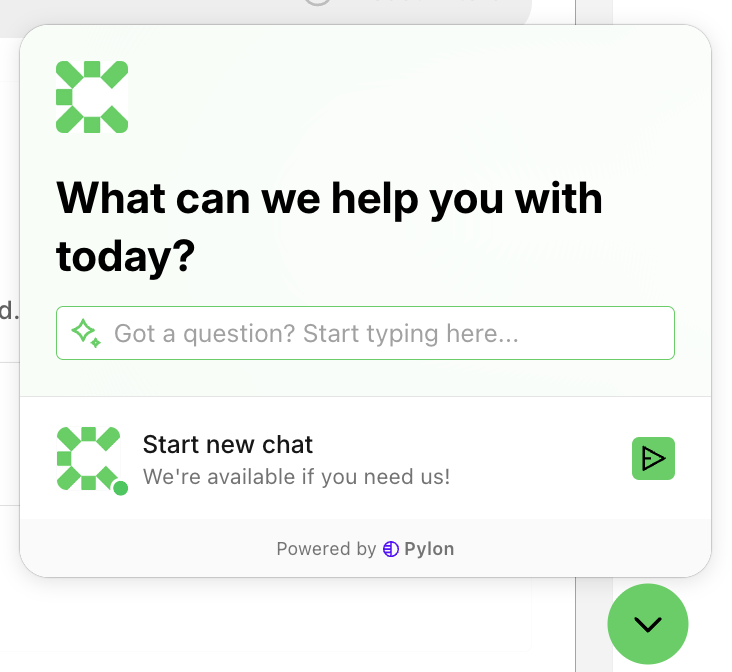
In the lower right you have the help chat, where you can ask questions and search for articles in our knowledge base.
As you are getting use to the platform, if you have any questions, make sure to reach out to your Cofactr team at success@cofactr.com. We also have helpful training videos with associated links on how to do some of the most common flows in Cofactr here.
Written by Phillip Gulley and Melanie Reeves