User Permissions
Last updated: January 21, 2026
The first thing you need to do within the Cofactr platform is make sure all your team members have access to the platform. Cofactr uses role-based access control so users get access to the information they need when they need it, whether that means full access or limited access based on their role.
Your users can be internal team members or external partners. Each user can have access to any part of the platform or limited access based on their assigned role.
Creating a New User
To create a new user, log into Cofactr click on the gear icon in the bottom left side of your screen, and then select Users. Next, click on 'Add User' in the upper right-hand corner of the platform.
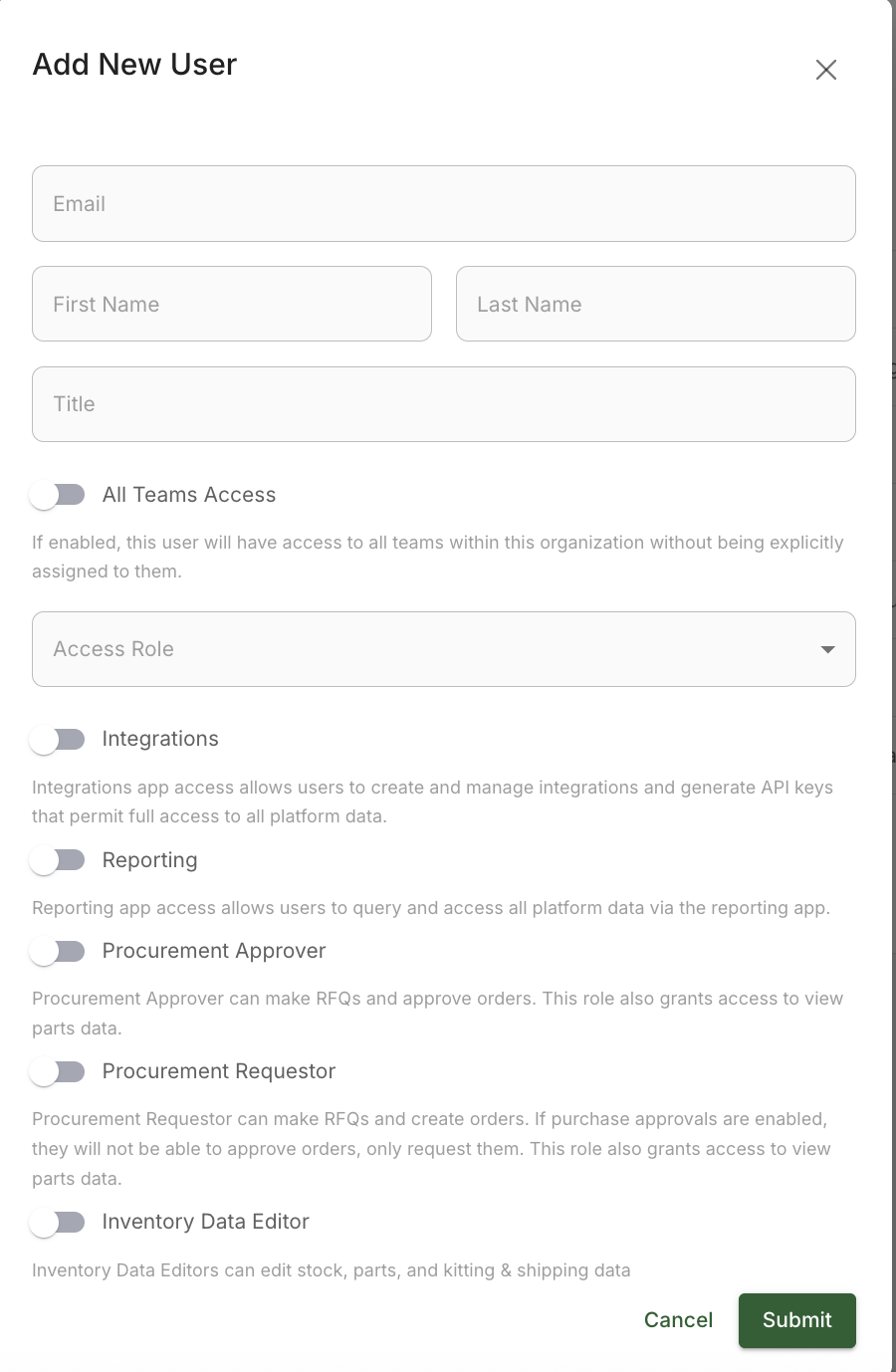
You will be prompted to add the user information, including their email, first name, last name, title, and then their role.
Understanding Roles
Cofactr uses roles to manage permissions. Instead of toggling individual app permissions, you assign users to roles that define their access level. The interface uses clear icons and toggles to show which features each role can access.
Standard Roles
You will have various options for the level of permission. They include:
Permission Level | Access |
Restricted | Restricted users have limited access to view users, organization settings, teams, and tags. Combine this role with additional roles for customized user access. |
View & Comment | View & Comment users can view, but not edit, all data within the Cofactr platform except for integrations and billing. They can also comment on applicable data types such as BOMs and orders. |
Editor | Editor users have full access to view all data within the Cofactr platform except for integrations. Editors can edit all data within the Cofactr platform except for users, organization settings, billing settings, teams, and tags. Editors can request purchase, but not approve purchases, if purchase approvals are enabled. |
Admin | Admin users have full access to all data within the Cofactr platform, can manage organization settings, approve purchases, and manage users. |
Additional Roles
Permission Level | Access |
Integrations | Integrations app access allows users to create and manage integrations and generate API keys that permit full access to all platform data. |
Reporting | Reporting app access allows users to query and access all platform data via the reporting app. |
Procurement Approver | Procurement Approver can make RFQs and approve orders. This role also grants access to view parts data. |
Procurement Requestor | Procurement Requestor can make RFQs and create orders. If purchase approvals are enabled, they will not be able to approve orders, only request them. This role also grants access to view parts data. |
Inventory Data Editor | Inventory Data Editors can edit stock, parts, and kitting & shipping data. |
Engineering Data Editor | Engineering Data Editors can edit BOMs, part data, and Programs. |
Custom Roles
Customers on the Growth and Enterprise plans can create custom roles with specific permissions tailored to their organization's needs.
Assigning Users to Teams
If your organization uses Teams for access control, you can assign users to teams in the user management settings. You will see a Teams column where you can select users and assign or unassign them from a Team. Learn more about Teams here.
Once you have selected the role you want to give the user, click 'Save' and the user will receive an email inviting them to join Cofactr.
Written by Phillip Gulley & Morgan Seeton