Understanding Statuses in Cofactr
Last updated: April 16, 2026
In Cofactr, we use a variety of status terms to describe where something sits in your workflow. It might feel a bit confusing at first, so we’ve created a quick reference guide to help you make sense of it all.
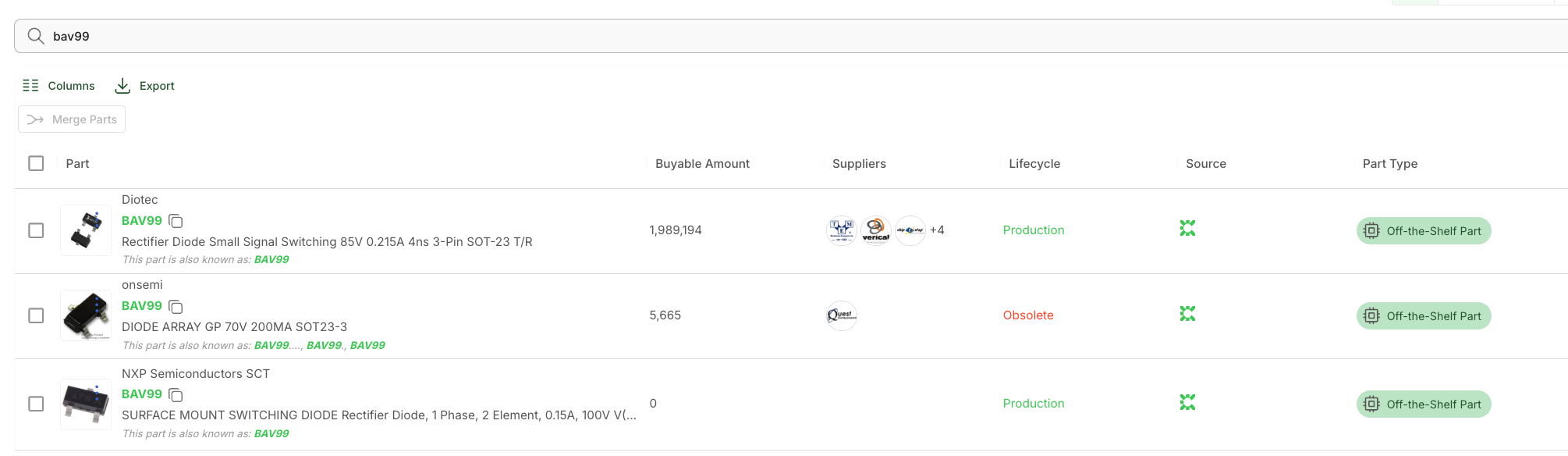
Status Definitions for Part Status (When clicking on the Parts tab)
Buyable Amount - These are parts that are currently buyable with listed pricing from distributors/suppliers.
Suppliers - These are the available suppliers for this part according to our data.
Status Definitions for BOMs
Needs RFQ- Whether due to supply, manufacturer, or unknown LT/cost, this part will require you to submit an RFQ
Buyable - These are parts that are currently purchasable with listed pricing from distributors/supplier.
On Hand - These parts are currently on hand in your Cofactr warehouse inventory.
Do not place - Ignore this and don’t use it in your manufacturing within Cofactr.
Ignore - Same as DNP but when you export a spreadsheet with this status on parts it doesn’t say DNP.
No Match - Cofactr does not recognize this part. If you have a No Match part in a BOM and want that part to be a part of a Program, you will need to fix the part first so it maps into the Program.
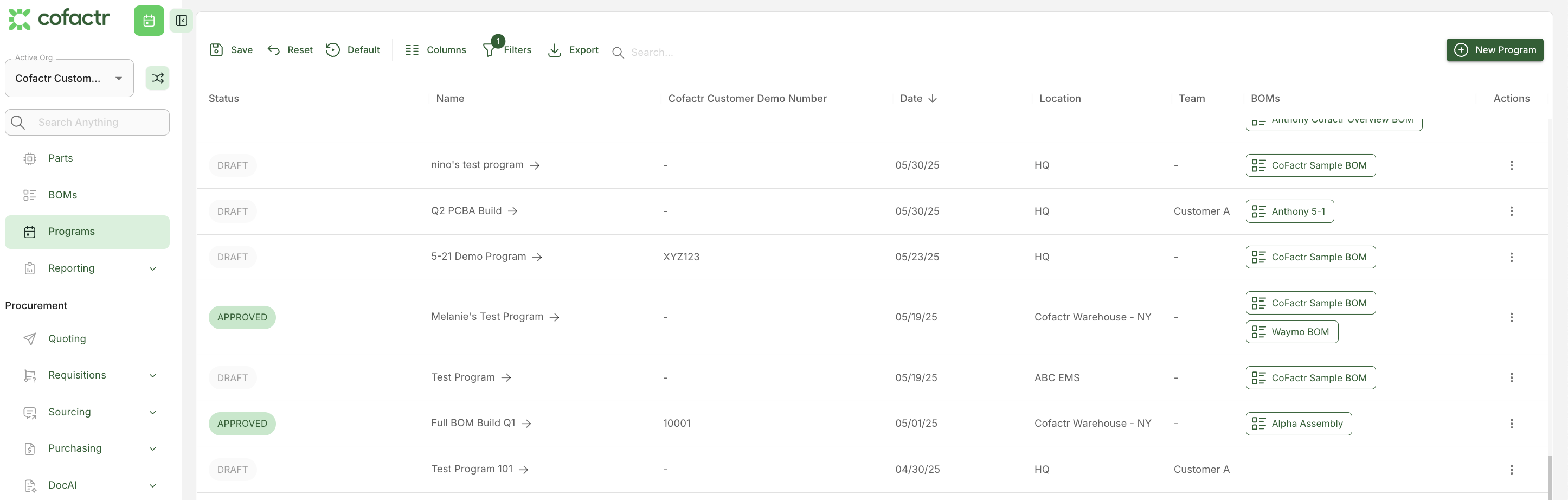
Status Definitions for Programs (Not clicking into an individual Program yet)
Draft: This program has not yet been approved.
Approved: This program has been approved.
Complete: This program is complete.
***Approving/Unapproving/Completing a Program is ONLY for internal communication for you and your organization. These statuses do not notify Cofactr of any changes.***
Status Definitions for Programs (Having clicked into a specific Program)
Include: Include represents what will/will not be included in your Program.
Include: This part will be included in your program.
Part will be provided by my mfgr/another source/ignore this part: Statuses that you will only see under "Include" if you have manually chosen one of these options. If you choose one of these options, this part will not be included for anything related to the program (kits, etc).
I'll Ship this to Cofactr: You are consigning this part to us and will not be purchasing it through Cofactr.
Source: Source represents what is the available supply in the market with associated icons that let you know total inventory in the market, as well as any RFQs you have sent on this part in the program.
Buy: Buy represents the purchases you have made/or will make against this part in this program, including open carts, ordered carts, completed carts, and if you need to add the part to a cart to start the order process.
Stock: Stock represents total stock in this program, both due to stock that has been allocated to this program as well as stock that needs to be ordered to hit the qty needs.
Kit: Kit represents the status of this part in the program related to kitting. It will let you know if the part has been, or has not been, included in a kit that is associated with this program.
Status Definitions for Sourcing (RFQs & Supplier Quotes)
RFQs
Cancelled: This refers to an RFQ that has been cancelled by a member of our team, and/or by request from you as the customer.
In Progress: In progress means our team has received your RFQ but it has not yet been sent out to a supplier.
Sent: This means our team has sent your request to suppliers and it awaiting a response.
Quotes Received: This means that you have received a response from a supplier. Once received, you can approve a quote to purchase it, or reject a quote to signal you do not want to act against it.
No Bids: This means that suppliers no bid on your quote, often due to no stock availability.
Supplier Quotes
Received: A response has come back from your RFQ and now you can review and decide if you want to approve or reject it.
Approved: You decided to accept/approve the quote, this makes the quote available for purchase/buyable.
Rejected: You decided to deny/reject the quote.
Expired: The quote has gone past its expiration date and is no longer valid.
Status Definitions for Orders
Ordered Carts (Main Page)
Requested: You placed an order and now there is an open request to our procurement team to place the order with the supplier.
Approved: Our team has received the order and has placed it with the requested suppliers.
Rejected: Our team rejected the order, often due to a request from the customer due to accidental order.
Supplier Orders (Main Page)
Processing: You have submitted the order and it has been sent to our procurement team to have a PO placed to the supplier.
Sent: The PO has been sent to the supplier.
Confirmed: The supplier has confirmed the order.
Shipped: The supplier has shipped the order.
Received: The shipment has been received at the ship to location.
Status Definitions for Kit Lines (Clicking into an individual kit)
Unavailable: This means that the part is unavailable, meaning you do not have it in stock, or need to take action against this part to resolve it (at a different Cofactr facility than the one you selected to kit from, allocated to a different program/kit, etc.)
Expected: This part has been ordered in the Cofactr platform and is expected inventory.
On Hand: This part is in your inventory, but typically requires a handling task before it ships (split, splice, reel, etc).
Ready to Pack: This part is in your inventory and is ready off the shelf (no handling task required) OR all handling tasks have already been completed.
Packed: This part has been packed into your kit.
Shipped: This part has shipped as part of your kit.
Delivered: This part has been delivered as part of this kit to its destination.
Not in Facility: This part is in a completely different facility.
Quarantined: This part was quarantined in your inventory making it unusable.
Status Definitions for Shipments (Ship to Warehouse)
Received: This shipment has been been marked as delivered by the courier.
Shipped: This shipment has left where it's coming from and is headed to the final destination (no longer in the hands of the Ship From facility).
Draft: Shipment has not been created but not yet approved and shipped.
Ingested: This shipment has been received AND stock lots added to your inventory.
Processing: This shipment is in the process of being ingested by our team.
Status Definitions for Stock Lots
Expected: This part has been ordered and no delivery has happened yet.
On Hand: This stock is on hand in your orgs inventory.
Quarantined: This stock is not usable at the moment and would need to be unquarantined to use in a build/kit.
No PNP SMT Part: This stock must be handled as a hand placed item and cannot be put into a PNP machine.
No Stock: This stock lot has been consumed or otherwise deleted/trashed.
Written by Melanie Reeves