Auto-Replenish: Automatically Reorder Stock When It Runs Low
Last updated: June 15, 2026
Overview
If you store parts at Cofactr and want to keep a certain amount in stock at all times, Auto-Replenish takes the monitoring off your plate. You set a minimum quantity for a part, and when your stock drops below that level, Cofactr automatically builds a cart with your reorder quantity and sends you an email so you can review and approve it. Your team can focus on reviewing and approving rather than tracking.
How It Works
You create an Auto-Replenish point for one or more parts and set a minimum quantity and a reorder quantity.
Every night, Cofactr checks your stock levels against your Auto Replenish points.
If a part has dropped below its minimum, Cofactr creates a cart with the reorder quantities already filled in.
You'll get an email with a link to the cart.
You review the cart and submit it for approval like any other order.
Important: Auto-Replenish never places orders on its own. It builds the cart and lets you know it's ready, but nothing gets purchased until someone reviews and approves the cart. It works within your existing cart and approval workflows, so nothing changes about how orders are processed once the cart is submitted.
Who Is This For?
Auto-Replenish is ideal for teams that:
Maintain standing inventory at Cofactr's warehouse.
Order the same parts repeatedly across builds or programs.
Want to cut down on the manual overhead of monitoring stock and creating routine replenishment orders.
Creating an Auto-Replenish Point
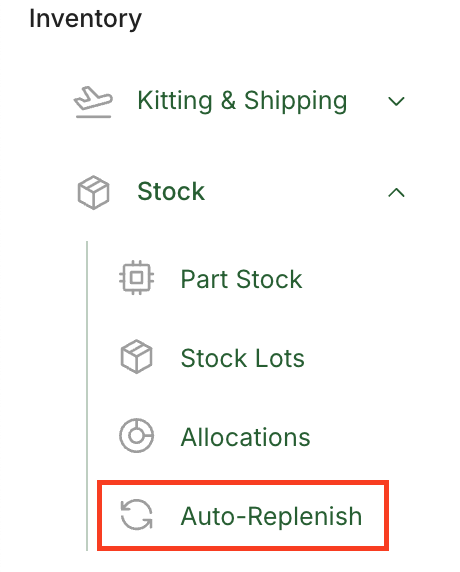
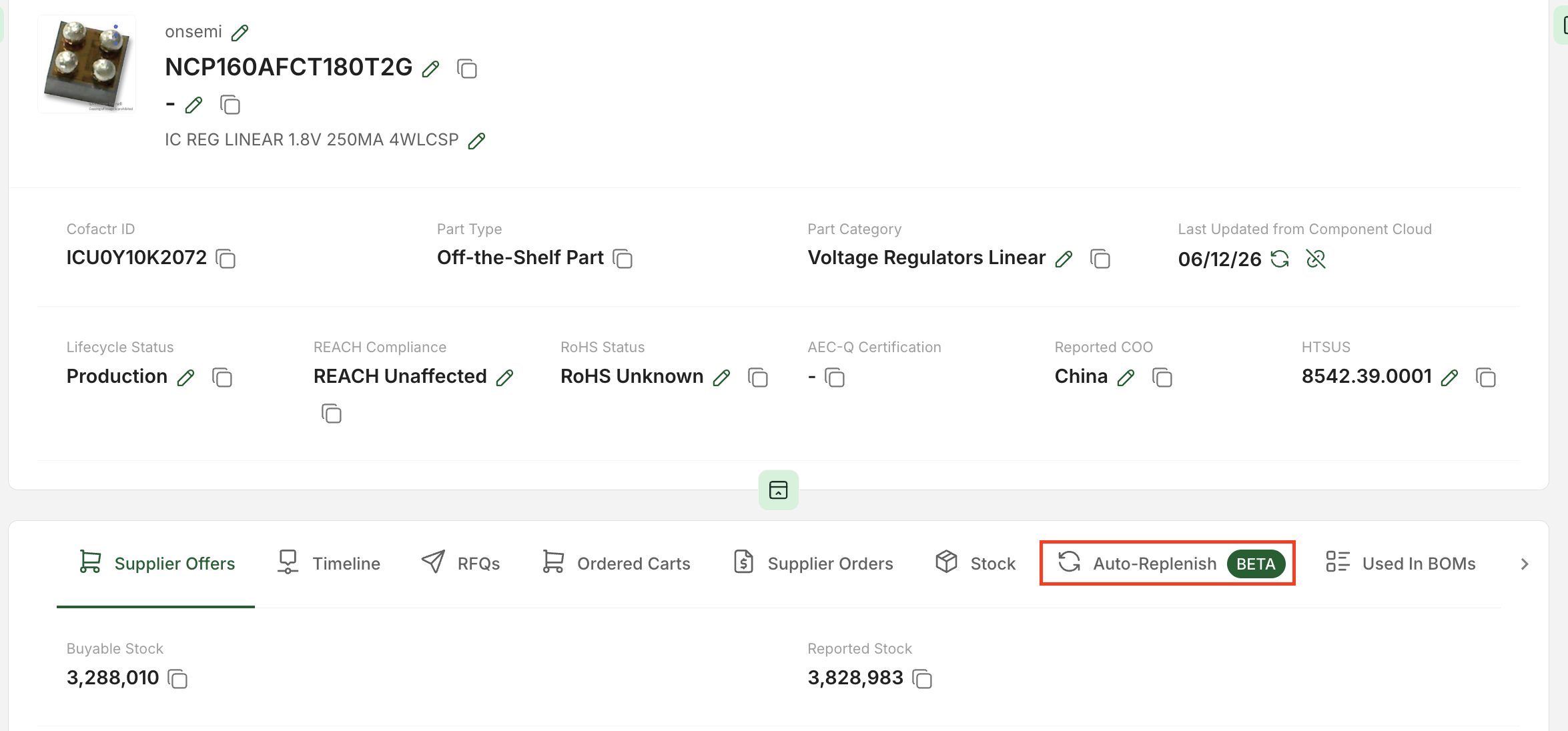
There are two places you can create an Auto-Replenish point: from the Auto-Replenish view in the Stock app, or from a part's detail page under the Auto-Replenishment's tab.
From the Stock app:
From the Part detail page:
When you create one, here's what you'll set up:
Parts (from the stock view) - Pick one or more parts. If you pick a group of alternates, their stock counts get combined, so you're covered as long as you have enough of any of them.
Facility - Choose the facility where you want stock monitored, either Cofactr -CA or Cofactr-NY.
Minimum quantity - The stock level that triggers a reorder.
Reorder quantity - How much you want to buy each time stock drops below the minimum. For example: if stock drops below 100, buy 500 more.
Team and Program (optional) - You can scope the rule to a specific team and/or program, or just leave these blank if you're not using teams.
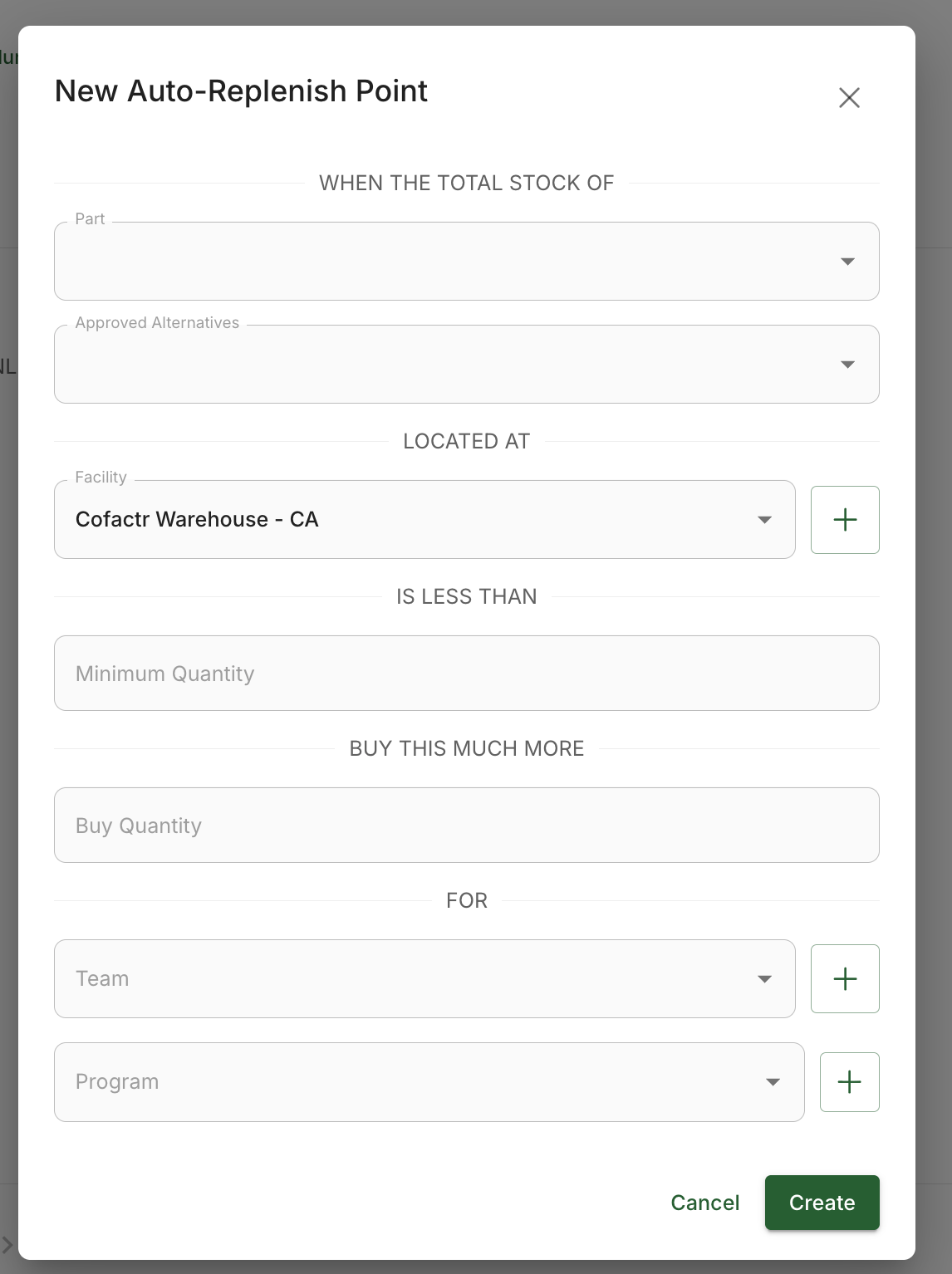
Scoping by Team and Program
Auto-Replenish follows the same team and program rules as the rest of the platform:
A rule scoped to a team only counts stock owned by that team. Stock belonging to other teams won't count toward that rule's minimum.
Stock owned by a team won't count toward a teamless Auto-Replenish point either.
You can create as many Auto-Replenish points as you want for the same part, so each team can set up their own rule with their own minimum and reorder quantity.
Notifications and Cart Behavior
When a threshold is crossed, the system creates one cart per team with all of that team's parts that need replenishing.
Whoever created the Auto-Replenish point gets an email with a link to the cart so they can review and approve it.
If the cart sits for a few days and more parts drop below their minimums, those parts get added to the same open cart. Each team will only ever have one open Auto-Replenish cart at a time.
You'll keep getting reminder emails until the cart is taken care of.
Current Limitations
Auto-Replenish points are created one part (or alt group) at a time. There isn't a way to bulk-create rules from an entire parts list, BOM, or program just yet, but that's planned for a future release.
Replenishment runs on the nightly stock check, so a reorder cart will show up the day after stock crosses the minimum rather than instantly.
Frequently Asked Questions
Will Cofactr purchase parts automatically without my approval? Nope! Auto-Replenish builds the cart and notifies you, but someone on your end has to review and submit it before any purchasing takes place.
What happens after the cart is generated? It flows through your normal cart and approval workflow. If your org uses order approvals, those still apply.
Can I set different rules for the same part? Yes! Minimums are defined at the part level, and you can have multiple Auto-Replenish points per part, for example one per team, each with its own minimum and reorder quantity.
Can I use this for a whole BOM or program at once? Not yet. Rules are currently set per part, but monitoring an entire list is on the near-term roadmap.
What if I want a buffer of safety stock for long lead time parts? This is exactly what Auto-Replenish was built for. Set the minimum to your safety stock level and the reorder quantity to your preferred buy amount, and Cofactr will prompt a reorder any time you dip below it.
If you have any additional questions on Auto-Replenish, please reach out to success@cofactr.com.