Allocating Inventory
Last updated: May 4, 2026
Allocations are a way to tag and reserve inventory for a specific program or use. This stock will still show in your inventory, but won't count towards available stock for future projects or BOMs.
When you purchase from a BOM, those parts will arrive without any allocation designated, and can/will be consumed by other programs/orders etc. When you purchase from a program, those parts will be automatically allocated (reserved) to that program, and all the order info, etas, etc. will be captured and organized within your program view.
Updating/Creating Allocations
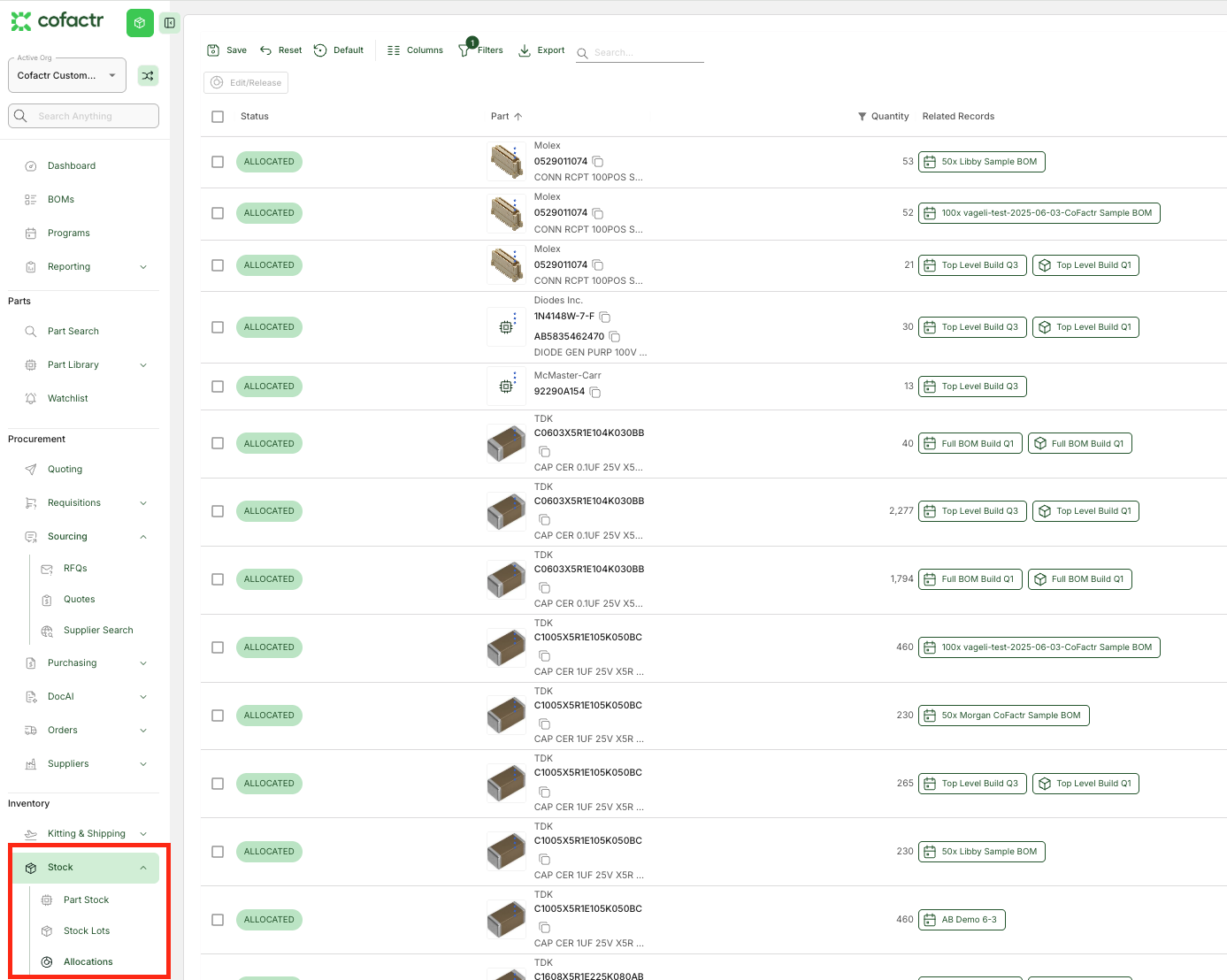
There are a handful of ways you can update or add allocations. First, you can update or add new allocations from any of the "Stock" views. In the screenshot below, we are viewing allocations under Stock > Allocations. All allocation information is available from the "Allocations Tab."
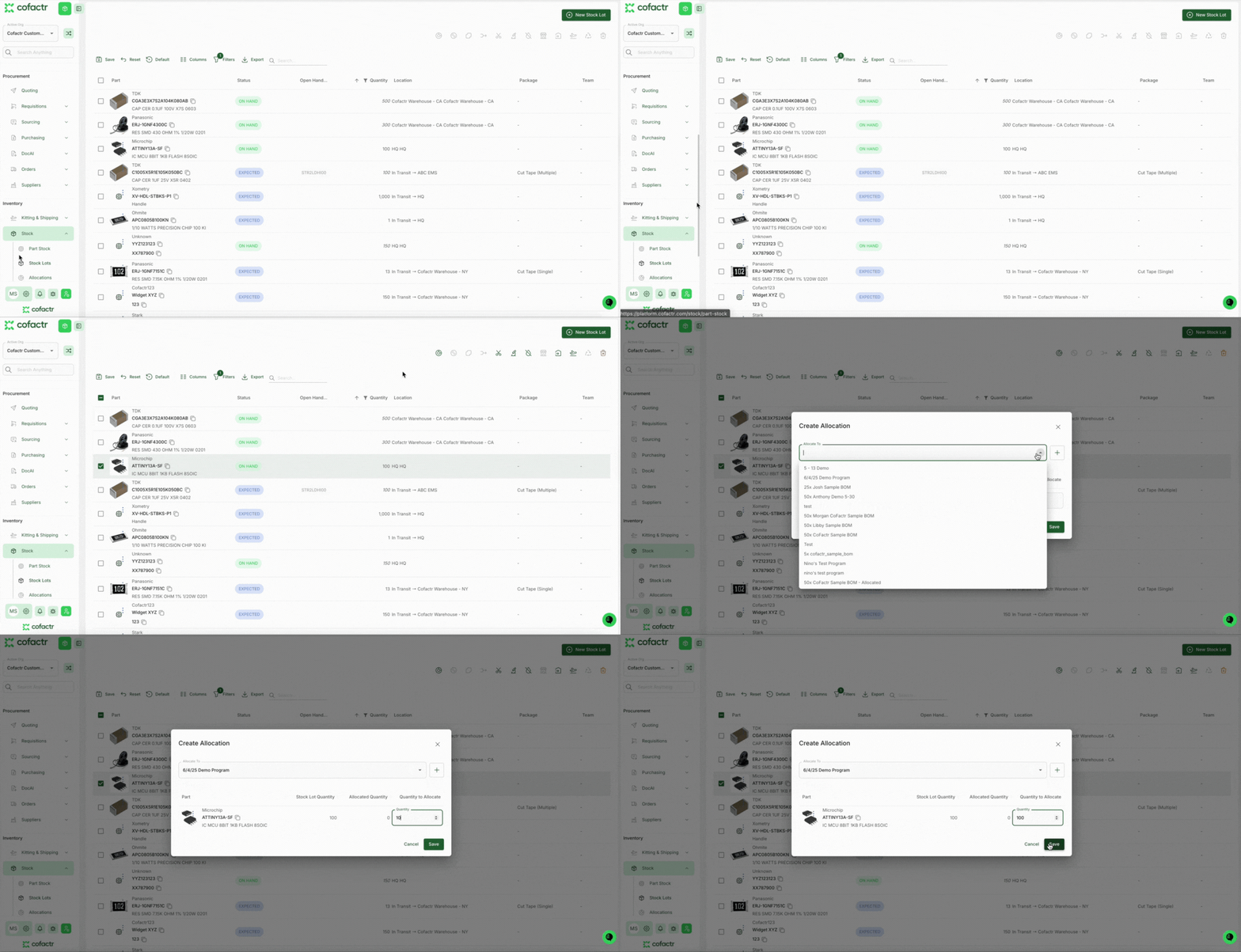
Another way to update allocations is by going to Stock > Stock Lots, and selecting the part and going to the allocations button at the top (see GIF below). This will bring up a view of the parts, where you can add an allocation.
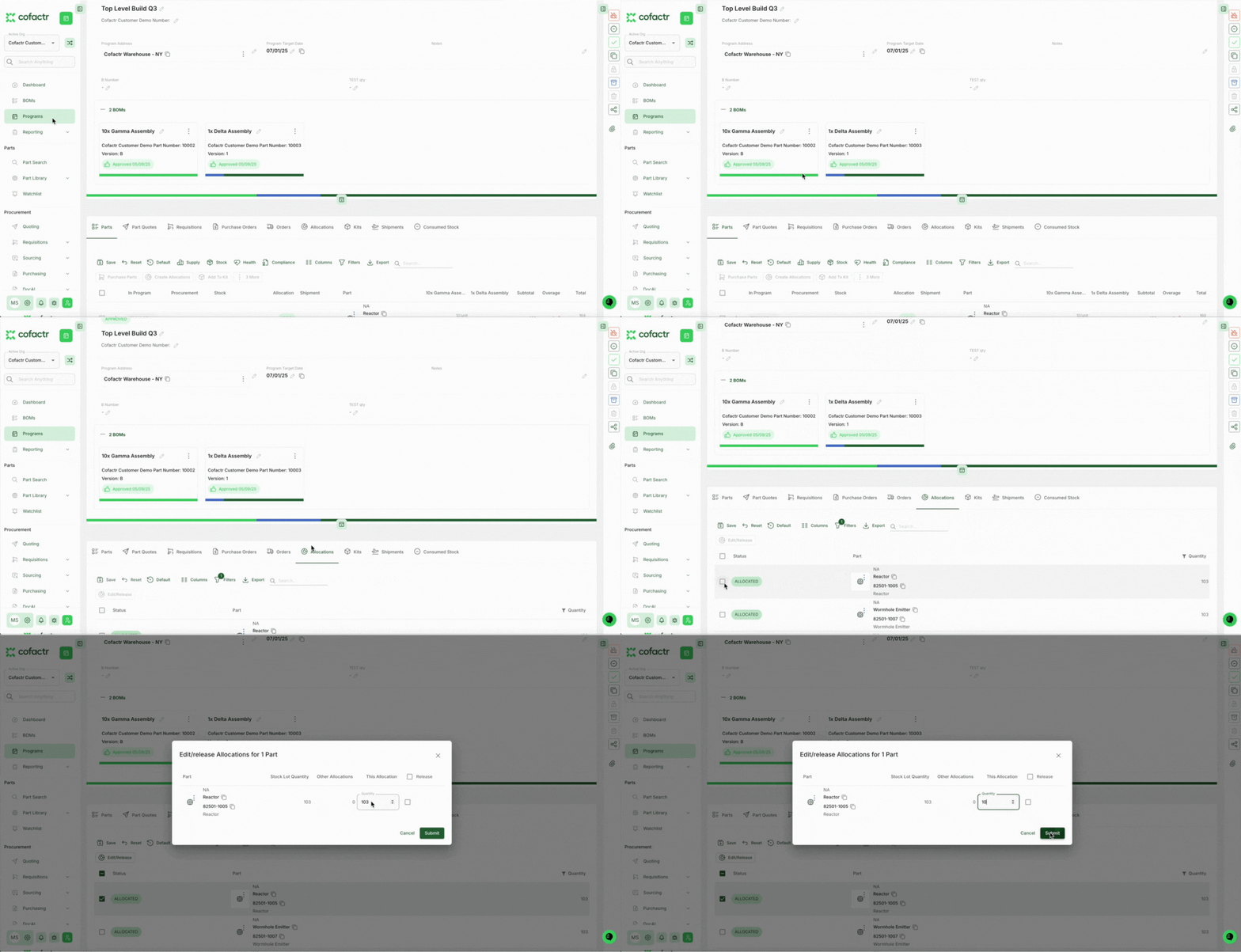
Another way to update allocations, is by going to Programs and selecting the program you want to change allocations in. From here, click on the Allocations tab, and select the parts you want to edit, then click Edit/Release, and enter in the desired quantity you want to release. This will make those parts available to then reallocate to another program.
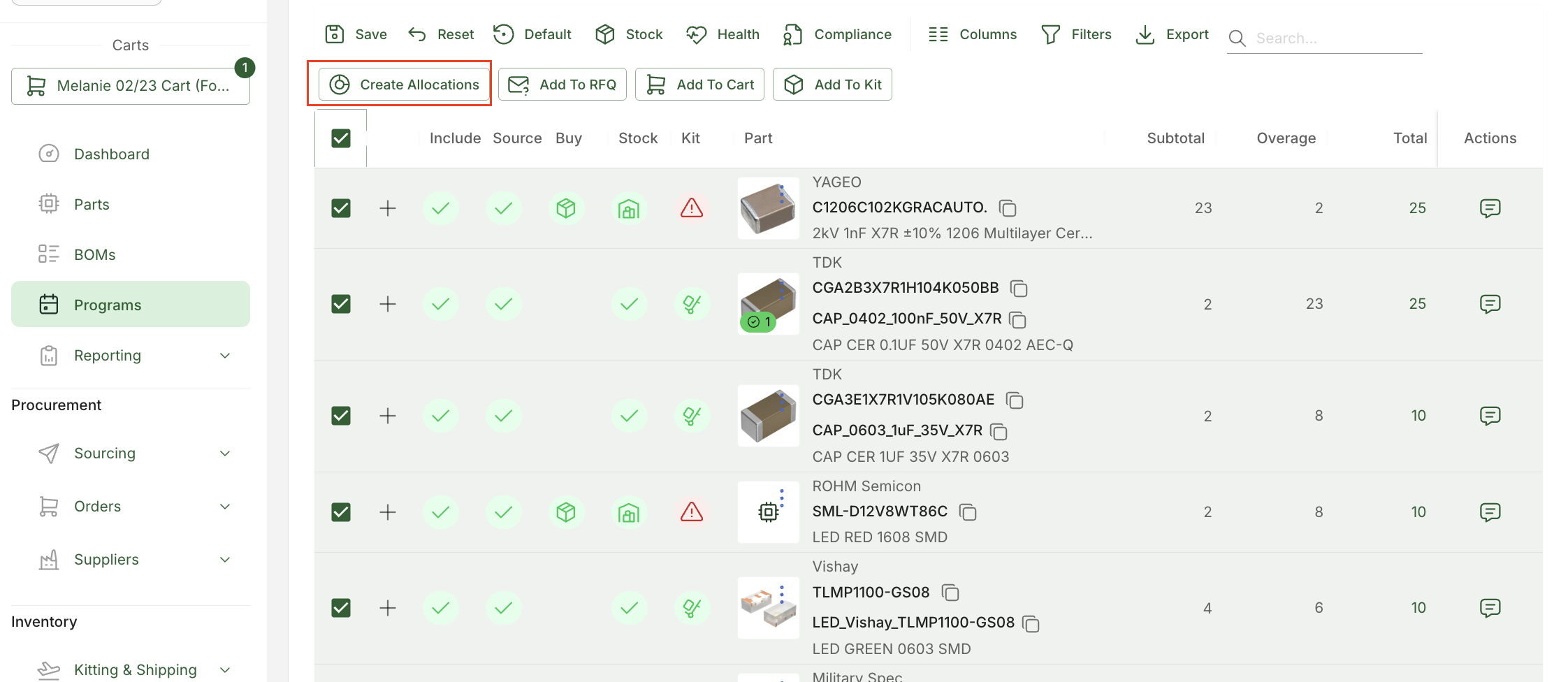
Lastly, you can create allocations from a Program. First, open up the program you wish to create allocations in. Your Stock column lets you know what you have in stock for a part, as well as where it is allocated. Simply over over each part's icon in the Stock column to see the allocation status
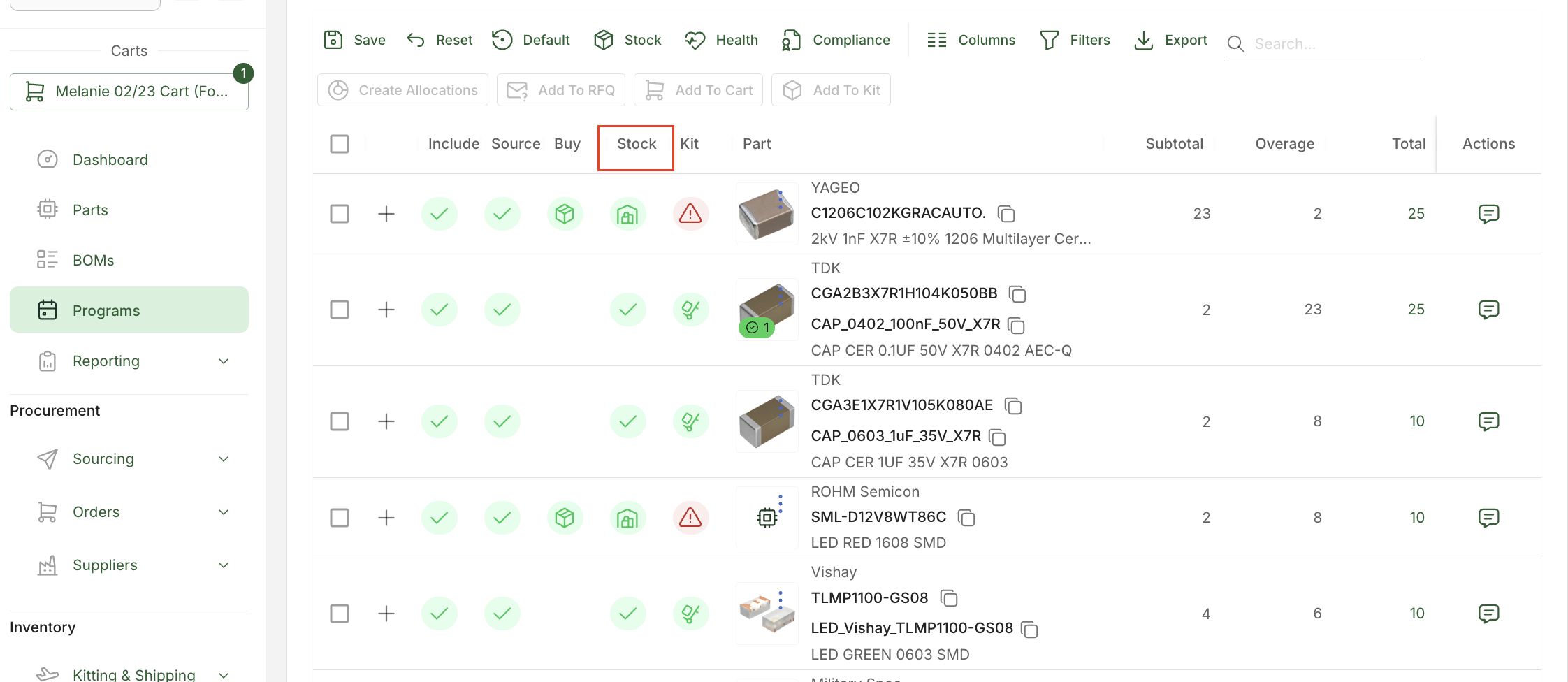
Next, select which parts you wish to allocate inventory to, and click "Create Allocations."
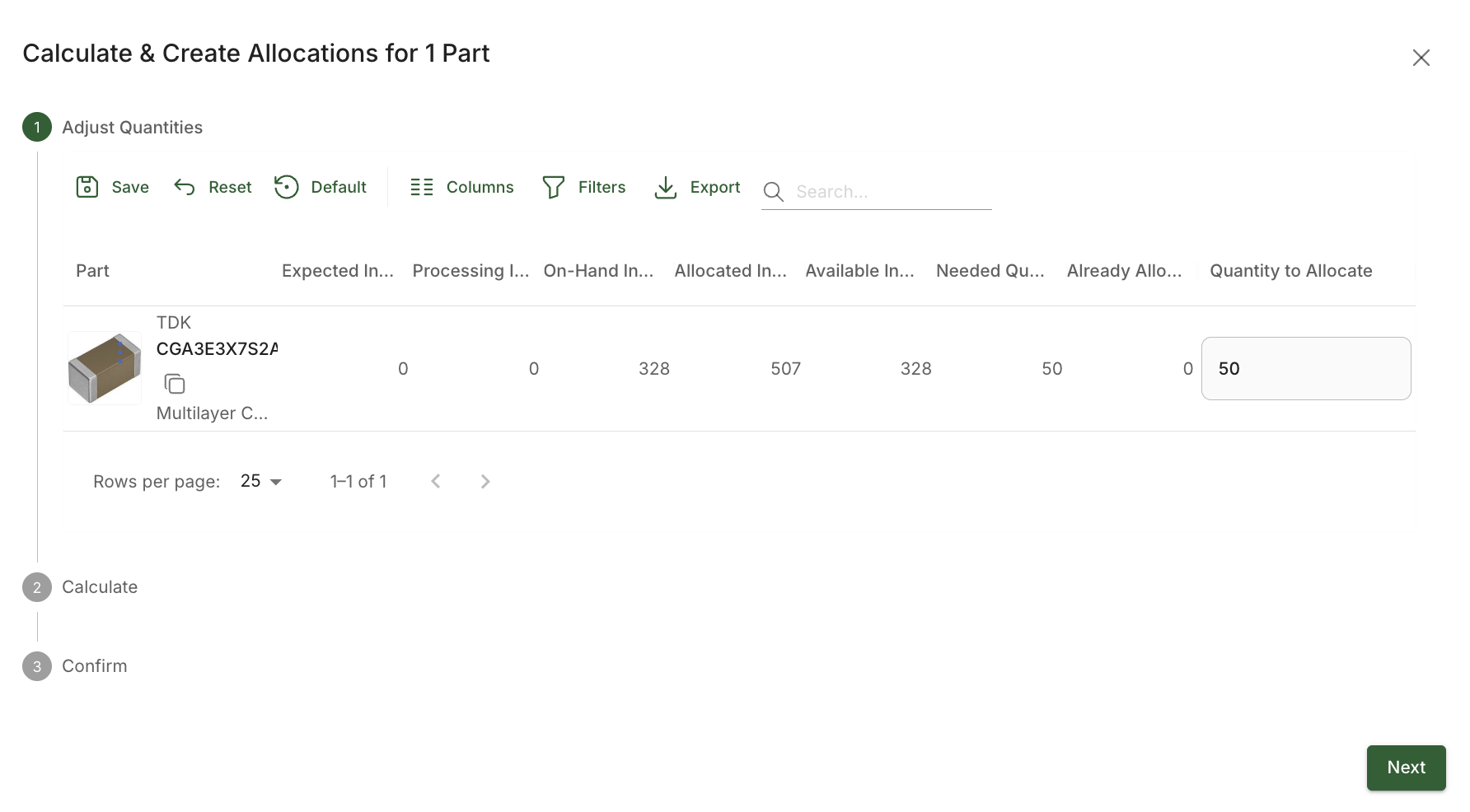
Once you've clicked "Create Allocations," you can then adjust how many parts you want to allocate. By default, the system will automatically create the allocation quantity based on your desired allocation. If you need to change the quantity to allocate, simply adjust the amount under "Quantity to Allocate." Once you have your allocated quantities, click "Next."
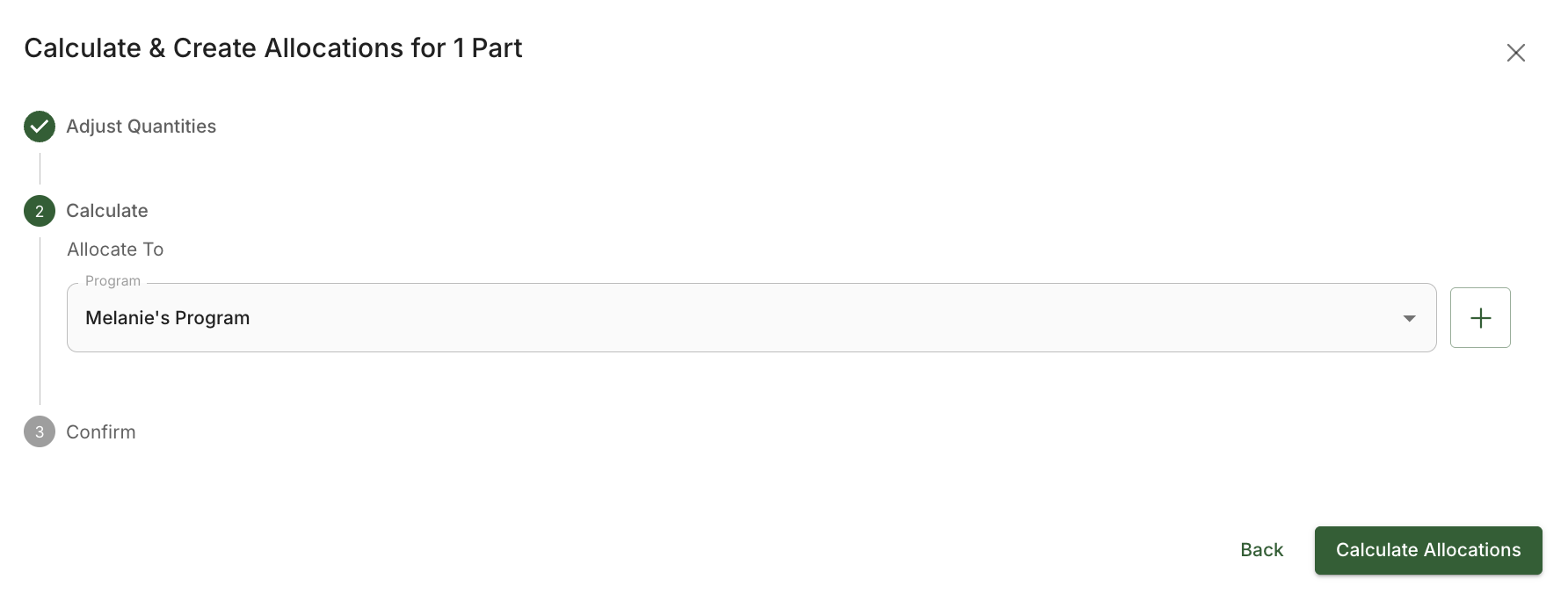
Next, select which program you want to allocate to. Note: the system automatically chooses the current program you are working in. Once your program is selected, click "Calculate Allocations."
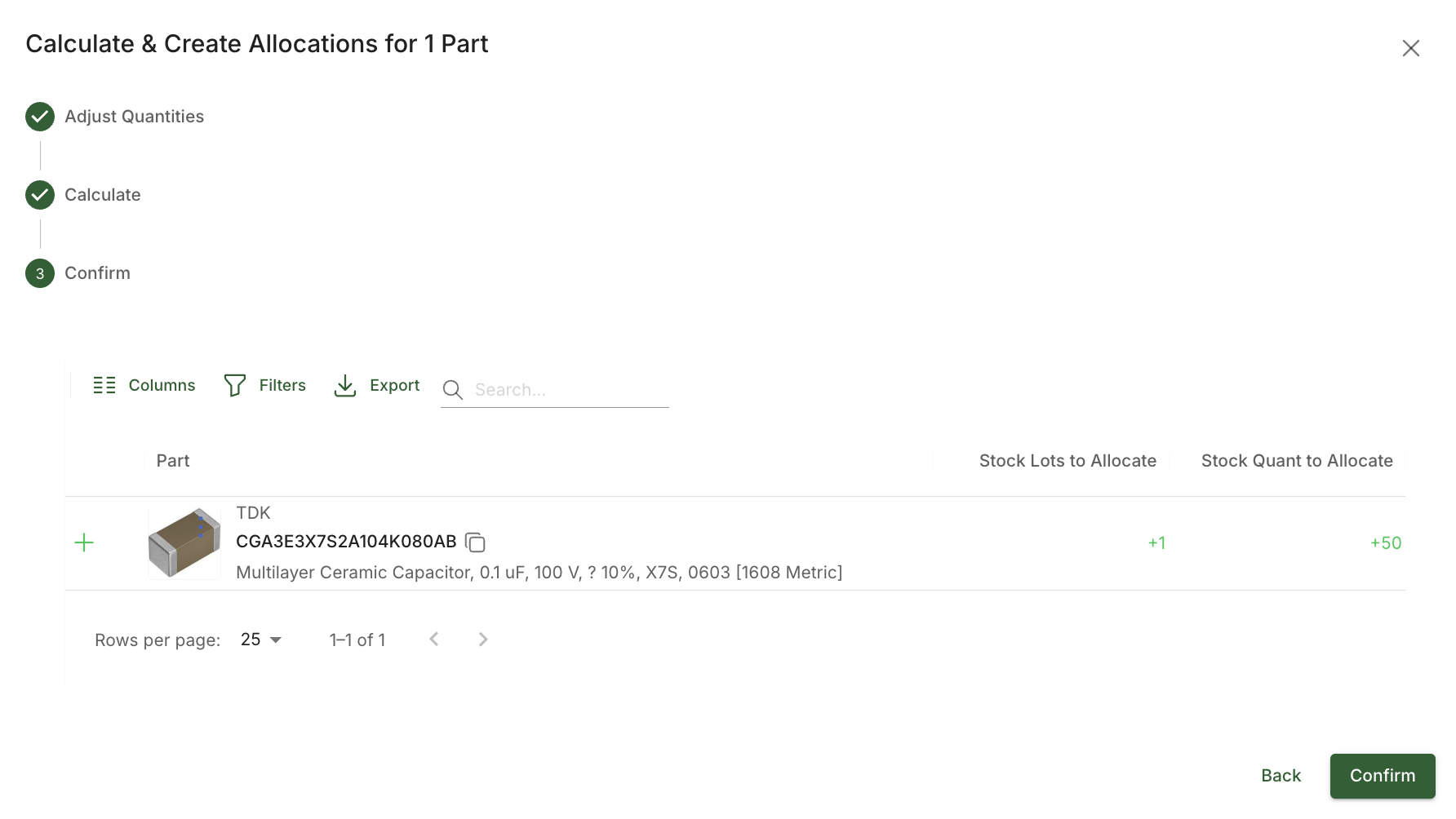
Once you click Calculate Allocations, you will see Stock Lots to Allocate and Stock Quant to Allocate, showing you what has been allocated. Click "Confirm."
Once you click confirm, your Parts screen will show you the change for the parts you allocated in the Stock column by the change of icon.
Releasing/Editing Allocations from a Program
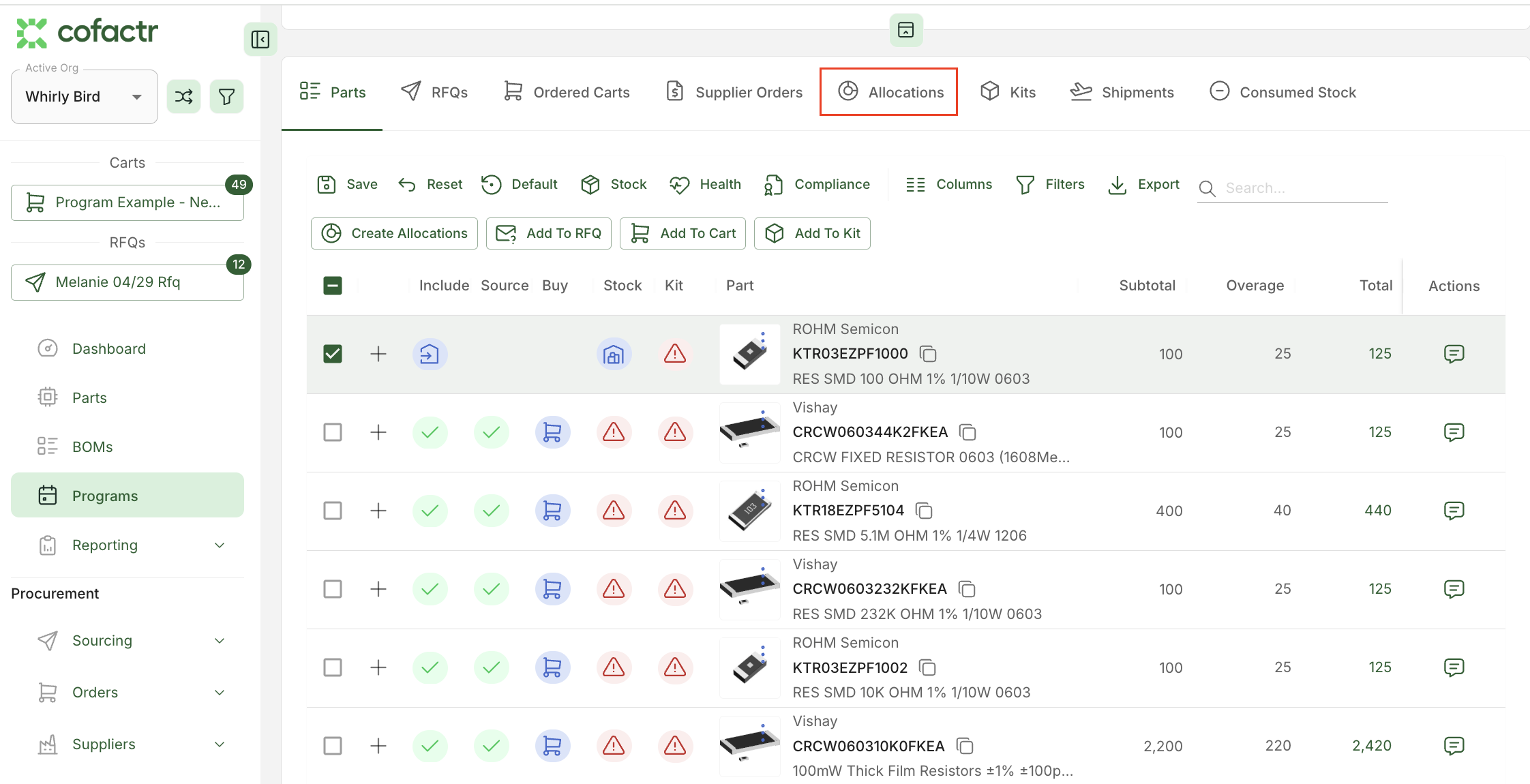
If you decide you no longer need specific parts allocated to the program, simply click on Allocations in the top row, and select the parts you wish you change allocations on, and select Edit/Release.
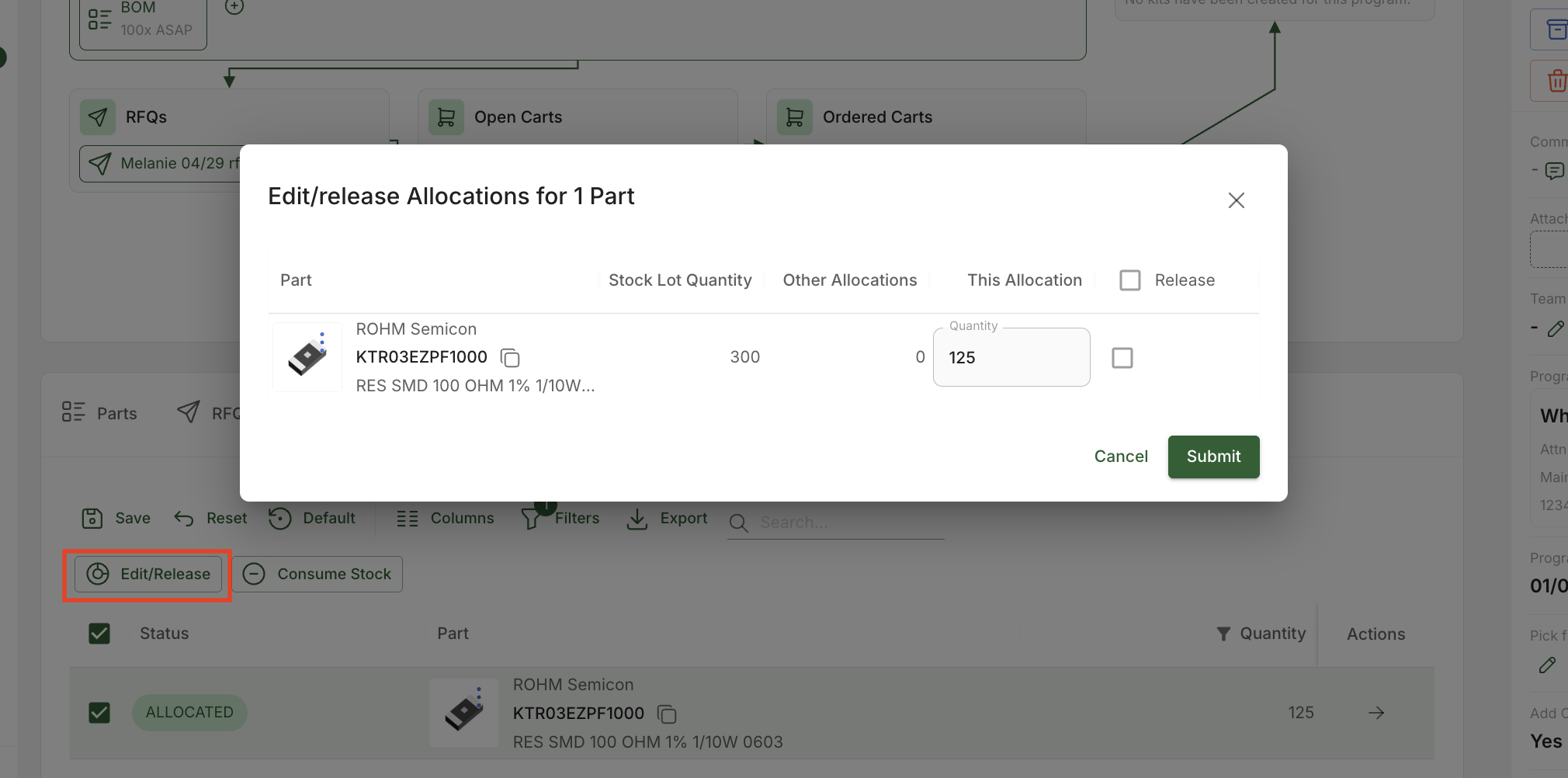
Once you click Edit/Release, you will be able to change the allocation. Clicking the "Release" checkbox and then Submit will release all allocations.
Note: If you want to use these parts for a separate kit, after releasing allocations, you may need to recalculate kit line allocations in your kit to see the updated available quantity. Select the affected kit line and click "Recalculate Kit Line Allocations" to refresh the allocation data.
Common Allocation Issues and Solutions
Are your parts showing "Not in Stock" despite having inventory? There would be a couple of reasons this is happening.
Parts are already allocated elsewhere: Your inventory may be allocated to other programs. Check the stock lot's "Allocations" tab to see where it's currently allocated.
Parts haven't been ingested yet: If you recently shipped parts to Cofactr (purchased outside of Cofactr), they may still be in the ingestion process and won't be available for allocation until complete (you can tell this is the case if the quantity listed on the stock lot page is italicized).
Parts show allocated in program but unavailable in kit: This can occur when stock lots have PNP (pick-and-place) restrictions that conflict with your location settings. Some stock lots may be marked as "non-PNP" due to short tape lengths, making them unsuitable for automated placement machines. If your location settings don't allow non-PNP parts, these allocations won't transfer to kits properly.
Solution: Check individual stock lots to see their PNP status, and manually add the stock lots on the line level in the kit.
Parts showing as unavailable in kits despite having inventory: Some of our customers have stock split between both the NY as well as the CA warehouse. If you are kitting from CA warehouse, but one of your parts is actually in NY warehouse, you will need to make your "Kit From" location both the CA and NY Cofactr warehouse. After changing the "Kit From" locations, select the kit line and click "Recalculate Kit Line Allocations" to update the available quantity.
Part number mismatches preventing allocation: If parts appear unavailable due to slight part number variations (like extra suffixes), check if you need to add alternates in your Program, then re-add the parts to your kit after setting up the alternates.
Insufficient allocated quantity: Even if parts show as allocated to your kit, verify you have enough quantity allocated. You may need to manually add additional stock lots if your current allocation doesn't cover your full requirement.
If you have any questions on allocations, please reach out to your team at success@cofactr.com!
Written by Anthony Blair and Melanie Reeves