Managing Notification Preferences
Last updated: January 30, 2026
Stay informed about important updates in Cofactr by customizing your notification settings. You control how and when you receive alerts about your procurement activities.
Accessing Notification Settings
To manage your notifications, navigate to Settings → User Settings → Notifications.
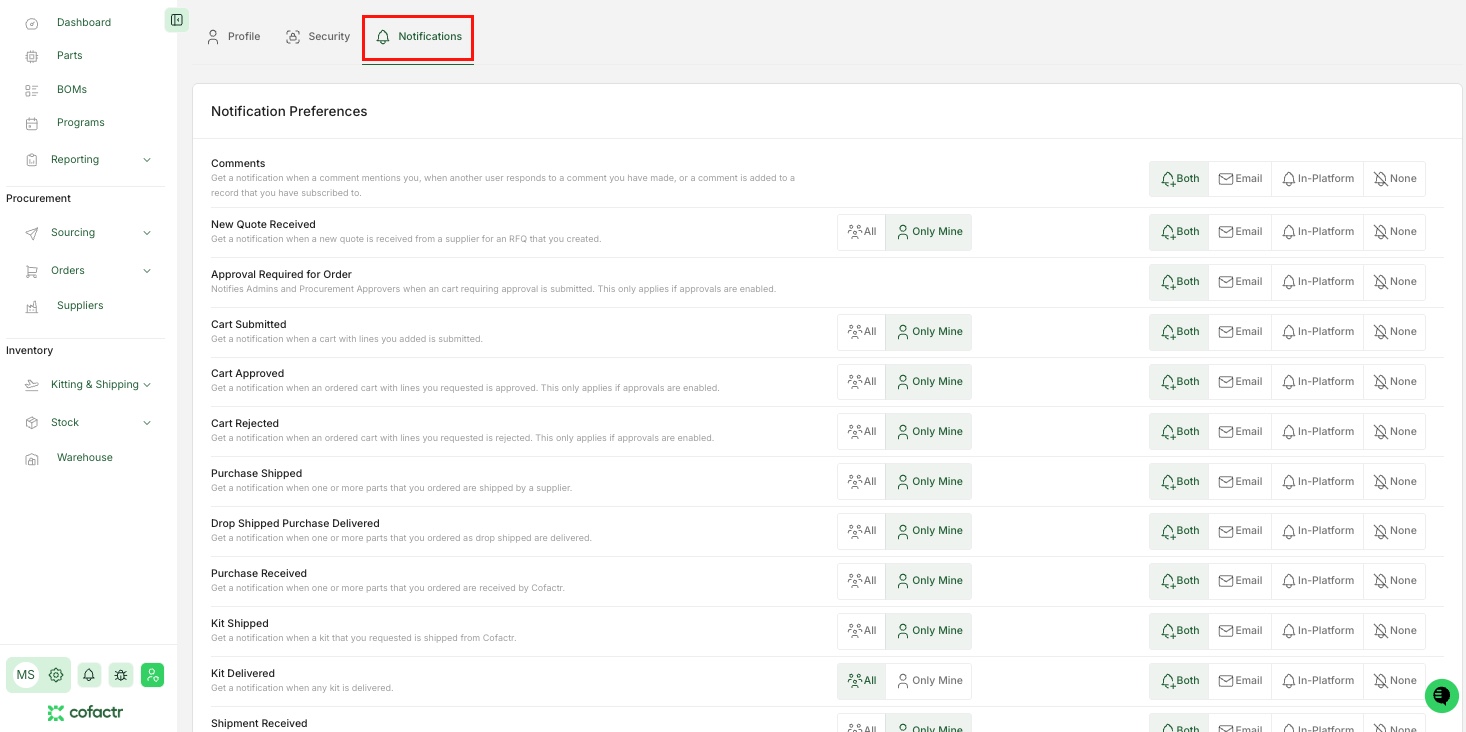
Notification Recipient Filters
Many notification types allow you to choose which activities trigger an alert:
All - Receive notifications for all activities of this type across your organization, regardless of who initiated them
Only Mine - Receive notifications only for activities you directly created or are involved with
Notification Delivery Options
For each notification type, you can choose how you want to receive alerts:
Both - Receive notifications via email and in-platform (default setting)
Email - Receive notifications only via email
In-Platform - Receive notifications only within Cofactr
None - Turn off notifications for this activity
All notification preferences default to "Only Mine" and "Both" (email and in-platform) when you first start using Cofactr. Adjust these settings anytime to reduce noise or increase visibility based on your role and responsibilities.
Available Notification Types
Notification Type | Description |
Comments and Mentions | Receive alerts when someone mentions you in a comment, responds to a comment you made, or adds a comment to a record you are subscribed to. |
New Quote Received | Get notified when a new quote is ready from a supplier for an RFQ you created |
Approval Required for Order | Notifies Admins and Procurement Approvers when a cart requiring approval is submitted. This only applies if approval rules are enabled for your organization. |
Cart Submitted | Receive an alert when a cart with lines you added is submitted. |
Cart Approved | Get notified when a cart you submitted is approved. This only applies if approvals are enabled. |
Cart Rejected | Receive an alert when an ordered cart you submitted for approval is rejected. This only applies if approvals are enabled. |
Purchase Shipped | Get notified when the parts you ordered are shipped by a supplier |
Drop Shipped Purchase Delivered | Receive an alert when the parts you ordered as drop shipped are delivered. |
Purchase Received | Get notified when parts you ordered are delivered to your specified Cofactr warehouse |
Kit Shipped | Receive an alert when a kit you requested is shipped from Cofactr. |
Kit Delivered | Get notified when your kit is delivered to your specified location. |
Shipment Received | Receive an alert when Cofactr receives a shipment you sent directly to Cofactr. This is often existing parts going to the Cofactr warehouse for storage or kitting services. |
Unknown Parts to Identify | Get notified when Cofactr receives a shipment you created with parts that need to be identified. |
Shipment Received & Inventoried | Receive an alert when Cofactr finishes receiving and counting parts from a shipment you created. |
For any additional questions, please reach out to success@cofactr.com
Written by Morgan Seeton