Order Approval Settings
Last updated: January 21, 2026
Order Approvals
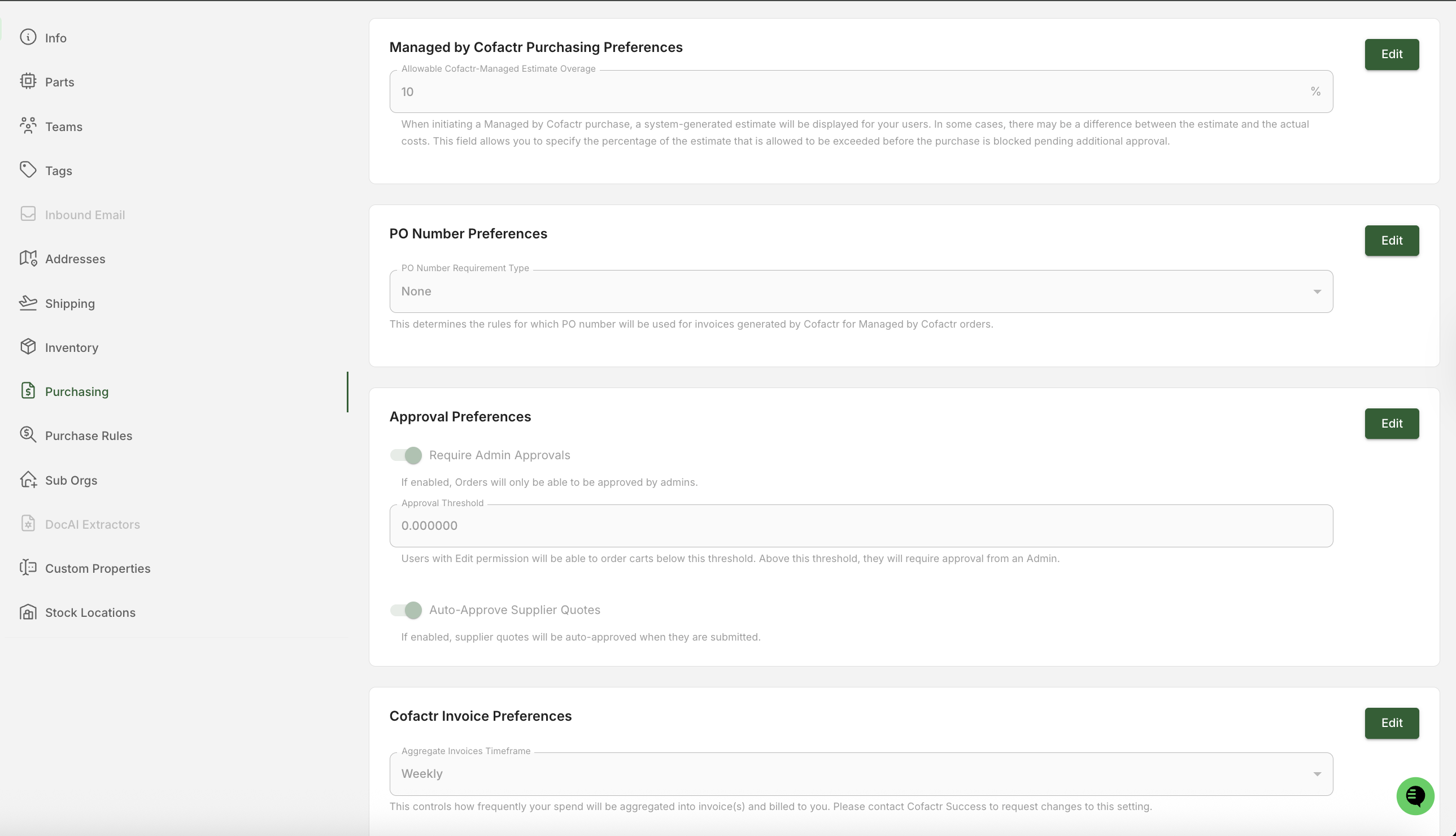
Cofactr allows you to set thresholds for orders to require approval. You can set an order threshold by navigating to Settings > Organization Settings > Order Preferences.
You can input a dollar value threshold, where orders over or under that amount need order approval.
Who Can Approve Orders
Orders can be approved by users with the Admin role or users with the Procurement Approver role. To learn more about roles and permissions, check out our "User Permissions" article.
Requesting Approval
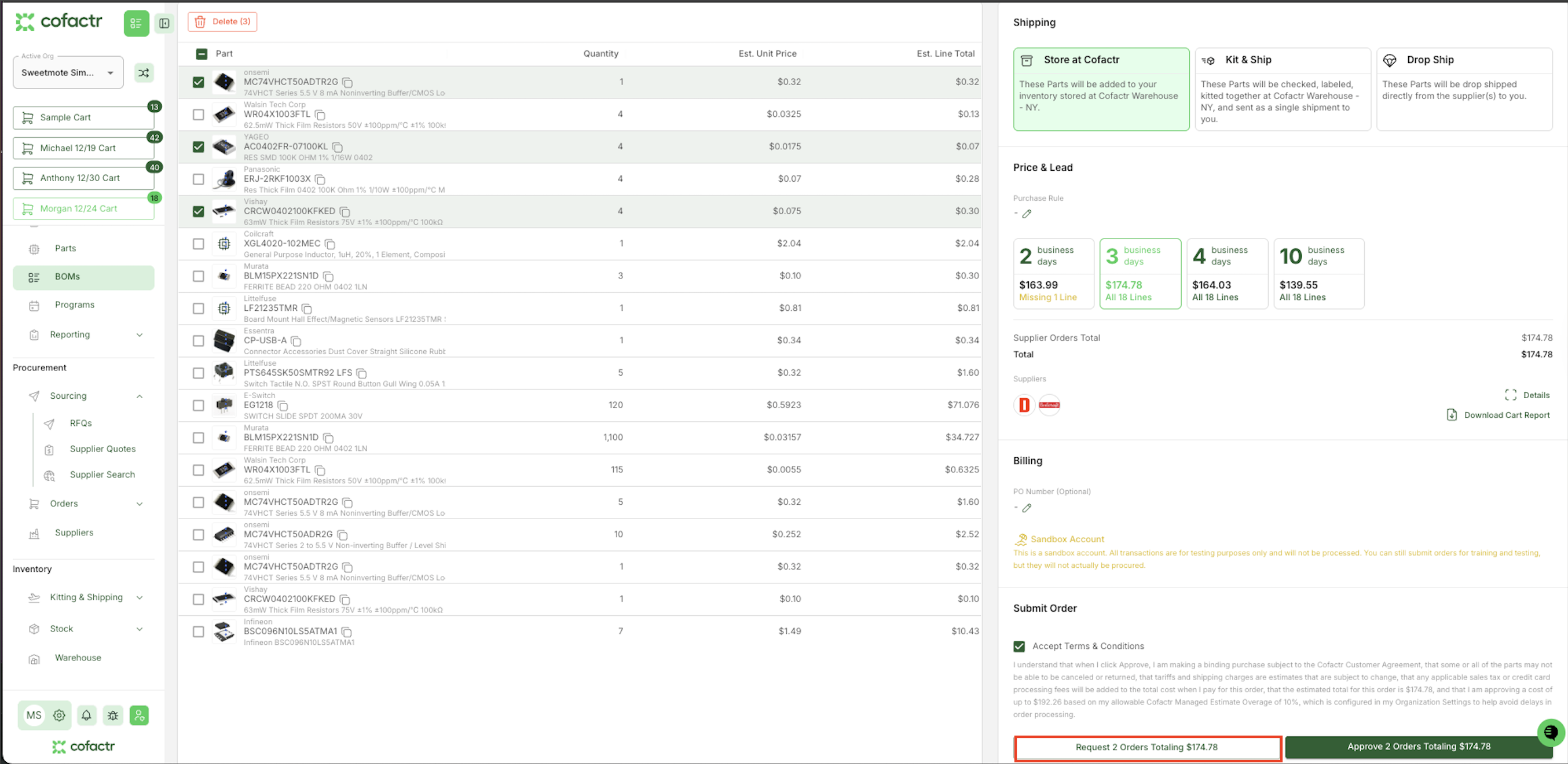
When users submit a purchase over the threshold amount, the final checkout button in the cart will show as "Request Approval" as shown below.
[Screenshot placeholder]
Approving Orders
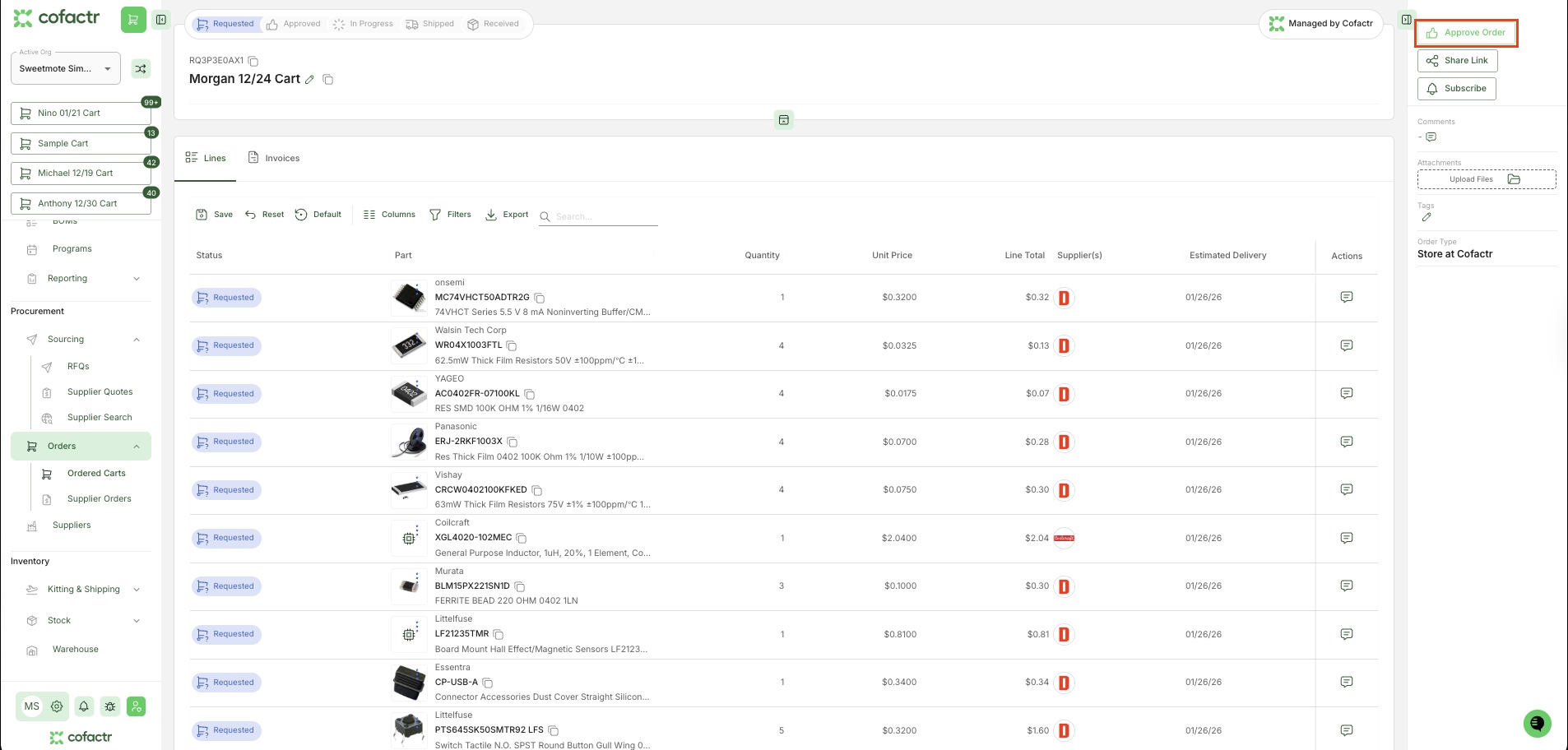
For users with approval permissions, approval requests will appear in the Orders app, under "Carts."
Select the cart request to open the detailed view. You'll see:
Cart name and status at the top
Status filters (Requested, Approved, In Progress, Shipped, Received) to track the order lifecycle
Lines tab showing all individual line items in the cart
For each line item: Part details, Quantity, Unit Price, Line Total, Supplier(s), and Estimated Delivery
Current status for each line (e.g., "Requested")
Click the "Approve Order" button in the top right to review the request and approve or deny it.
If you have questions about order approvals, reach out to success@cofactr.com for help.
Written by Morgan Seeton