Creating and Submitting an RFQ
Last updated: November 10, 2026
When submitting an RFQ, Cofactr asks for specific details upfront so our Procurement team can route each part to the right sources faster. This article covers what you’ll see when you create an RFQ, track it, and review quotes.
Creating an RFQ
Add parts to your RFQ cart.
You can do this from a Part, BOM, or Program by clicking "Add to RFQ"

From a cart, any parts that aren't available at the lead time you've selected will appear in the "Needs RFQ at Selected Lead Time" section at the top. Select parts you wish to RFQ and click "Add to RFQ"
Communicating your needs to our team
Set a Target price per part. It defaults to “Best available.” This is how you can tell our Procurement team if you're looking to hit a certain price. If you're looking for any stock on the market, leave as-is.

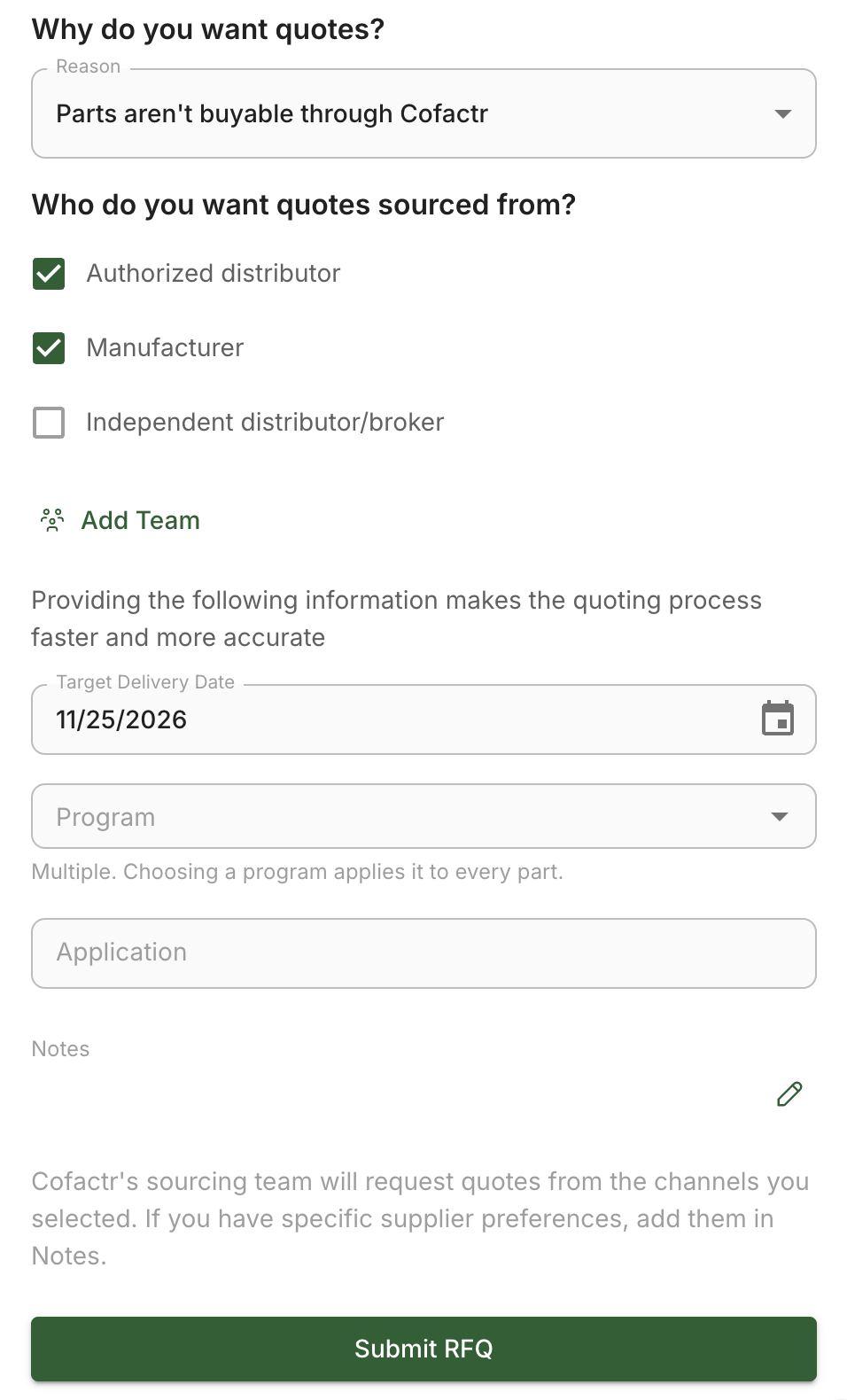
In the right-hand panel, answer Why do you want quotes?
Parts aren’t buyable through Cofactr
Better pricing
Better lead time
Under Who do you want quotes sourced from?, choose:
Authorized distributor (on by default)
Manufacturer (on by default)
Independent distributor/broker (off by default)
Add optional details: Target delivery date, Project, Team, Application, and Estimated annual usage. (Estimated annual usage appears only when the reason is “Better pricing.”)
If there are any additional details you'd like our team to be aware of, please include in the Notes section.
Click Submit.
Tips
Brokers are off by default. Turn them on only if you accept independent distributors.
If your need-by date is more than 6 weeks out, authorized channels are the better first choice.
Add notes for anything special. Cofactr’s team reads every note.
Tracking a submitted RFQ
All submitted RFQs can be found under Sourcing in the Procurement section of the Cofactr app. Click into the specific RFQ to see details and the status.
Program, Application, and Estimated Annual Usage (EAU only appears when "Better Pricing" is reason selected) can be edited in the right-hand panel.
Reviewing quotes
Some companies choose to have quote auto-approval turned on. This is an org setting under Purchasing in the Approval Preferences section. If this setting is enabled, you will be able to buy off the quote as soon as we receive them back from a supplier.
If you do not have quote auto-approval turned on, you can approve a quote from in-line in an open cart, in-line in the RFQ, and from the right hand panel of the quote itself.
In-line quote approval

Written by Phillip Gulley