Configuring the Cofactr On-Prem Agent
Last updated: September 15, 2025
Background
The Cofactr On-Prem Agent is a secure application that you can run in your own on-prem or cloud environment to allow the Cofactr workflow and integration engine to connect to systems such as databases or ERPs that you manage and that are not accessible via the public internet.
The on-prem agent is a lightweight Docker container that you can install on your own infrastructure. When the Docker container is started, it establishes a secure mutual TLS (mTLS) connection to an on-prem service running within the Cofactr platform and thereafter maintains a persistent connection with Cofactr. When an instance of your integration is deployed, you (or your Cofactr implementation team) can select the OPA as the connection method.
When an on-prem connection is used in the integration, the Cofactr communicates with the OPA on the private network using the established connection, which in turn communicates with your resource on the private network.
Data sent from the instance to the OPA through the on-prem service is encrypted using mTLS, and data is transmitted on OSI Layer 4 (transport layer). This allows you to send both HTTP and non-HTTP traffic through the OPA.
Note that the on-prem agent initiates the connection to the Cofactr platform, so you do not need to open any inbound ports on your firewall. The on-prem agent only needs to be able to make outbound connections to the Cofactr platform on ports 22 and 443.
Setting Up the Agent
To set up an on-prem agent, you will need a system on your private network that is capable of running a Docker container. This can be the same server that serves the database, filesystem or other resource you want to connect to, or a separate server on the same network that can access the resource. The on-prem container itself is very light-weight, generally consuming less than 100MB of memory and a small amount of CPU.
ℹ Important Note
The on-prem agent must be running 24/7 to maintain its connection to Cofactr. Ensure that you are installing it on a host that will be operating continuously (server, etc) and not a user's computer
Linux Install Instructions
Get your JWT token from success@cofactr.com or your implementation team
The container takes a set of environment variables to configure the connection to the Cofactr platform:
APP_HOSTis the hostname of the service running on the private network. For example, if you're connecting to a database that runs on a host with IP address10.1.2.3, enter that as theAPP_HOST.If you run the on-prem agent on the same host as the service you're connecting to, you can use the special hostname
host.docker.internalto connect to the host.host.docker.internalresolves to the internal IP address of the host running the Docker container.Note that
localhostor127.0.0.1does not work in this context, as it refers to the container itself.
NAMEis the NAME provided to you by CofactrAPP_PORTis the port on which the service is running (5432for PostgreSQL,3306for MySQL,22for SFTP, etc.).REGISTRATION_JWTis the JWT provided to you by Cofactr.
Start the container:
docker run \
--env APP_PORT=$APP_PORT \
--env APP_HOST=$APP_HOST \
--env "NAME=NAME" \
--env "REGISTRATION_JWT=$TOKEN" \
-t cofactr/integration-agent
Windows Install Instructions
The on-prem agent is a Linux-based Docker container, which naturally lends itself well to a Linux host. For ease of installation we recommend running the on-prem agent on a Linux host.
But, if for compliance or other reasons you are required to run the on-prem agent on a Windows host, you can. This section calls out considerations for installing the on-prem agent on a Windows host.
Installing Docker on a Windows host
You have several options for installing Docker on a Windows host.
You can run a Linux host in Windows Subsystem for Linux (WSL2), and run
dockerwithin WSL2. To install WSL2 on your Windows host, runwsl --installfrom PowerShell and follow the prompts. Once WSL2 is installed, assume the root user with
sudo suand runapt update && apt upgrade -yThen, follow the steps on Docker's website to add Docker's aptitude repository and install the latest Docker packages. Additionally, install
docker-composewithapt install docker-composeYou can start the docker service as the root user with
service docker startYou can download and install Docker Desktop for Windows. Note that depending on your company's size and other factors, you may need to license Docker Desktop. Please consult Docker's licensing information.
You can purchase and install the Mirantis Container Runtime Docker engine.
Ensuring containers run on boot on a Windows host
By default, WSL2 and Docker Desktop are not launched until a user has logged in to the Windows host. This makes maintenance difficult - a system that reboots does not automatically launch WSL2 or Docker Desktop without a manual login. But you can use Windows scheduled tasks to ensure that WSL2 or Docker Desktop start automatically.
Note
Regardless of if you use WSL2, Docker Desktop, or another Docker service on your Windows host, please remember to mark your on-prem agent as restart: always, and run docker compose in "detached" mode (i.e. docker-compose up --detach) For example,
docker-compose.yml
services:
  on-prem-agent:
    image: prismaticio/on-prem-agent:latest
    environment:
      APP_PORT: 1433
      APP_HOST: 10.0.0.123
      NAME: Acme MS SQL
      REGISTRATION_JWT: eyJ0eXAiOiJK...
    restart: always # Use "always" to start this service when the Docker engine starts
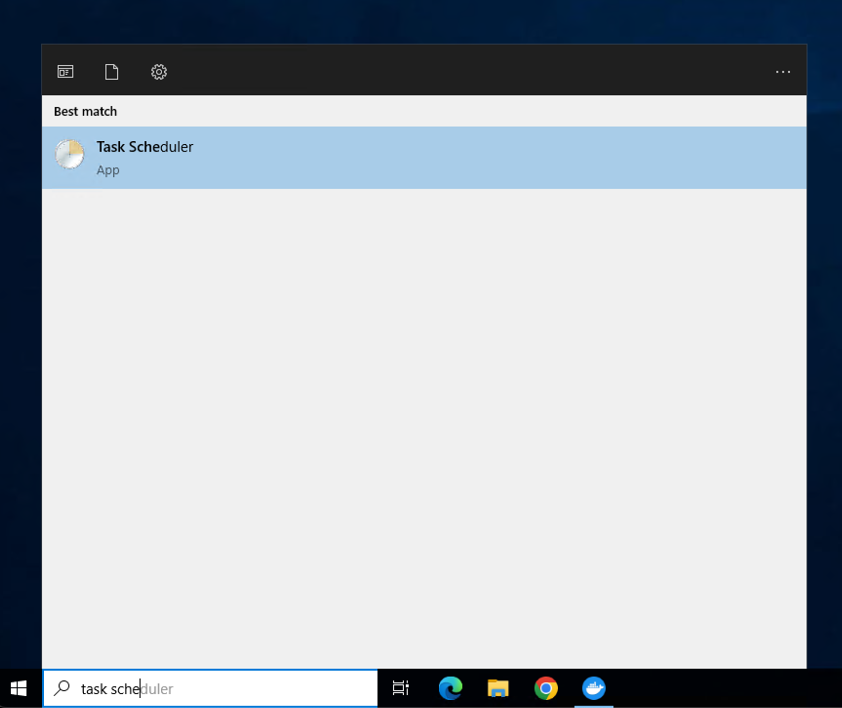
To create a new scheduled task, search for "Task Scheduler" from your Windows search bar.
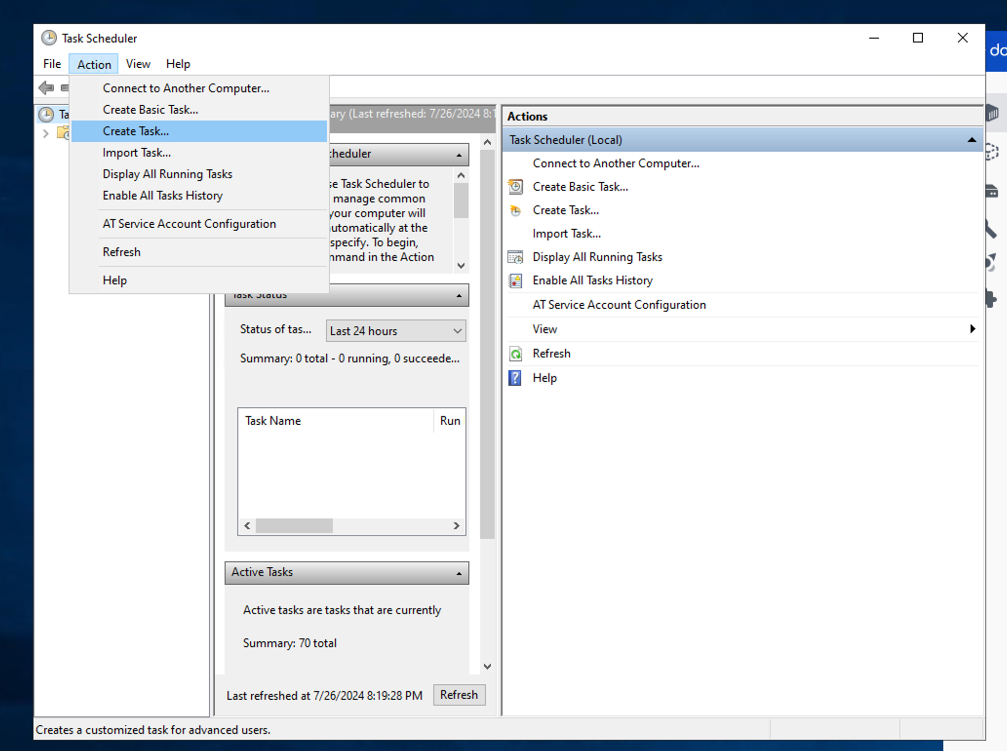
Then, select Action > Create Task
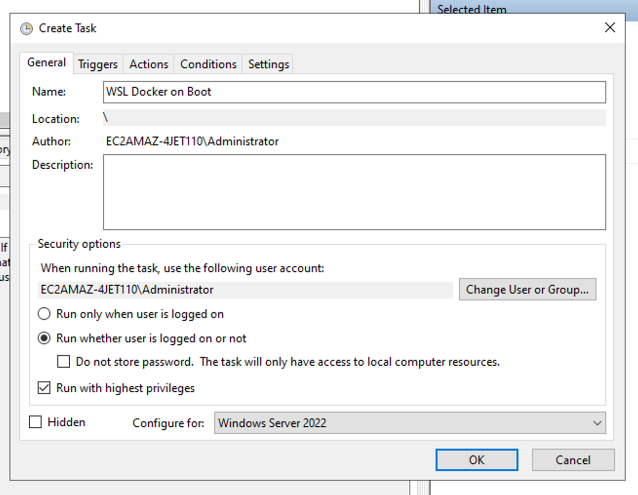
Within the scheduled task, ensure that Run whether user is logged on or not and Run with highest privileges are selected. Give the task an identifiable name and select an appropriate version of Windows for your installation.
Configuring Docker Desktop to run on boot
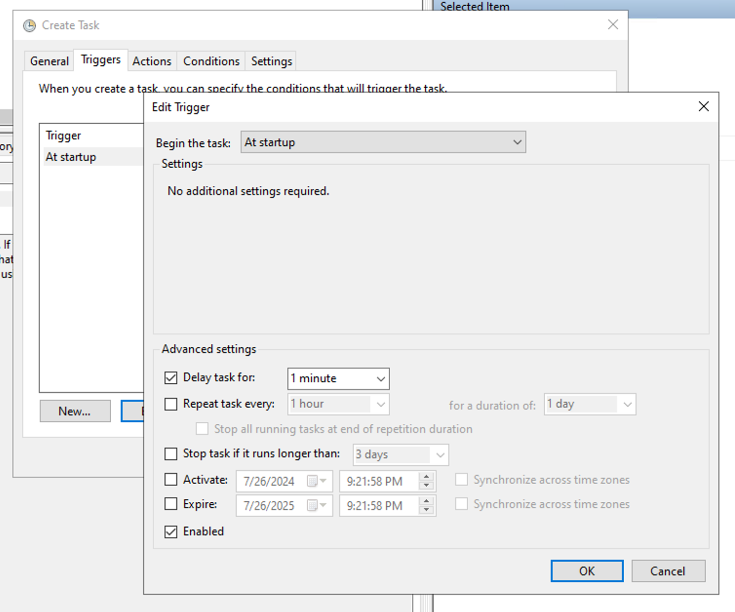
Within a new scheduled task's Triggers tab, create a new trigger to begin the task At startup. Set the Delay task for to 1 minute and ensure Enabled is selected.
Under the Actions tab, create a new action and start the program "C:\Program Files\Docker\Docker\Docker Desktop.exe"
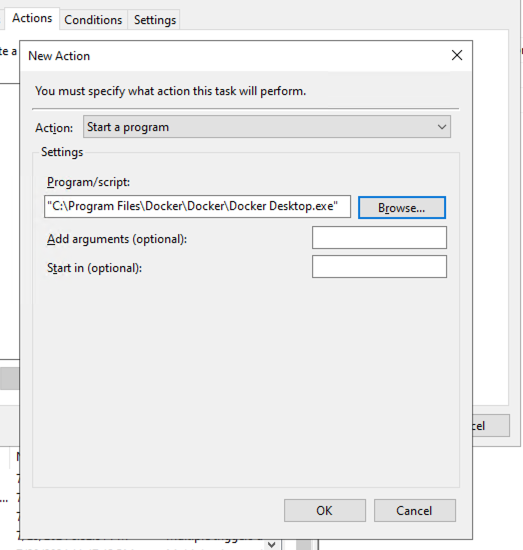
After rebooting your Windows host, you should see Docker Desktop and any containers marked restart: always automatically start without user login within a few minutes.
Ensuring WSL2 to run on boot
Within a new scheduled task's Triggers tab, create a new trigger to begin the task At startup. Set the Delay task for to 1 minute and ensure Enabled is selected. Additionally set Repeat task every to every couple of minutes for the first 15 minutes. HyperV may not be ready to start the Docker service one minute after boot and the additional task repeats helps to ensure that the task completes eventually.
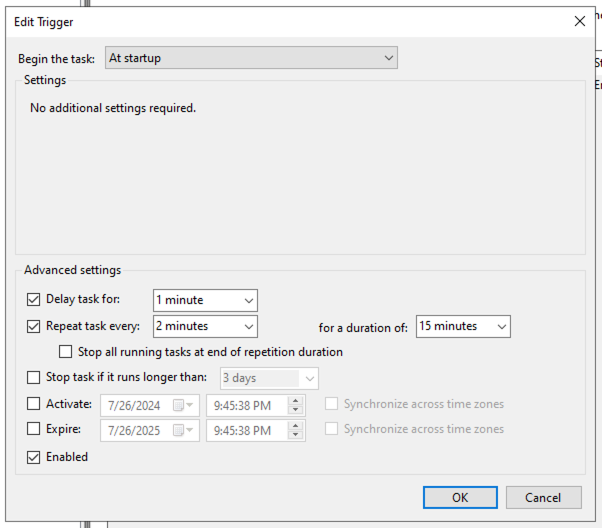
Under the Actions tab, create a new action and start the program "C:\Program Files\WSL\wsl.exe". Under Add arguments (optional) include the arguments:
-u root -e sh -c "service docker status || service docker start"
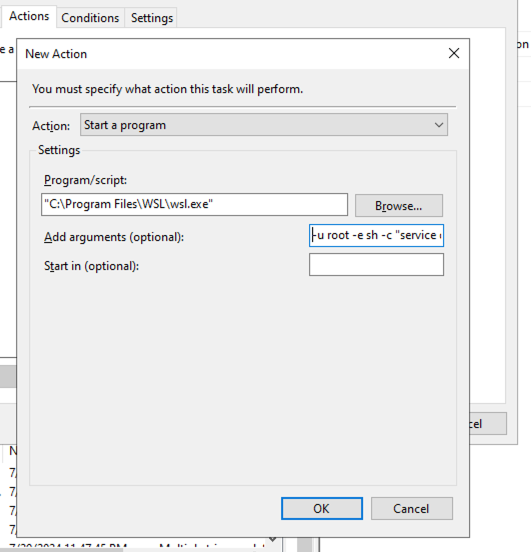
This instructs your machine to run wsl.exe on boot, and as the root user it will start the docker service if it is not already running. After rebooting your Windows host, you should see WSL, its Docker service, and any containers marked restart: always automatically start without user login within a few minutes.