Google Sheets Inventory Integration
Last updated: October 3, 2025
If you have a record of parts inventory that is stored somewhere other than Cofactr, such as your warehouse, factory, or contract manufacturer, it may be valuable to be able to see in Cofactr what stock you have and where it is. While it is possible to manage this information manually within the Cofactr platform, if you have many parts, it will be more efficient to manage this in an external spreadsheet and periodically sync that data to Cofactr.
What can I do with synced inventory data in Cofactr?
Stock data synced from external sources will appear in Cofactr the same as inventory data managed natively within Cofactr. You can view it throughout the platform and allocate it to Production Runs.
What can't I do with synced inventory data in Cofactr?
Stock data synced from external sources will not be editable within the Cofactr platform. You also can't add it to Shipments, create related Handling Tasks, or view more detailed stock-lot-level traceability and ledger data.
How often will this data refresh?
By default, refreshed data will be pulled from your source hourly. You can also trigger a one-off sync from the Integrations App in the Cofactr platform. To request a more frequent or custom synchronization schedule, please contact success@cofactr.com.
Delayed Synchronization
Synchronizations with integration data sources are run asynchronously in a background task queue, so it may take some time for your job to run, even if it appears to have been completed in the Job History in the Integrations app.
If it has been more than 24 hours and your data does not appear to have synchronized, please contact success@cofactr.com for assistance.
Setting Up Your Spreadsheet(s)
There are some specific requirements for how your Google Sheets files are configured to enable the integration to work properly.
You can have as many separate Google Sheets files and as many sheets within each file as you'd like.
Your column names don't have to match our supported columns (you will be able to match them when you configure the integration), but you will need a few specific columns to be included.
Supported Columns
Manufacturer Part Number (
mpn)Custom/Internal Part Number (
custom_id)On Hand Stock (
on_hand)Expected Stock (
expected)Allocated Stock (
allocated)Unallocated Stock (
unallocated)Facility ID (
stock_location_id)
Required Columns
Either
mpnorcustom_idis required. You can also provide both.on_handEither
stock_location_idis required, or the Facility ID can be specified as a sheet name (see more info below)
Specifying Inventory Address
Cofactr needs to associate the inventory that is being synchronized from Google Sheets with an Address.
Before setting up your integration, you will need to create an Address in Cofactr by navigating to Kitting and Shipping > Addresses and clicking New Address.
There are two ways to specify this information within your Google Sheets
Include a column for
stock_location_idin each of your sheetsName the individual sheets within your documents with the ID of the relevant facility

Address ID can be found by going to Kitting and Shipping > Addresses > clicking on the 3 dots next to the address where the stock is located, and clicking "Copy Address ID."
Linking Google Sheets to Cofactr
Step 1
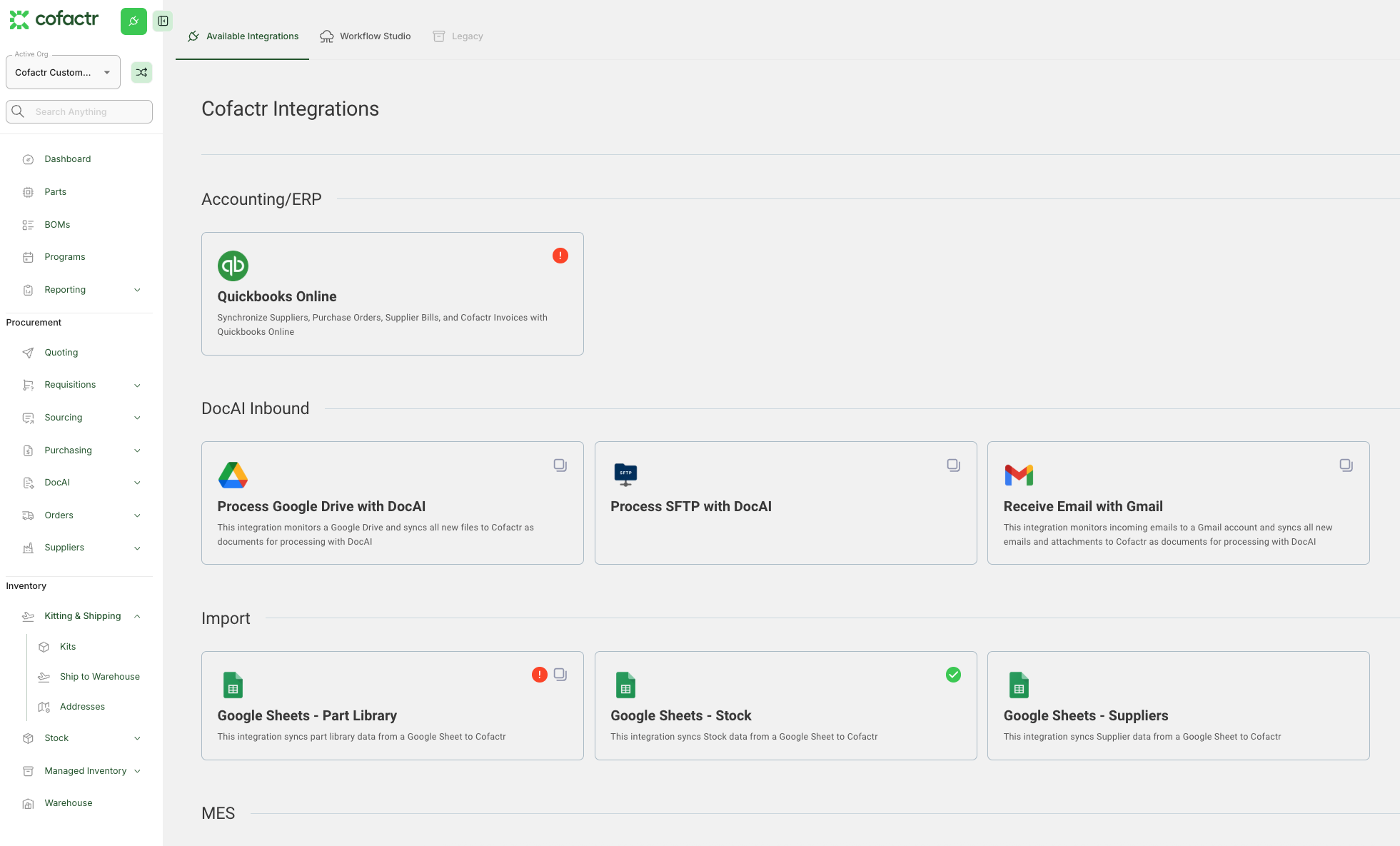
Navigate to the Integrations App via the Dashboard or by clicking the gear icon in the lower left corner of the platform and selecting Integrations.
Step 2
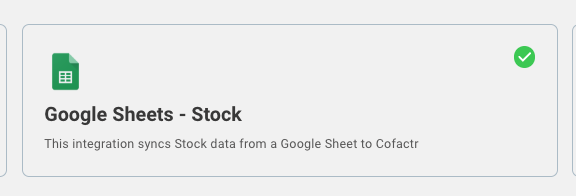
Click the Google Sheets - Stock tile to enable the integration for your org.
Step 3
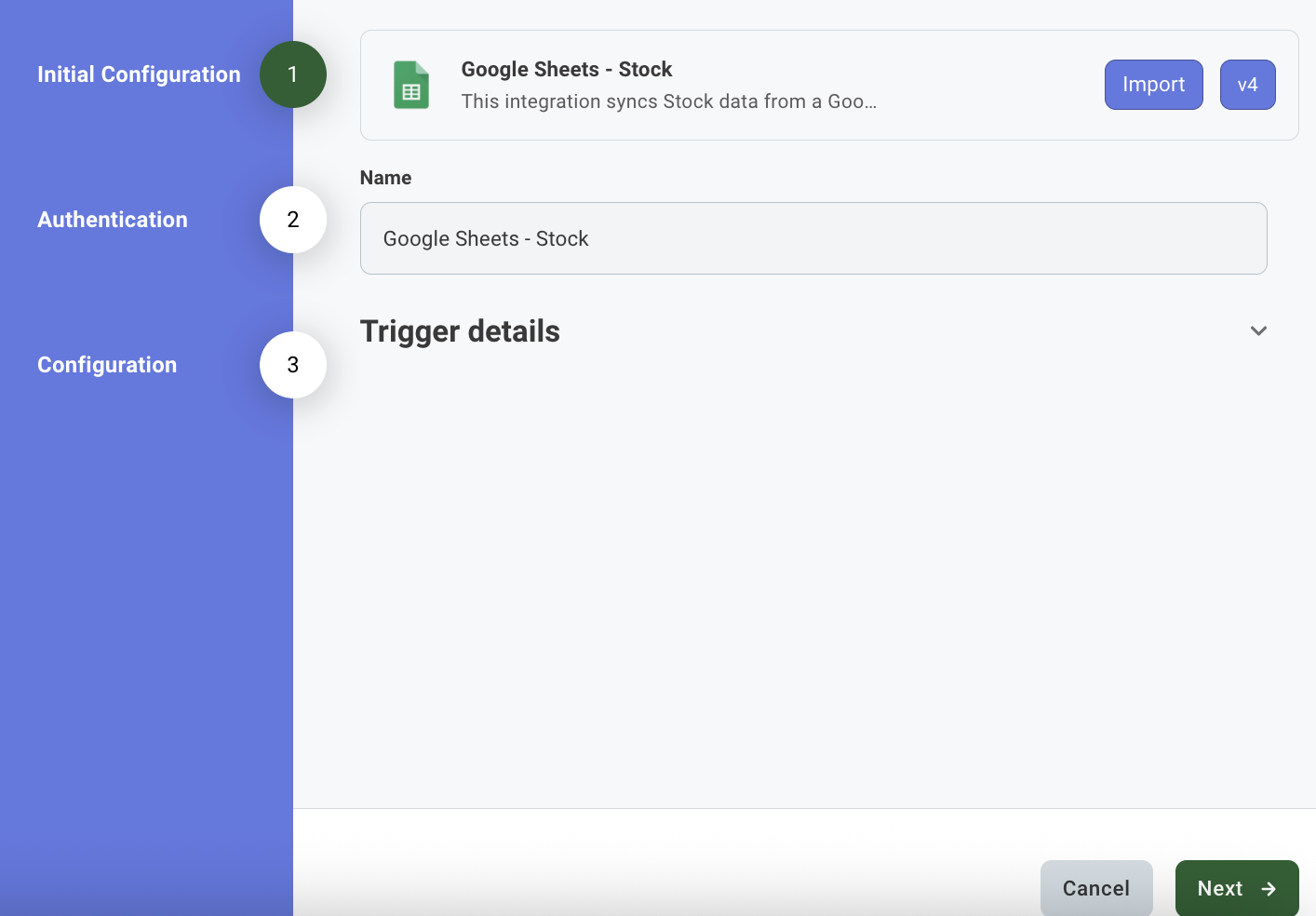
Name your Google Sheet in the Initial Configuration.
Step 4
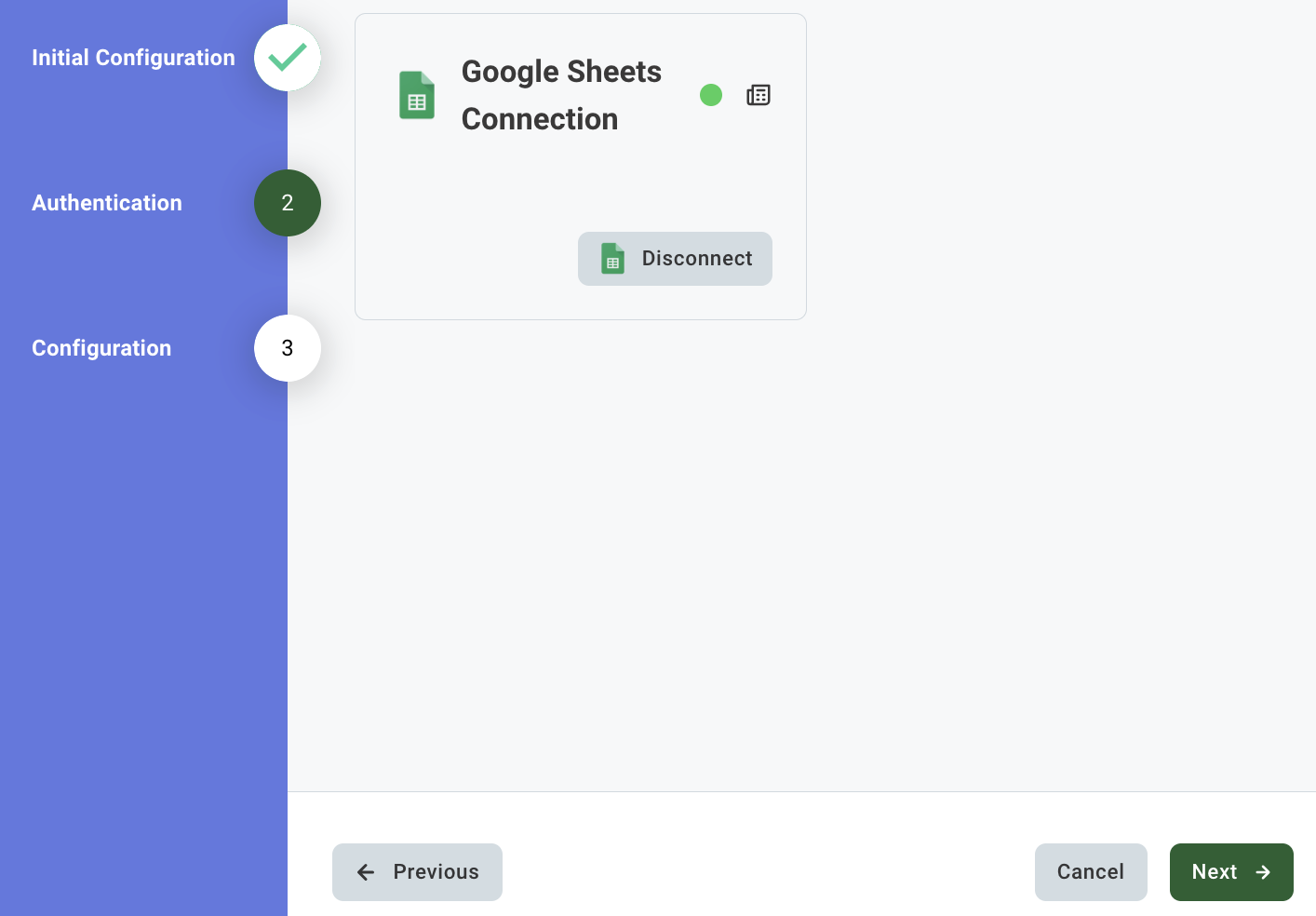
Authenticate with your Google account when prompted.
Step 5
Select the Spreadsheet URL from your Google Drive and add it, as well as name your Sheet Name the name of the sheet within your Google Doc.
Step 6
Map your column names to the associated drop down (required columns are located earlier on this page)..
Step 7
Add your Cofactr Address ID. This is the ID for the address within Cofactr, and can be found by going to Kitting and Shipping > Addresses > clicking on the 3 dots next to the address where the inventory is located, and clicking Copy Address ID. Click Finish!
Written by Matthew Haber