Cofactr Ordering Experience - Purchasing Parts
Last updated: April 29, 2026
Whether you are ordering a single part, ordering from a BOM, or ordering from a Program, this article will show you how to do each one, starting with how to add individual parts to a cart.
Adding Individual Parts to a Cart/Creating a Cart (Not from a BOM/Program)
Start by navigating to Parts in the left sidebar and search for the part you want to purchase. In this example, we're searching under "Both" for a specific MPN, meaning we're querying both our org's part library and the Cofactr Component Cloud simultaneously. Once you have found the part you need, click the shopping cart icon under Actions. If you want to review additional specifications before adding to the cart, you can also go through this flow from the part detail page.
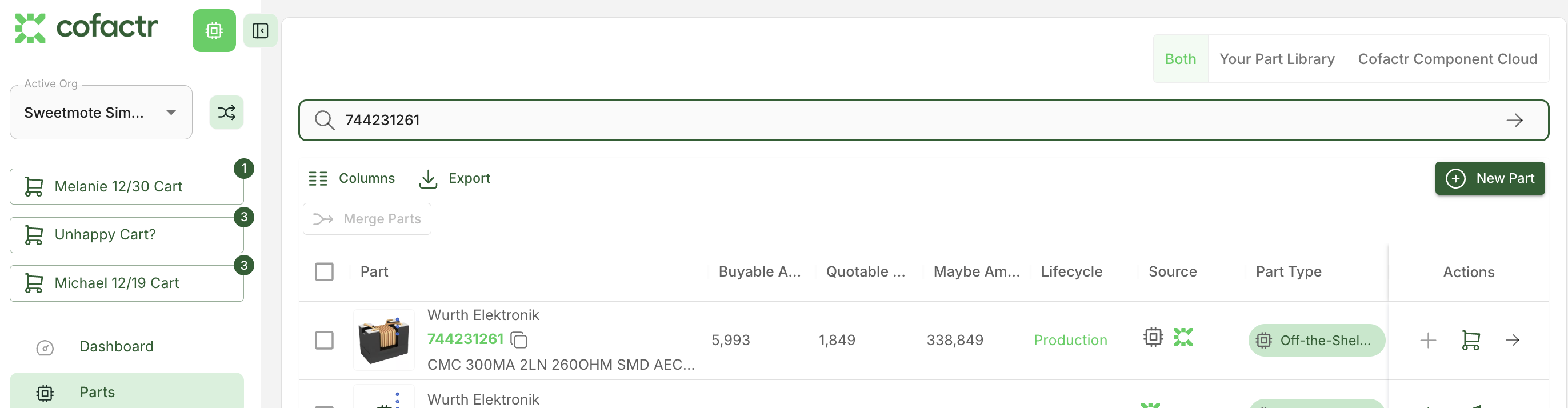
From here, enter your desired quantities and choose whether to add the part to an existing cart or create a new one.
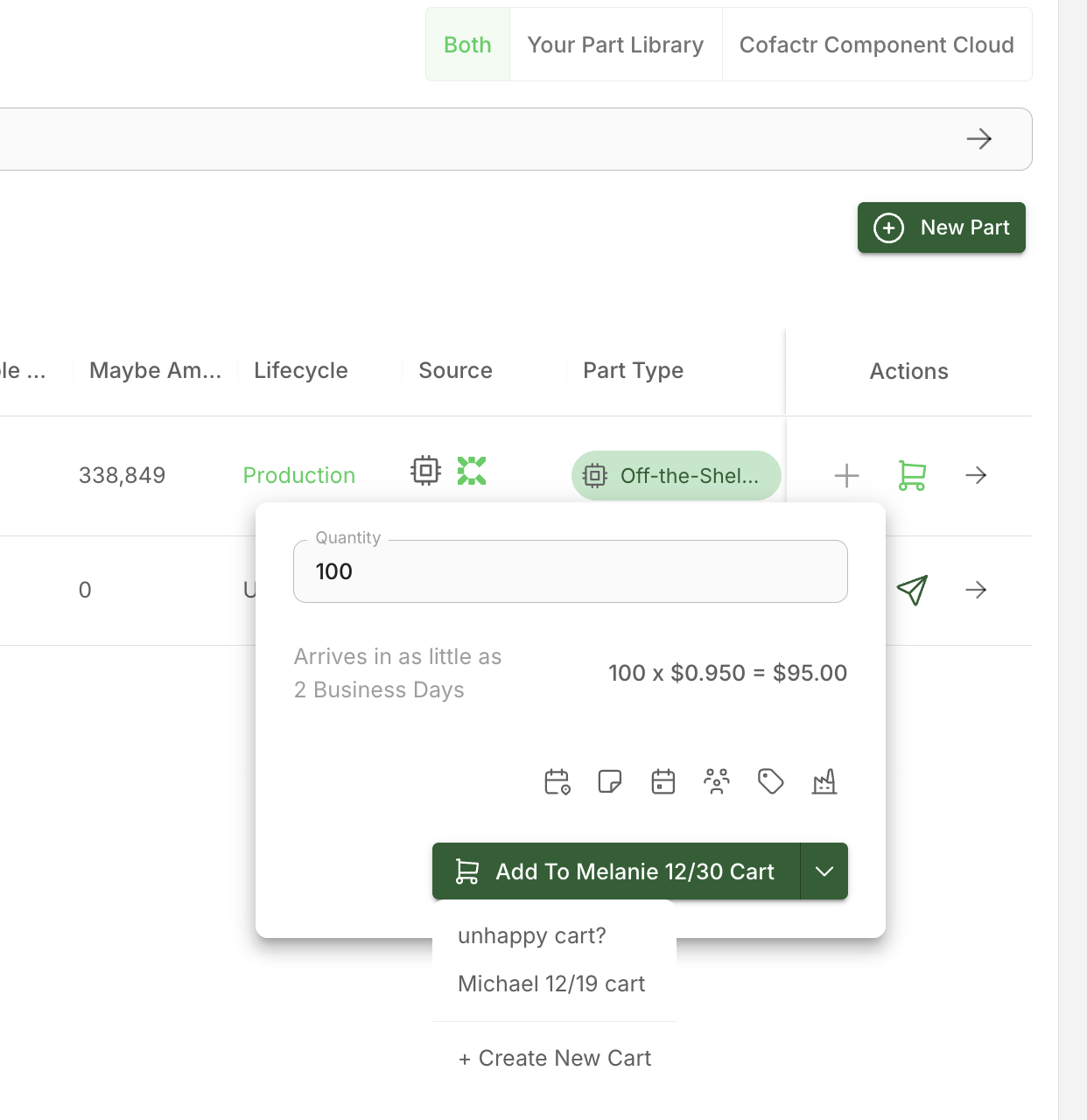
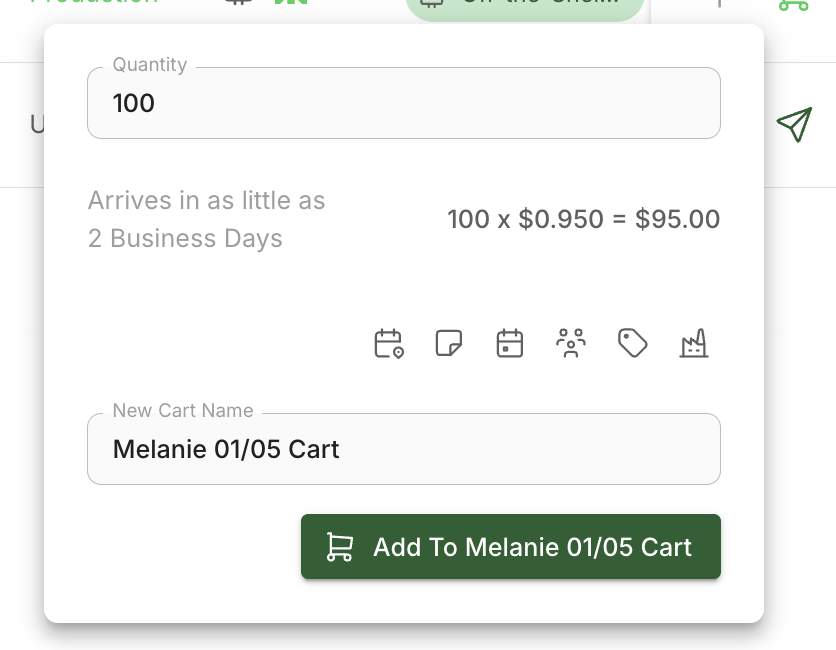
If you're creating a new cart, select "+ Create New Cart" which will give you the ability to customize your cart name.
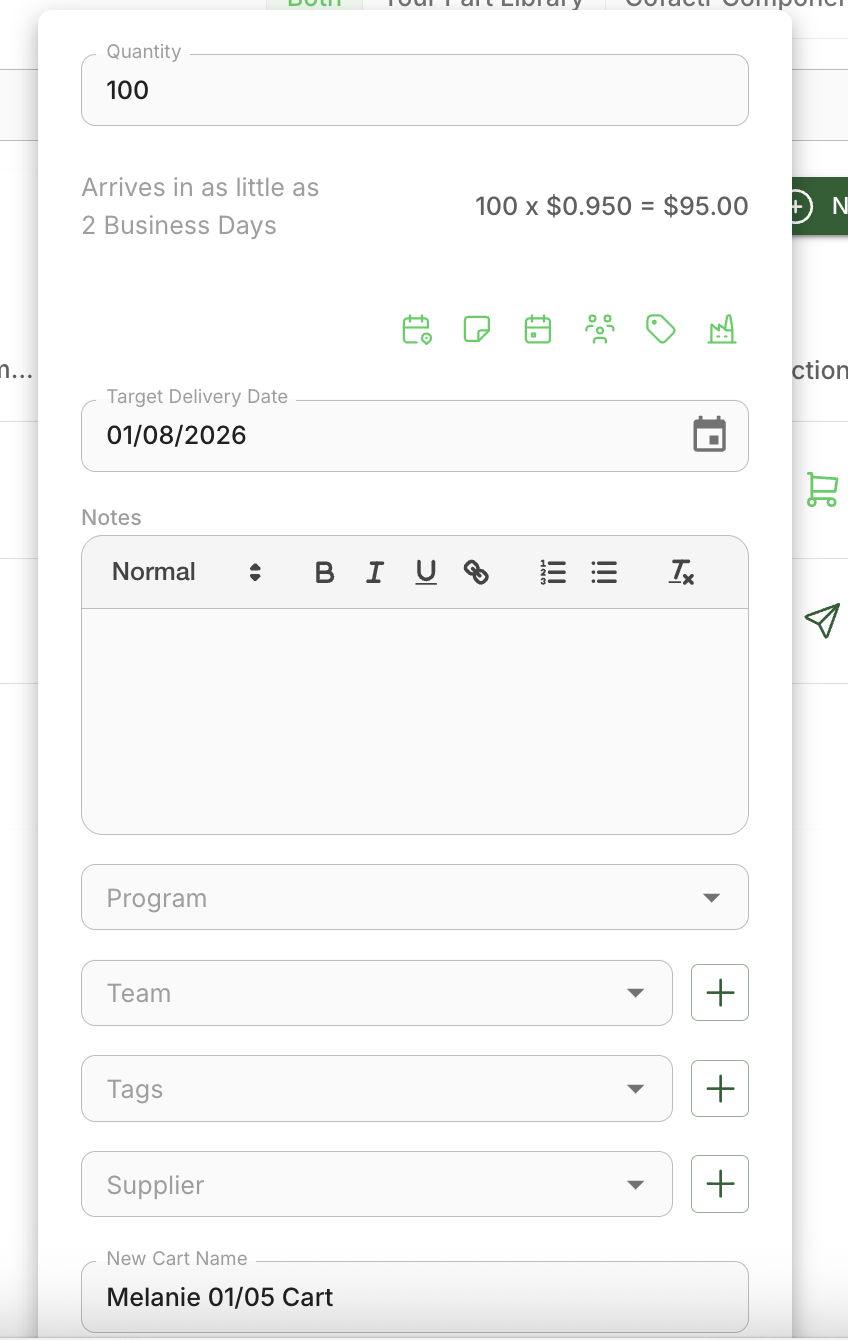
The icons on this page represent Target Delivery Date, Notes, Program, Team, Tags, and Suppliers. All of these fields are optional and can be used for your organization's internal tracking needs. For example, if you want parts allocated to a specific Program, you can select which Program you want them to be associated with under Programs.
Once your cart is created, it will appear in the upper left corner of the platform. Hover over it to see all items including Part, Quantity, Estimated Unit Price, and Estimated Total. When you're ready to proceed, hover over the cart and click "Edit Cart or Checkout."
In your cart view, you will see which parts are readily available for purchase and which require supplier quotes. In the video below, you can see 2 parts that require supplier quotes, as well as 1 part that is ready for purchase (see Requesting Quotes section below for how to request a quote).
Once you have your shipping choice selected (Store at Cofactr, Kit & Ship, or Drop Ship) and your preferred lead time, under Submit Order click "Accept Terms and Conditions" and approve your order. On this same view you can also add a Purchase Rule and PO number to bill against.
Shipping Option Definitions
Store at Cofactr - Parts added to your inventory and stored at your selected Cofactr warehouse
Ship as Kit - Parts checked, labeled, and kitted together at one of our warehouses, then shipped as one package
Drop Ship - Parts shipped directly from suppliers to your destination location
Carts can either be public or private. To learn more about shared carts, click here.
Video Walkthrough:
Purchasing Parts from a BOM/Program
From your BOM, select the parts you wish to purchase and click "Add to Cart."
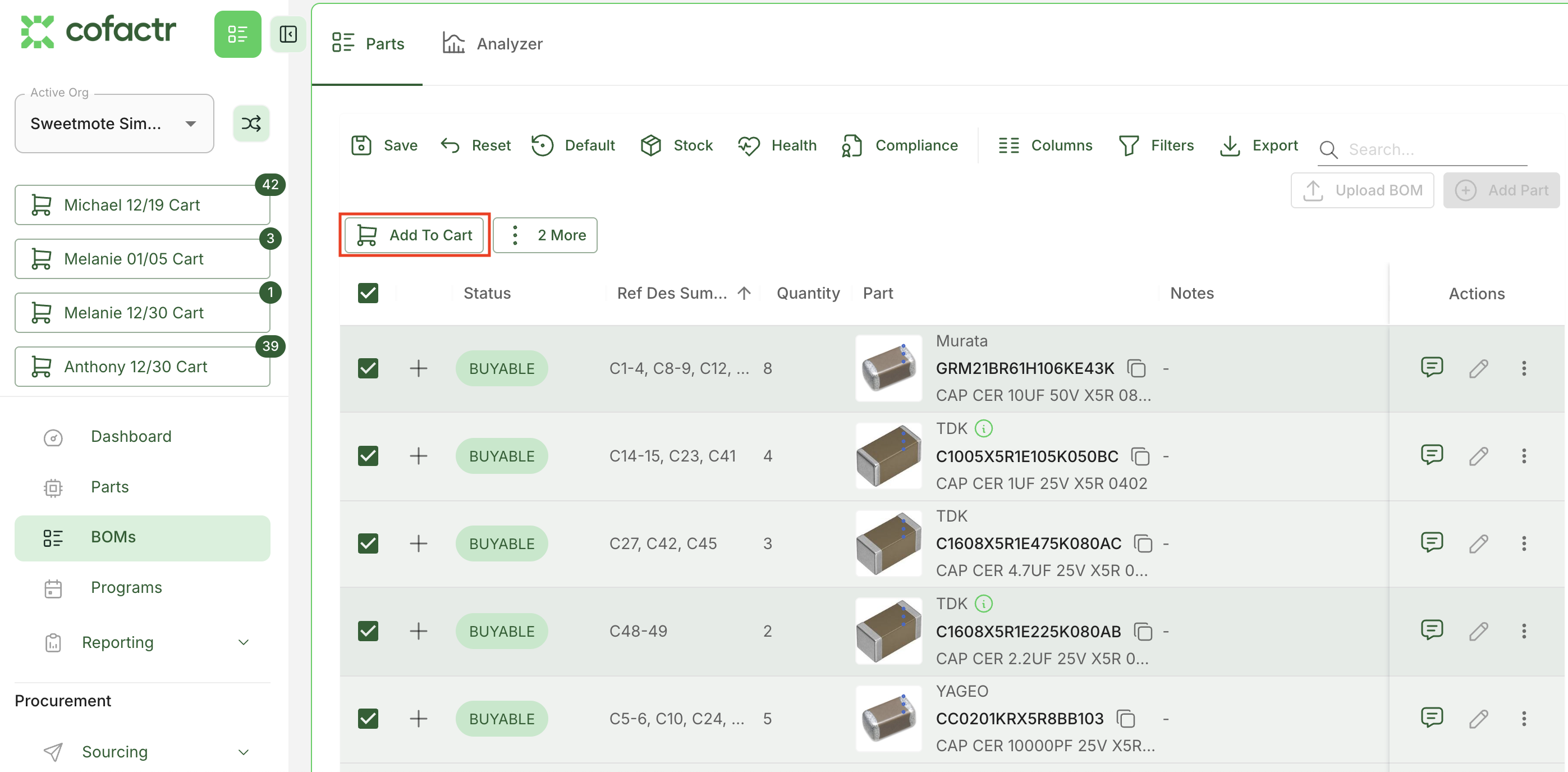
OR, from your Program, select the parts you wish to purchase and click "Add to Cart."
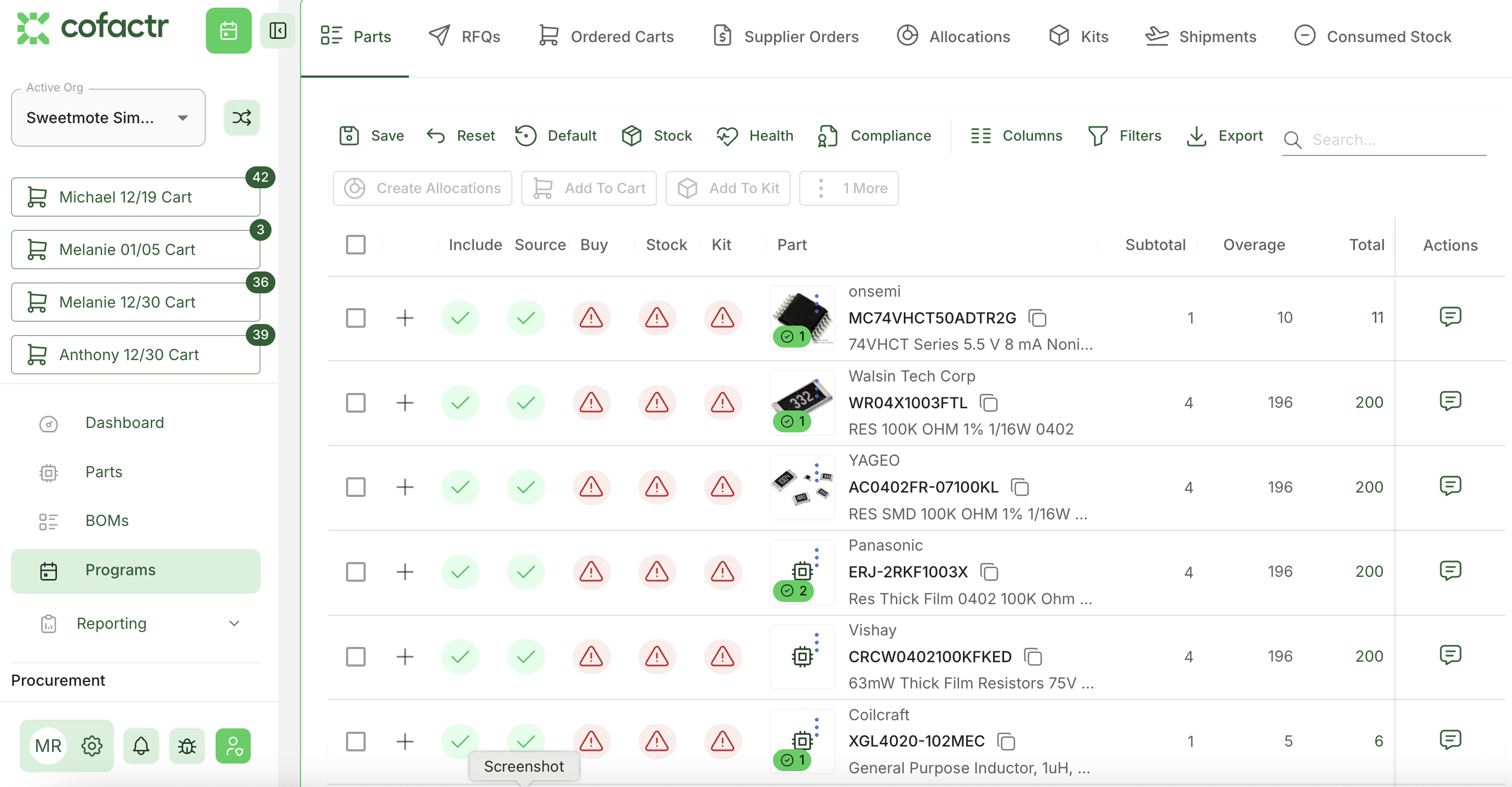
From both the BOM and Program view, this will open the cart dialogue where you can add the items from the BOM to an already existing cart, or create a new cart.
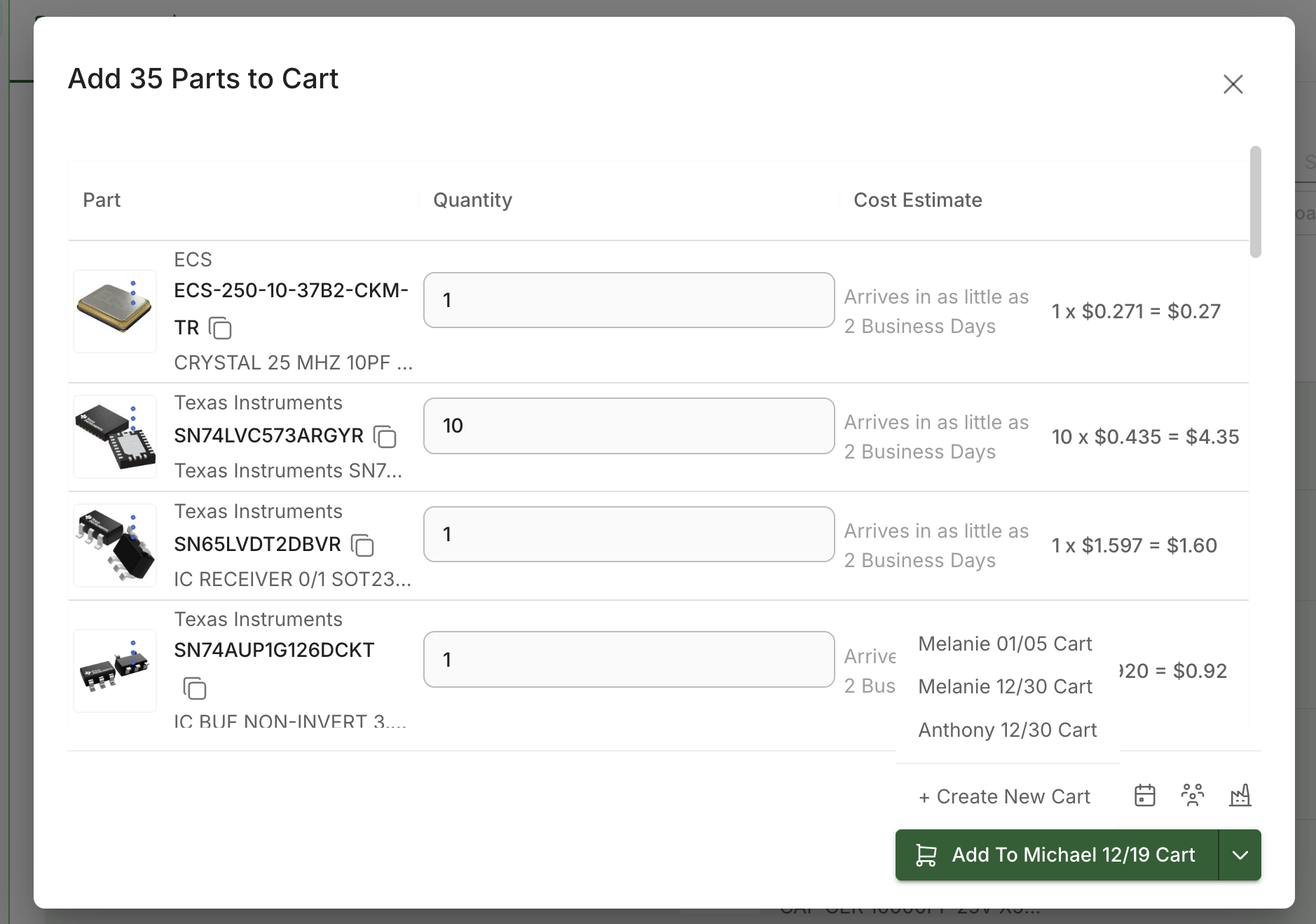
From here, follow the video walkthrough above to complete your cart check out.
All purchases through a Program will automatically be associated with that Program, and the inventory will be automatically allocated as it arrives to our warehouse. If you purchase directly from a BOM or as a Spot Buy (not the program), that inventory will arrive to the warehouse WITHOUT allocations to that BOM, and other users in your org will be able to utilize that inventory.
Requesting Quotes for a Single Part
The Cofactr platform allows you to request quotes (RFQs) for electronic components directly from your part library. This guide walks you through the process of creating and managing quote requests for parts you need to source.
Navigate to Parts in the left sidebar and search for the part you need. In this example, we're looking for a specific component to source from suppliers.
There are a handful of ways to add a part to an RFQ. From the Parts page directly, from the part detail page in the right-hand column, from a BOM, or from a Program.
Option A: Click the paper plane icon in the Actions column
Option B: Click on the part row to open the part detail page, then click Add to RFQ in the upper right corner
Once you have selected "Add to RFQ" In the pop-up, enter your quantity and choose to create a new RFQ or add to an existing one.
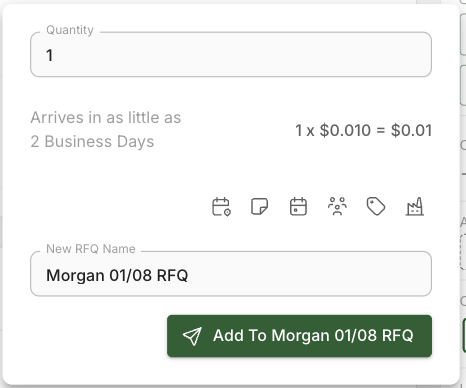
The icons on this page represent Target Delivery Date, Notes, Program, Team, Tags, and Suppliers. All of these fields are optional and can be used for your organization's internal tracking needs. For example, if you want parts allocated to a specific Program, you can select which Program you want them to be associated with under Programs.
To add to RFQ: Name your RFQ and click "Add to [RFQ Name]".
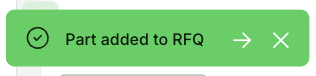
Once created, you can find your RFQ in the upper left sidebar or by clicking the white arrow within the green pop-up confirmation.
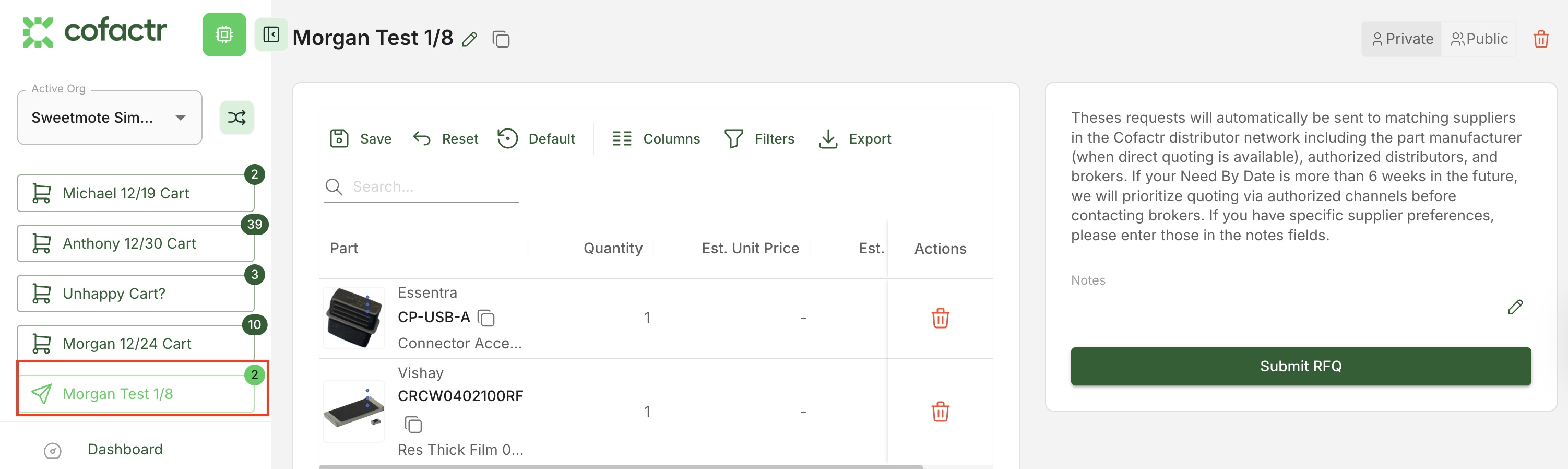
To submit your RFQ, open it, review the parts, and click Submit RFQ. This will submit a quote request to our procurement team, who will go out and find you the best quote price available.
Video Walk-Through:
Option A: Submit an RFQ by clicking the paper plane icon in the Actions column
Option B: Submit an RFQ by clicking on the part row to go to the part detail page, then click Add to RFQ in the upper right corner
Requesting Quotes from a Program
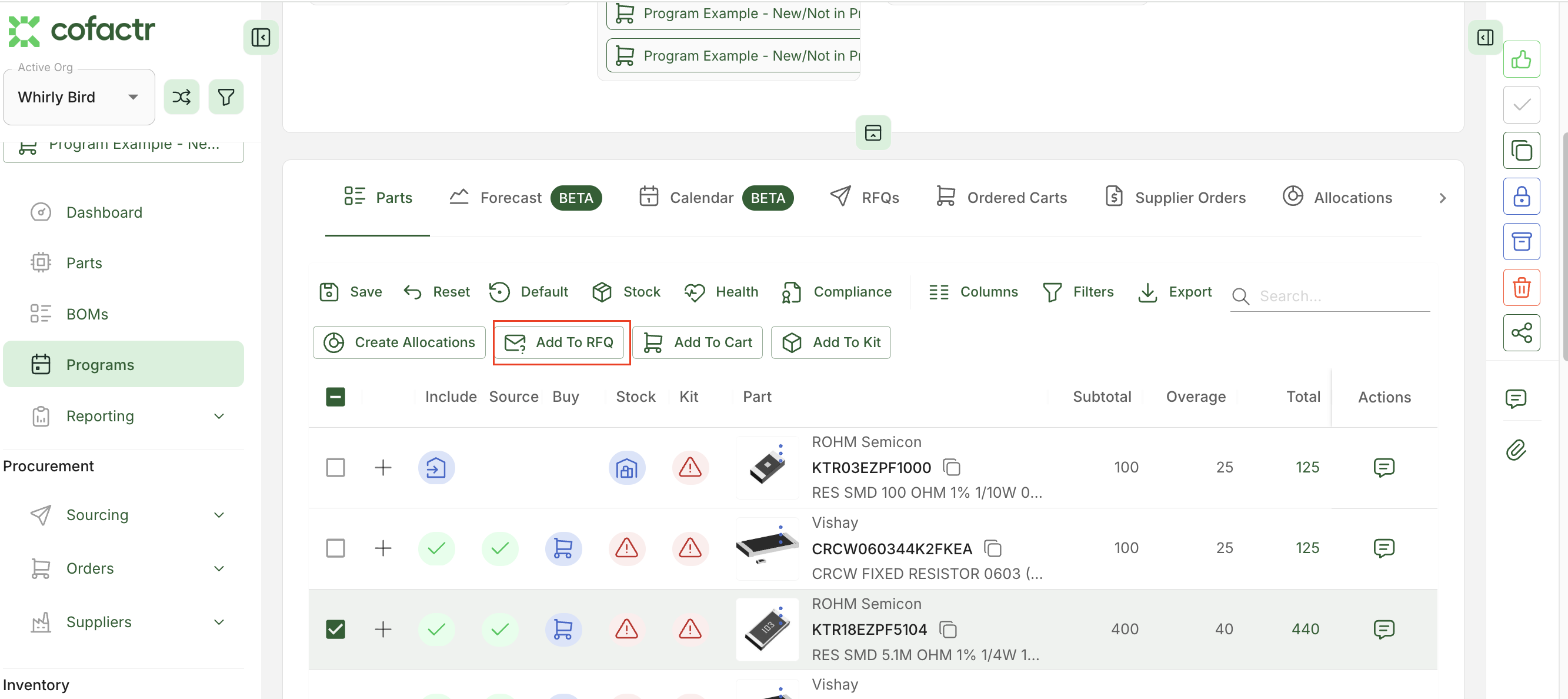
The main way our customers request quotes is via their Program. From the Program view, select the parts you want to submit an RFQ for and click Add to RFQ, continuing with the steps to submit your RFQ.
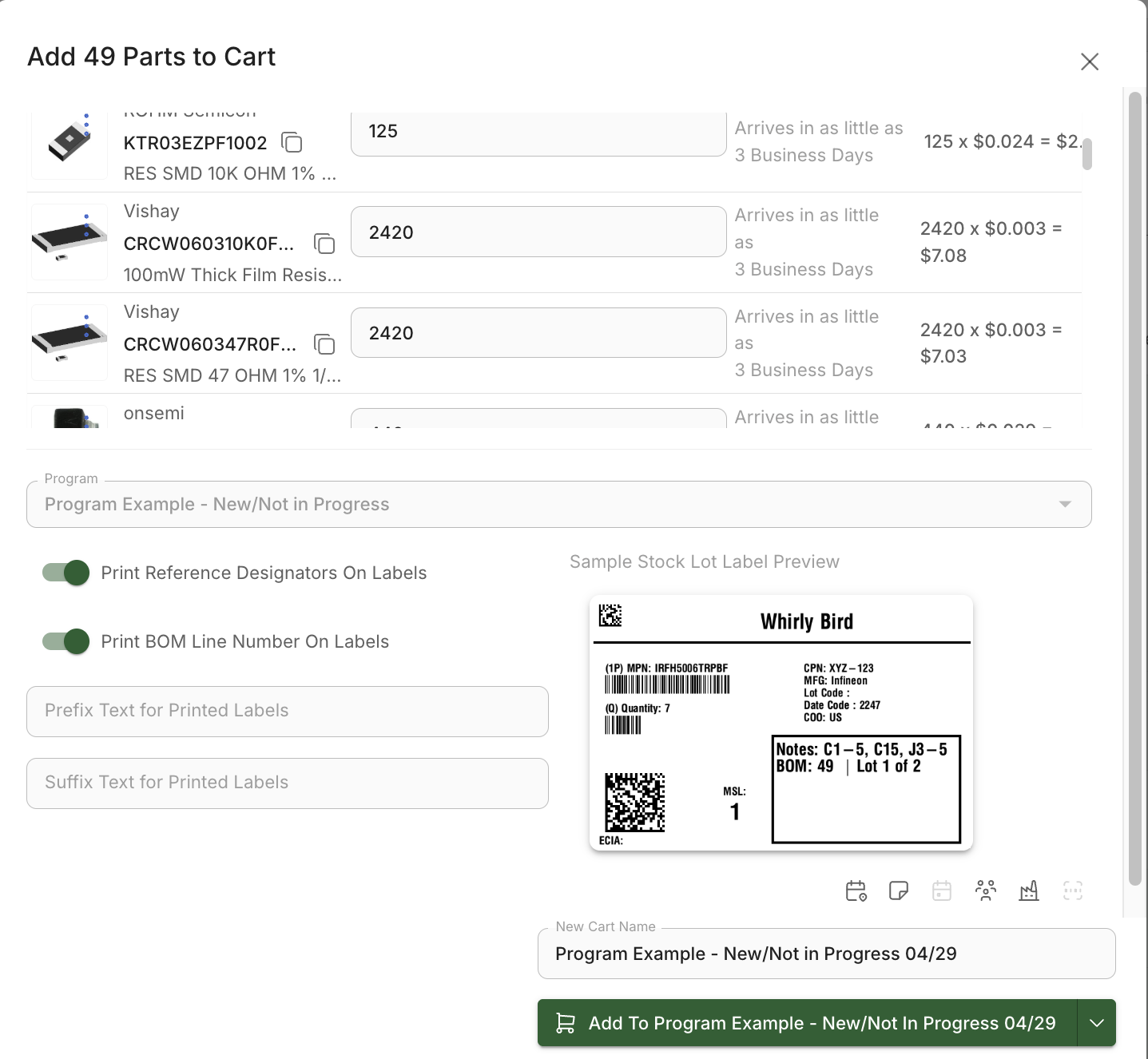
Similarly, if you are wanting to add all of the lines in your program to a cart to purchase agains the readily available ones, and then send RFQs for the ones that need an RFQ, select all the lines in your Program and click "Add to Cart."
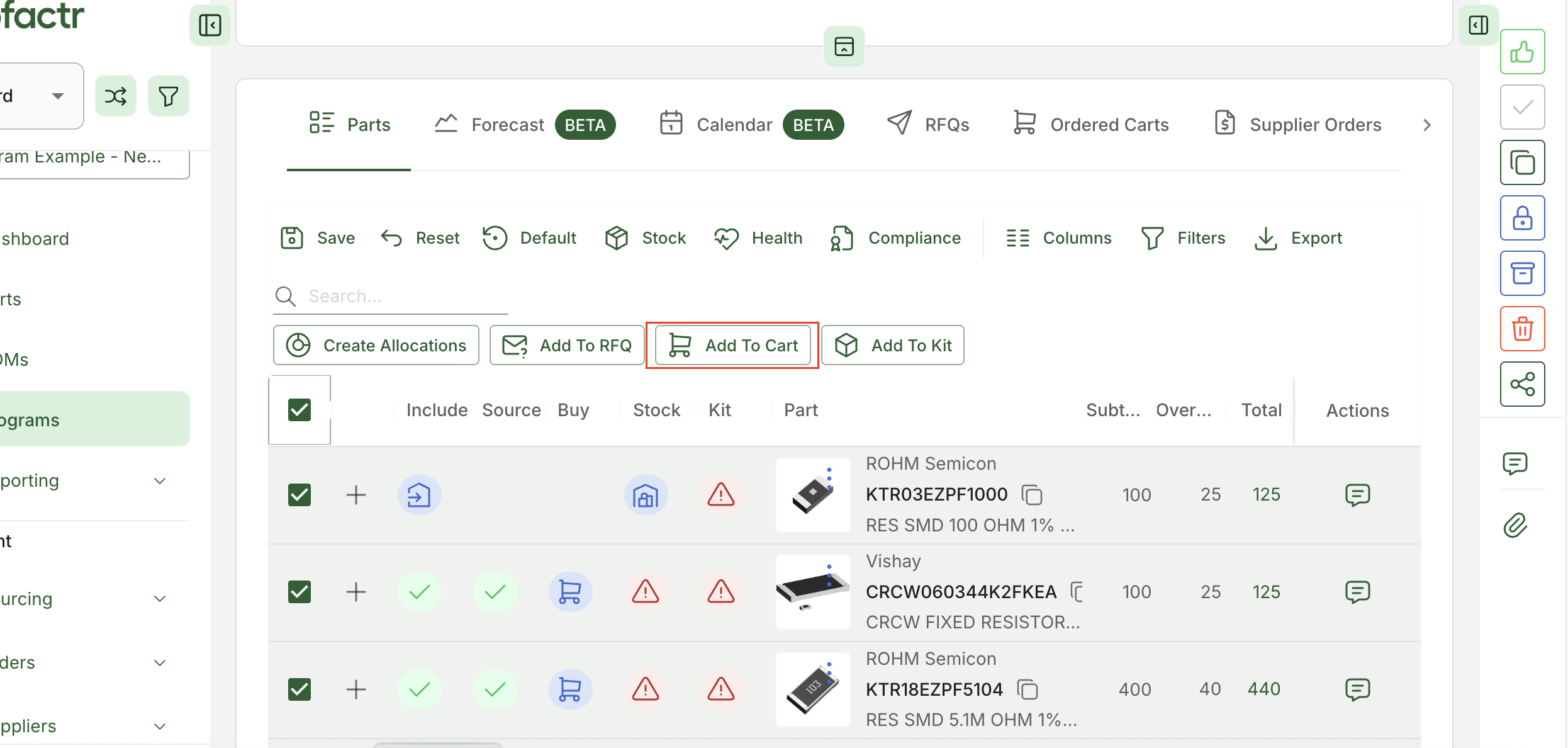
From here you will adjust any quantities you need to adjust, toggle on if you want to print RefDes or BOM Line Numbers on the labels, and then will click to add this to a new cart if this is a new cart. If you are adding these to an already open cart, select the open cart from the drop down.
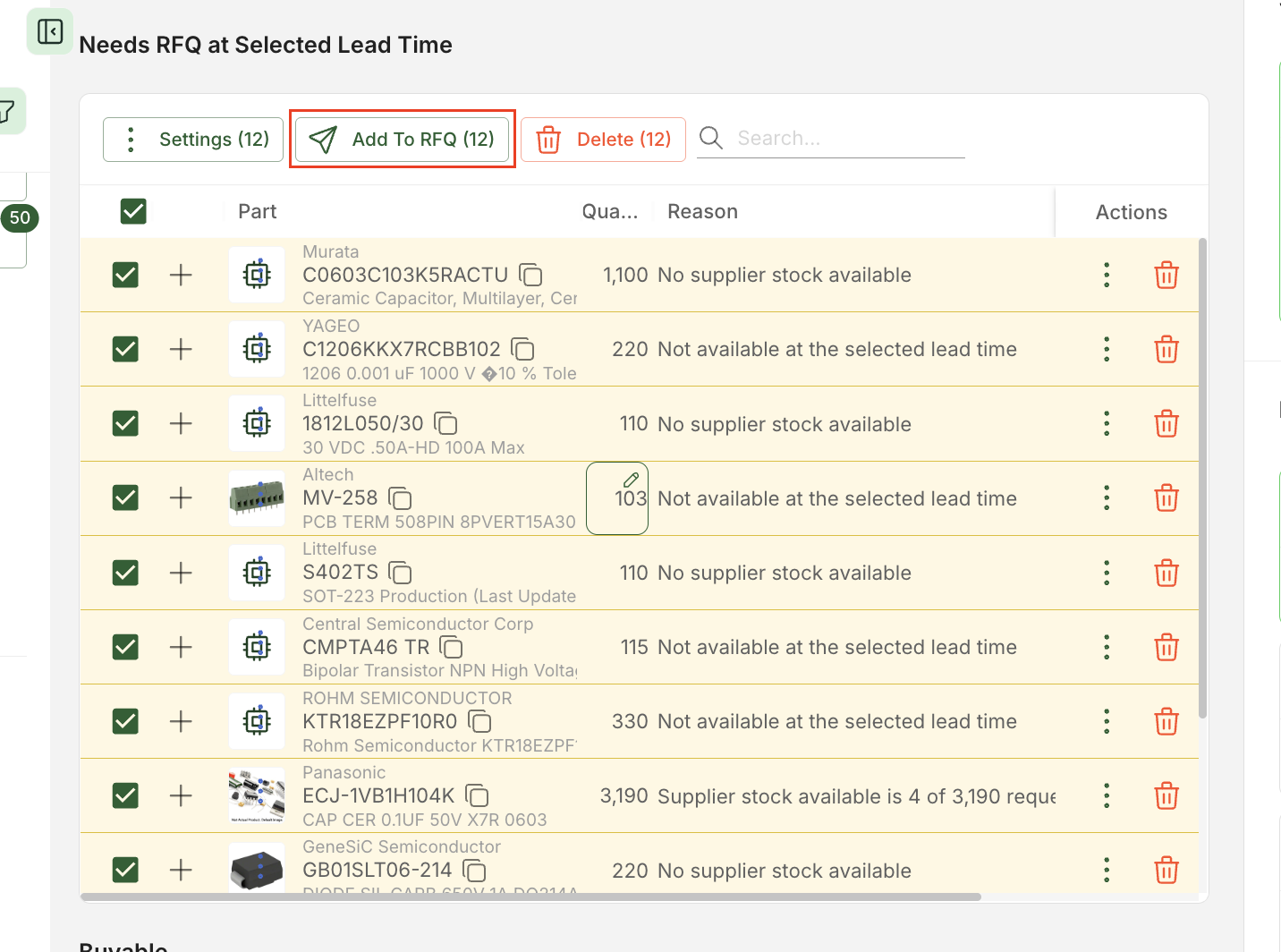
The top part in the cart (the yellow section) represents parts that need an RFQ. Select the parts in the top and click "Add to RFQ."
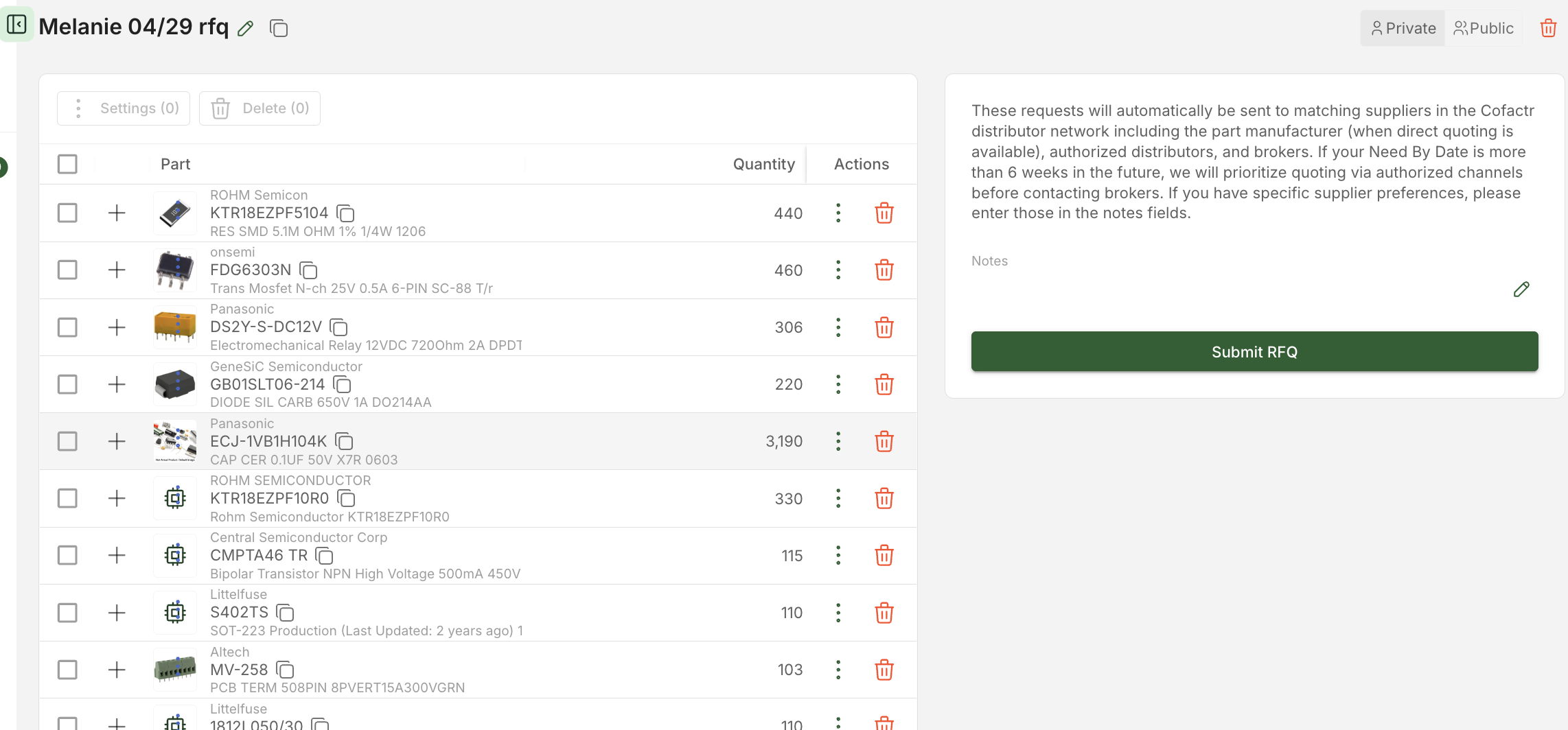
Once added to RFQ, add any relevant notes you want our team to know, and click Submit RFQ.
Approving an RFQ:
Once you receive a quote back from suppliers, you can find it under Sourcing → Supplier Quotes.
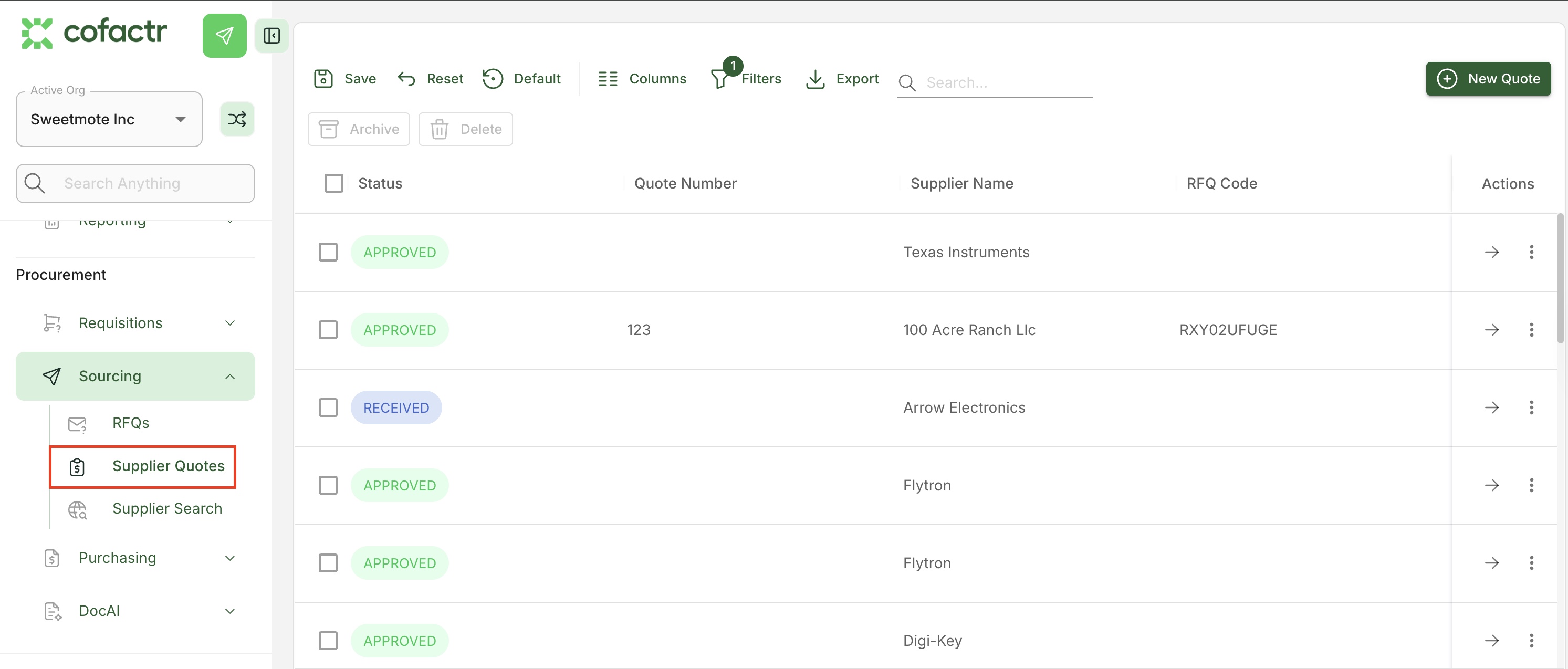
Here you can approve or reject a quote. To do so, click on the line item of the RFQ you would like to approve or reject.
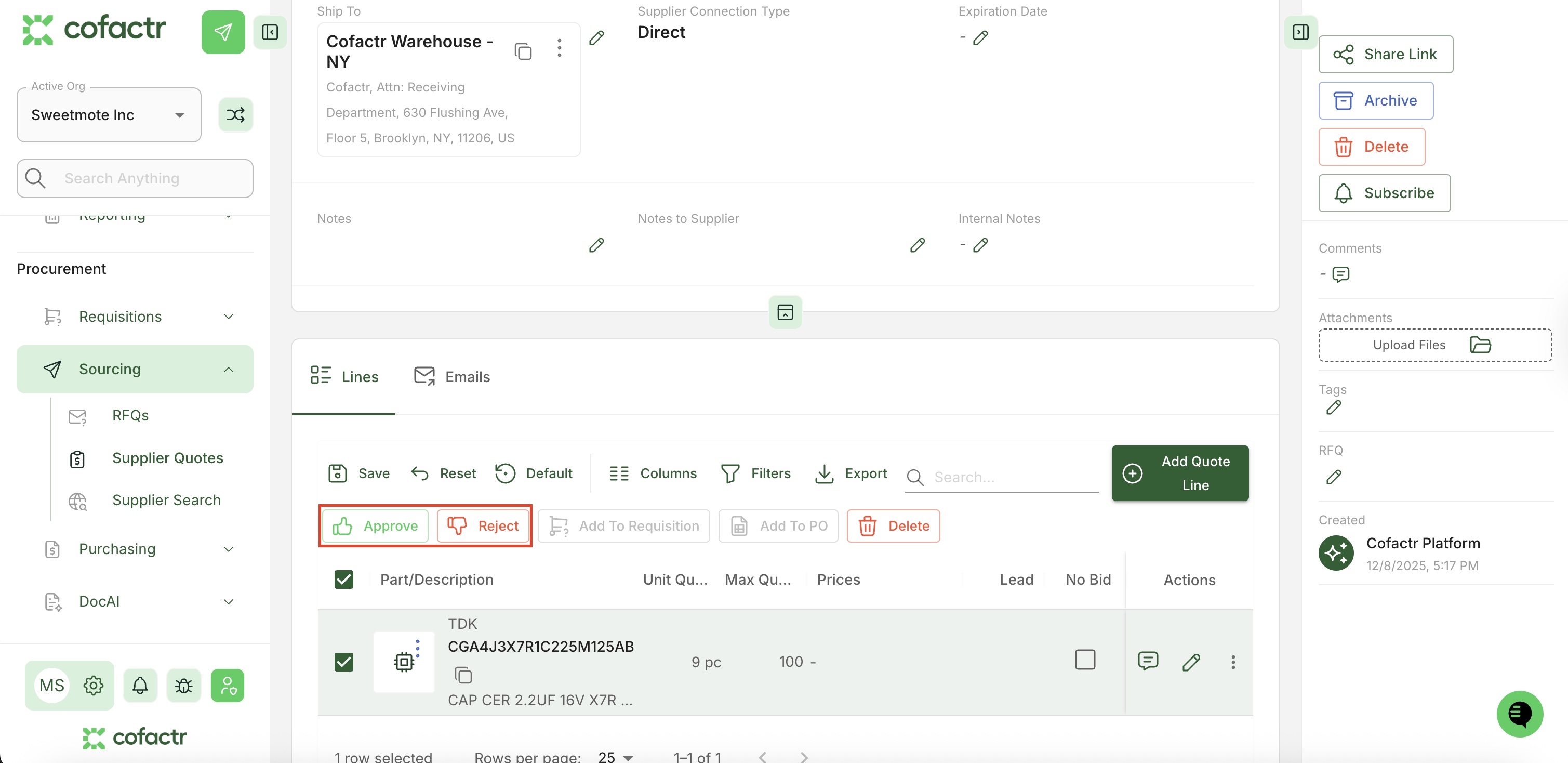
Approve: Once you approve your quote, you can order from your open cart or BOM/program, or click on the cart icon on the quote to place the order. For more details on how to do this, please refer to the section above.
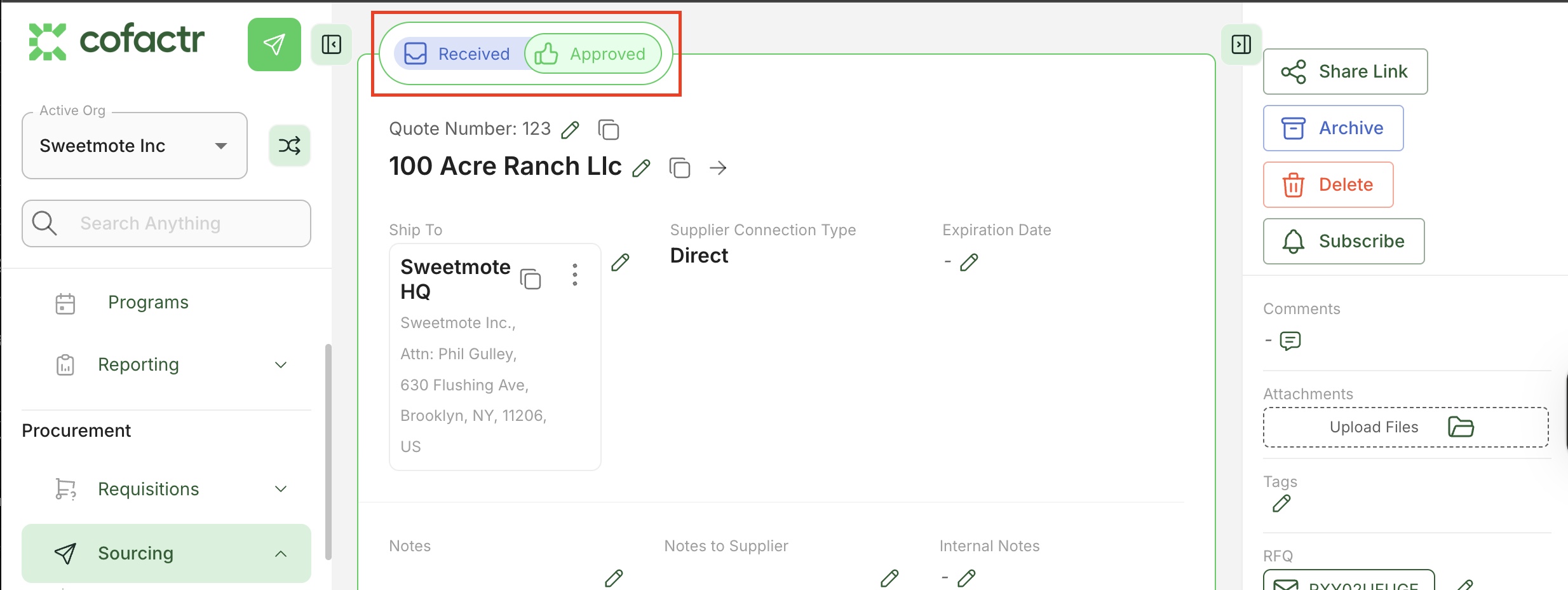
Reject: If a quote is "Rejected," it will show in your main Supplier Quotes page as "Rejected," meaning you are choosing to reject that quote and wish to not purchase against it.
Once you have placed an order, you can review the status in two ways; by going to Ordered Carts to review the status of the total cart which includes all supplier orders, or going to Supplier Orders to view the specific supplier orders within the cart.
Written By: Melanie Reeves and Morgan Seeton