Setting Up Teams
Last updated: January 21, 2026
Teams allow you to control which users can access specific records like parts, BOMs, programs, and orders within your organization. This is optional and disabled by default.
When to use Teams vs Sub-Organizations
Use Teams when you need to control access within a single organization while sharing the same library and purchasing settings. Common uses include segmenting by project, business line, division, or customer.
Use Sub-Organizations when you need:
Completely segregated libraries
Different purchasing settings for each group
A sandbox environment for testing
If you have external customers you want to give platform access to, you should use Sub-Organizations. More information on that here.
Setting up Teams
Navigate to Settings --> Organization Settings and find the Teams section. Teams permissioning is disabled by default. Toggle "Use teams permissions" to enable this feature by clicking on the Edit button in the upper right-hand side of the screen.
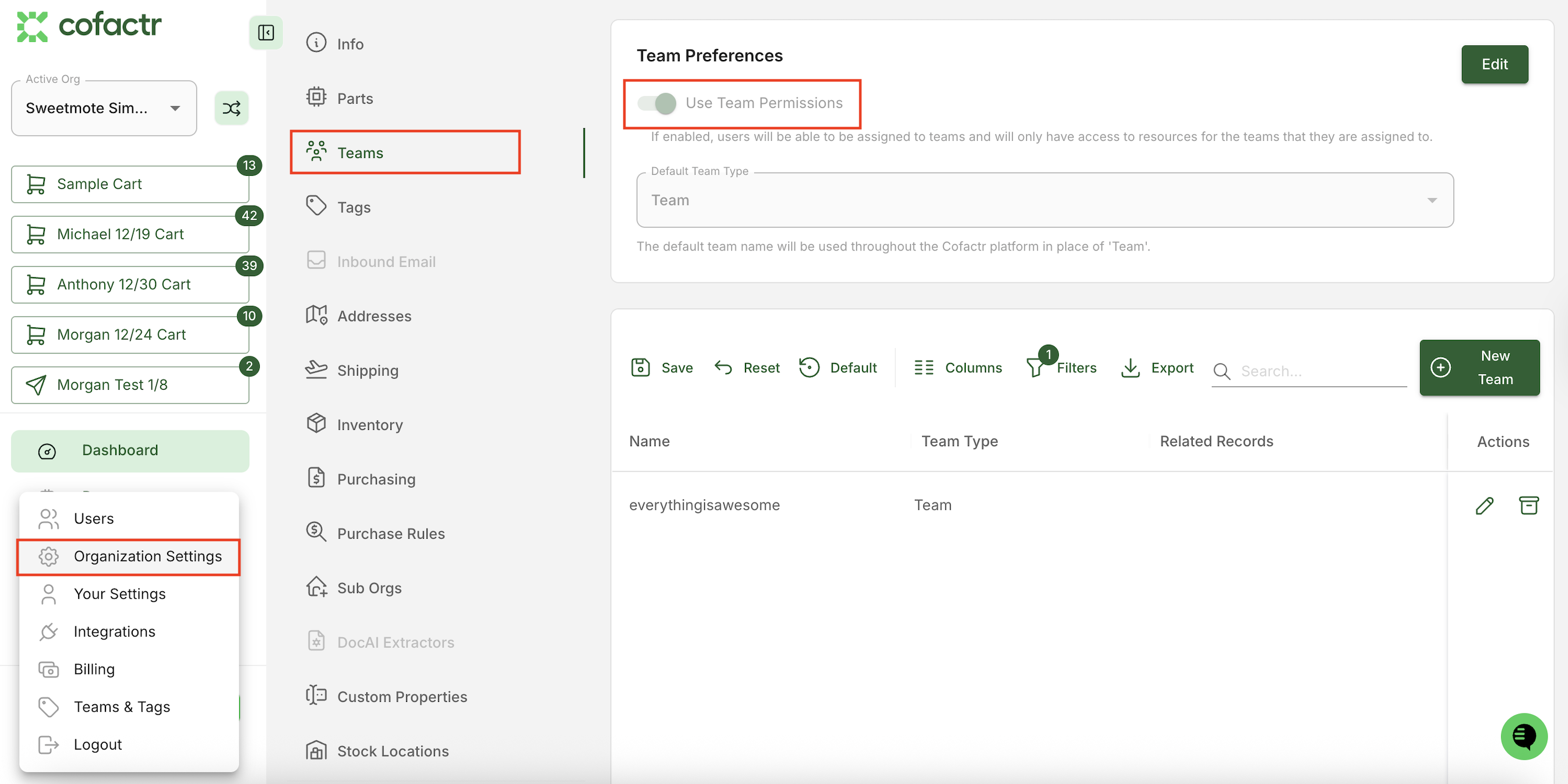
Once enabled, click "+ New Team" within this view or navigate to the Teams and Tags app from your Dashboard.
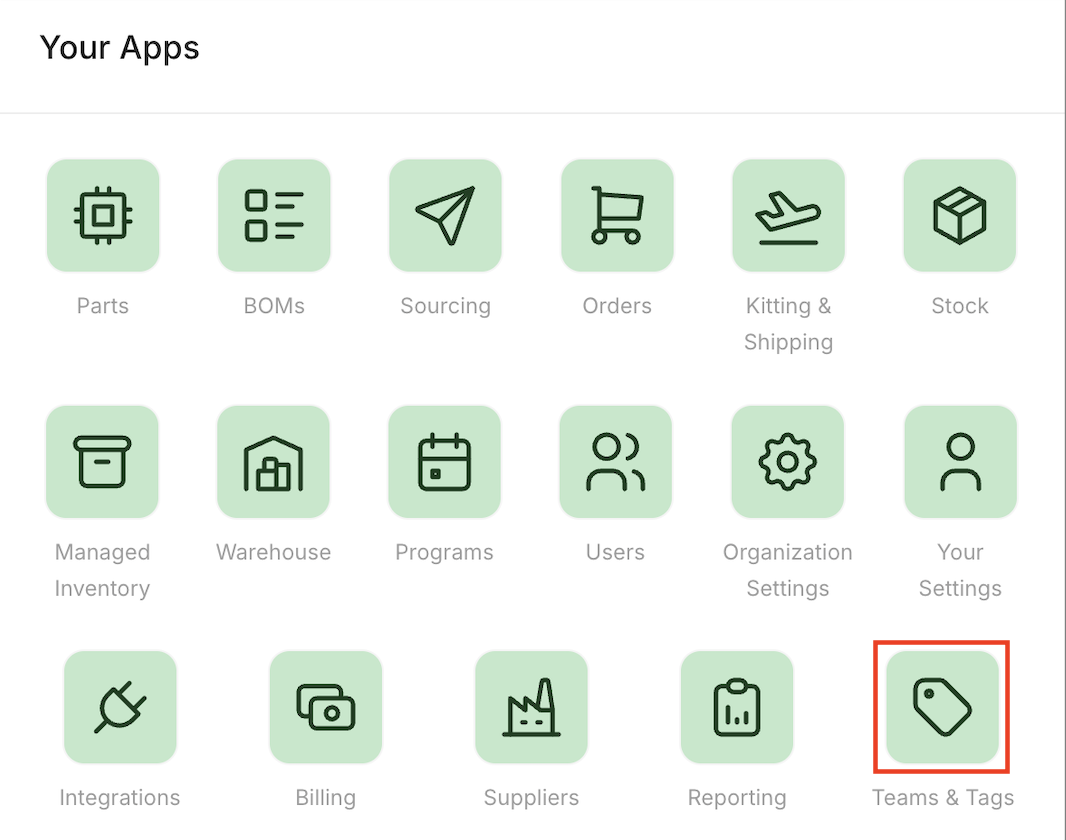
From here, click "+ New Team."
This will take you to the screen below, where you can create a Team name under an already existing Team Type, or click the + button to create a new Team Type.
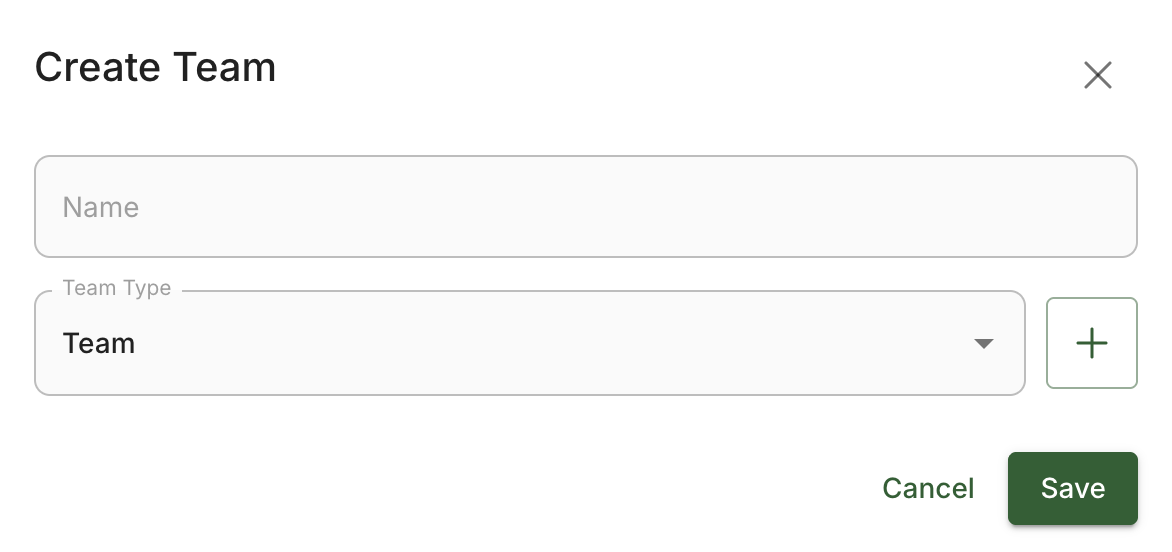
You can create a new "Teams Type" such as Project, Business Unit, or Customer by clicking the + button. You can name these whatever works for your organization.
Assigning Users to Teams
In your user management settings (Settings --> Users), you will see a Teams column where you can select users and assign or unassign them from teams.

How Teams Work
Users can only see records (BOMs, parts, orders, etc.) assigned to their team
Admins have access to all teams regardless of their team assignment
Records with no team assignment are visible to everyone
When creating programs, uploading BOMs, or working with parts, you will see a field to assign a team
If you have any questions or need additional support, reach out to success@cofactr.com.
Written by Morgan Seeton