Sub-Organizations
Last updated: January 21, 2026
If you need completely separate Cofactr instances with different libraries and purchasing settings, you can use Sub-Orgs. Sub-Orgs are best for end customers you want to give platform access to, or when you need a sandbox environment for testing. If you want to see consolidated information across sub-orgs, you can do so via our Blended view.
When to Use Sub-Organizations vs Teams
Use Sub-Organizations when you need:
Completely segregated libraries
Different purchasing settings for each group
A sandbox environment for testing
Separate Cofactr instances for end customers outside your organization
Use Teams when you need to control access within a single organization while sharing the same library and purchasing settings. Teams allow you to segment parts, BOMs, orders, and other records between internal groups without the overhead of managing separate sub-orgs. Learn more about Teams here.
To Create a Sub-Org:
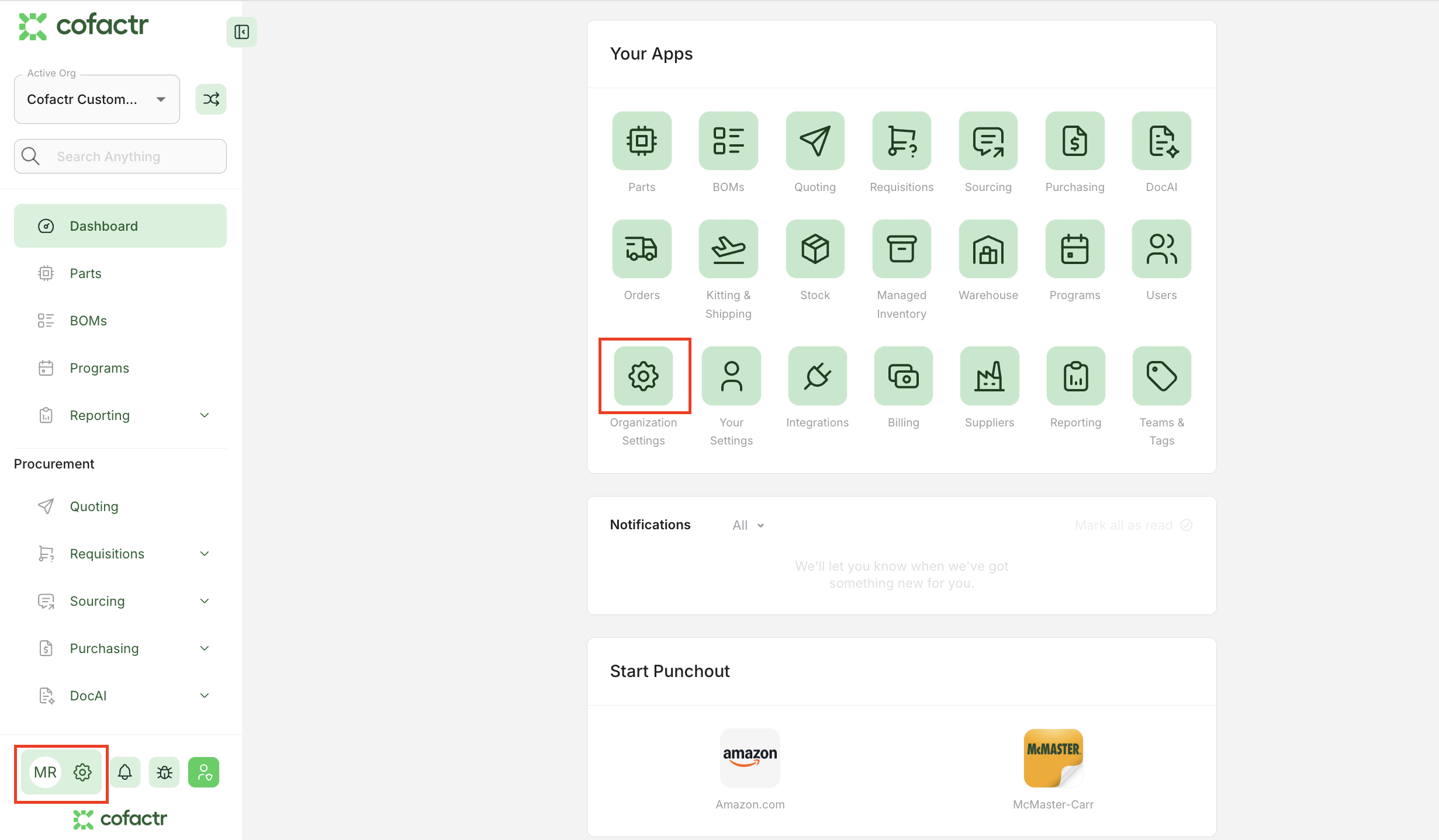
Navigate to Organization Settings by going to either your Dashboard and clicking on Organization Settings, or to the bottom left corner where the gear icon is.
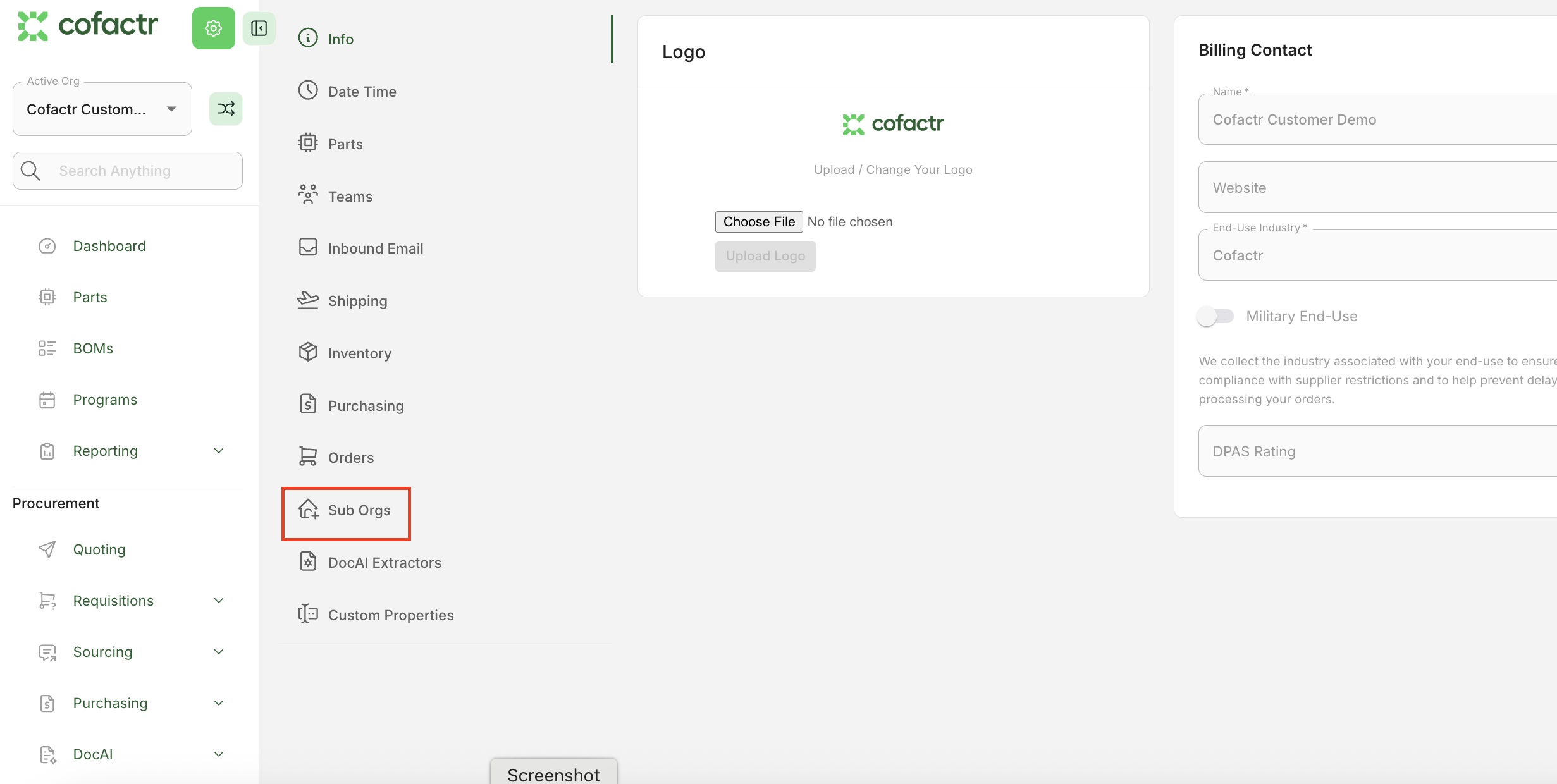
From here, click on Sub Orgs.
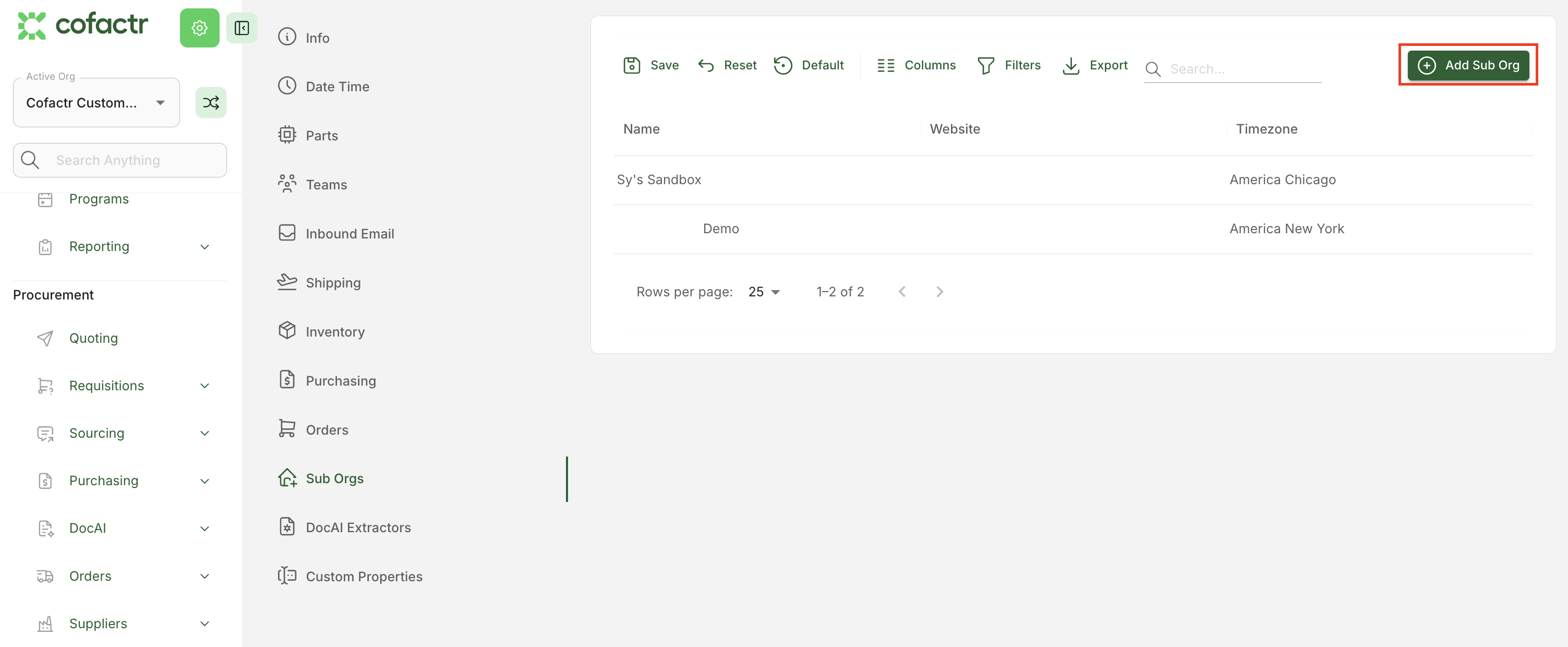
Select "Add Sub Org" in the top right. Here you can also see the other sub-orgs that have been created under your org.
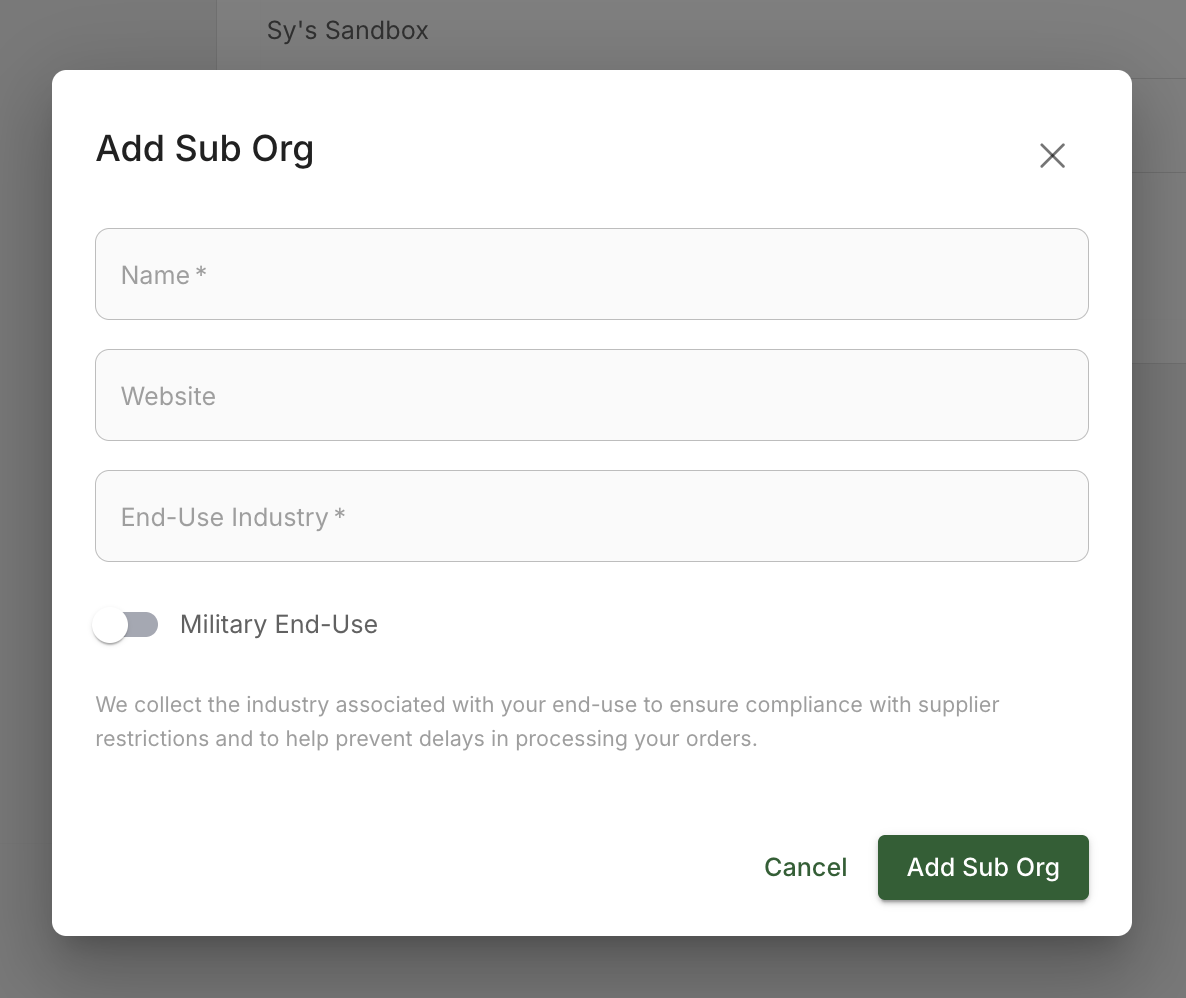
Fill out the necessary information and you're all good to go!
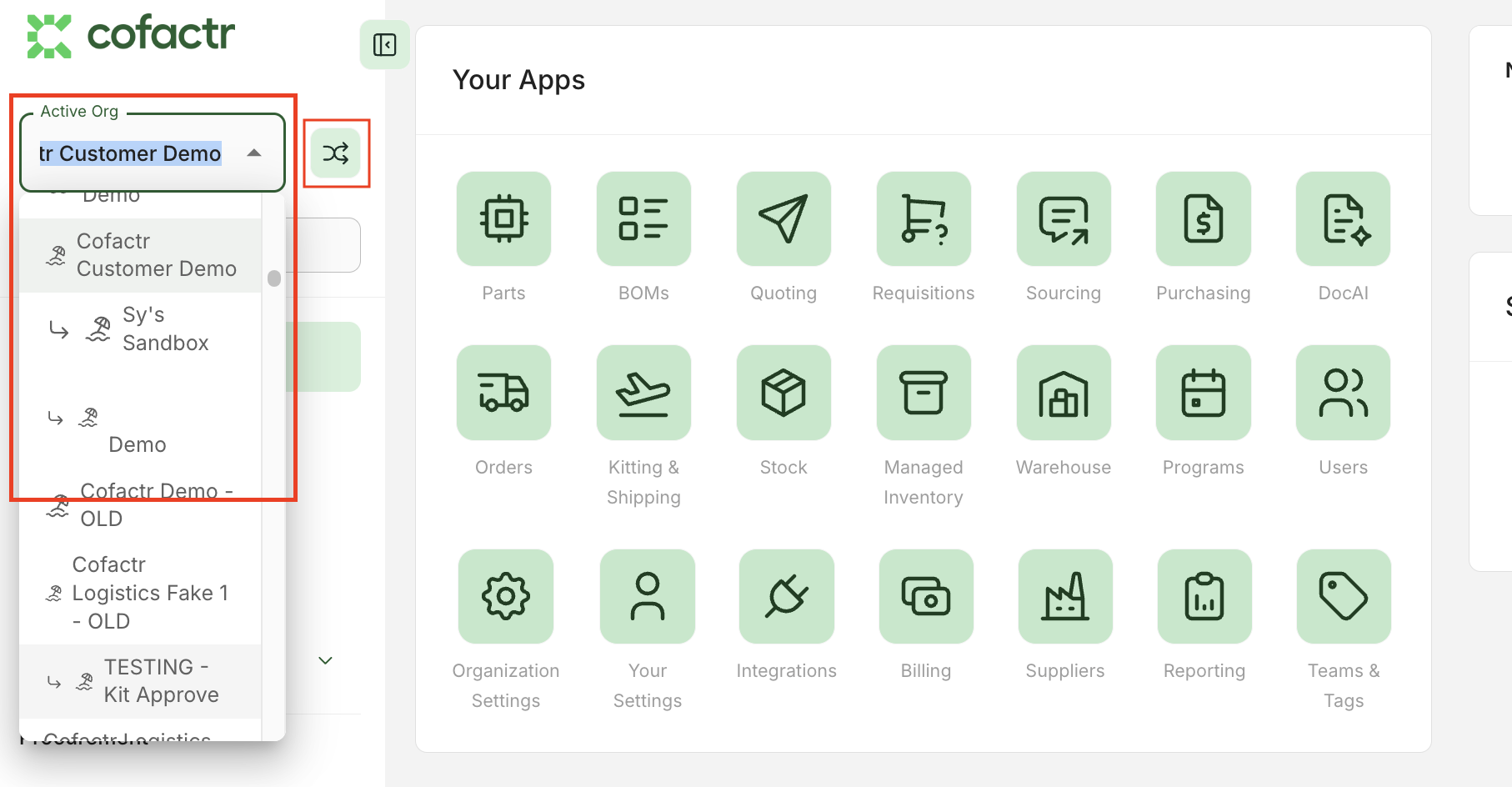
You can now switch between sub-orgs by using the org-dropdown in the navigation panel, or enter blended view by pressing the green button beside it. That's it!
A sub-org will automatically be created in a production account. If you would like a sub-org to be in a sandbox account, please reach out to success@cofactr.com so we can do that for you.
If you have a pre-existing customer list or want to systematically create new sub-orgs, please reach out to success@cofactr.com.
Sub-orgs are available for all of our customers. If you don't see the ability to add a sub-org to your Cofactr org but are interested in learning more, please reach out to success@cofactr.com for more information.