How To View Your Inventory In Cofactr
Last updated: September 2, 2026
This article covers how to view your complete inventory in Cofactr, including both your parts inventory overview and detailed stock lot information.
How Do I View My Parts Inventory?
You can view all your inventory of your parts from the Stock/Part Stock view.
Part Stock is a list of the quantities of each part that you have in total and what the current status of those parts are. A view of your Parts stock can be found in the Inventory app via Part Stock.
That should look something like this:
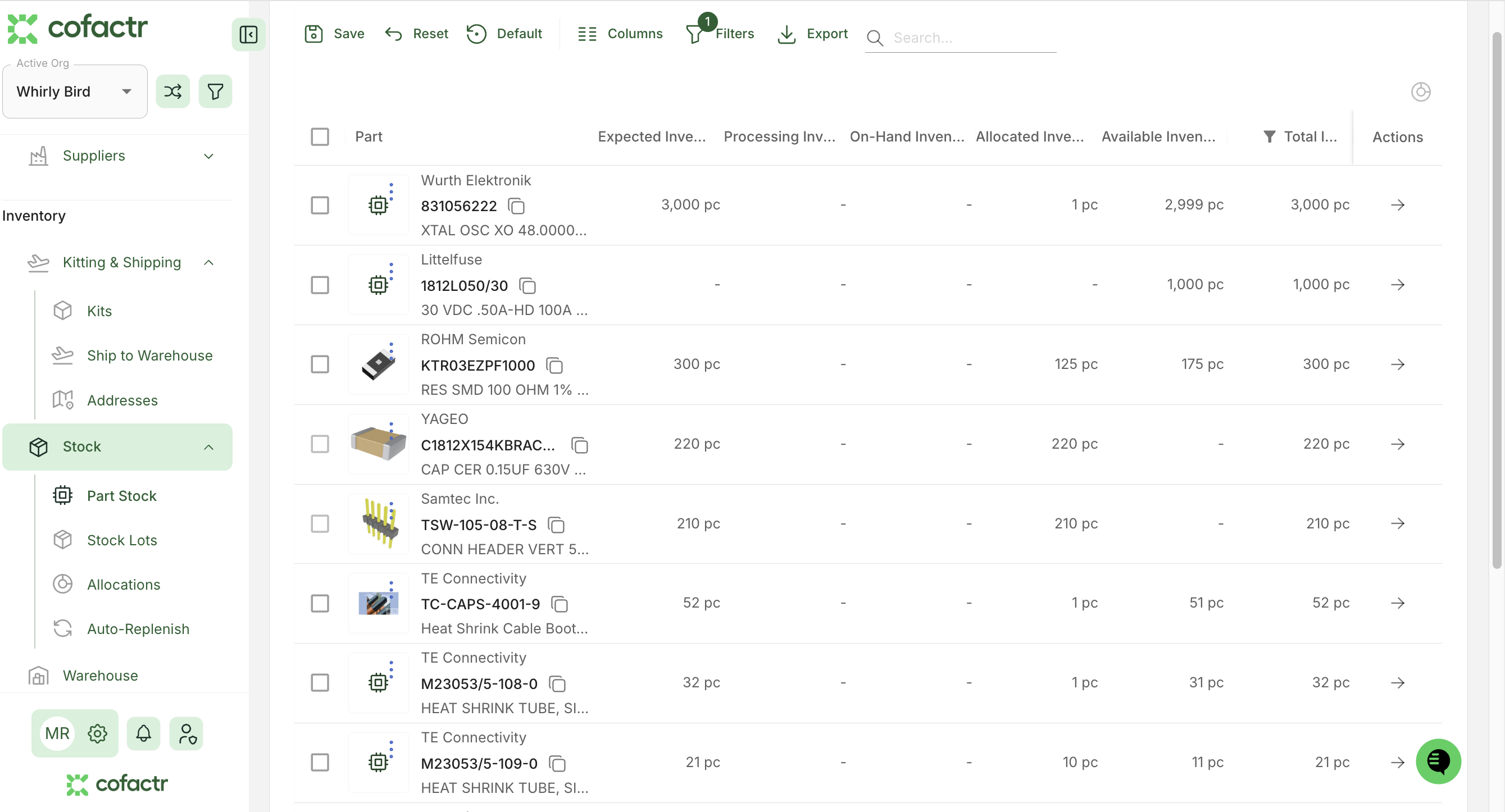
You can see a list of all the parts you own and the status which can be Expected, Processing, On Hand, as well as Allocated Inventory and Available inventory,
Expected, Processing, and On Hand Parts:
Expected parts are parts that have been ordered but have not yet arrived at Cofactr
Processing are any parts that are currently involved in an process and so are not immediately available. These processes include things like baking for MSL reset, being reeled, or other handling requests.
On Hand means that the parts are available within your Cofactr inventory.
Allocated inventory means you have that qty of the part, but that it is currently allocated to a Program or Kit.
Available inventory means the inventory it not allocated, and available for use.
The 'Total' is a summary of Expected, Processing, On Hand, Allocated, and Available inventory added together.
Clicking into a part will take you to an Individual Part Stock View that looks like this:
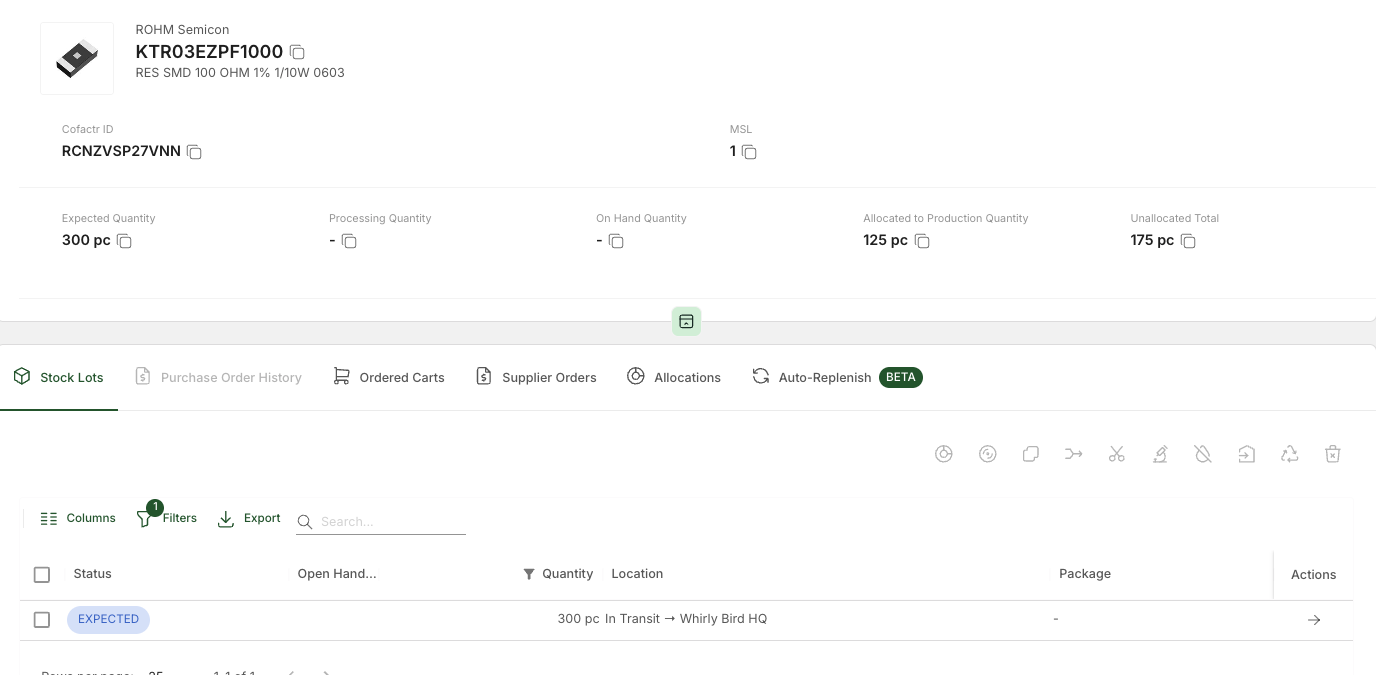
From this view you can see any stock lots of the part that you have in inventory from the 'Stock Lots' tab.
How Do I View My Stock Lots Inventory?
Viewing all the stock lots of a specific part in your inventory.
You can view all your inventory of your parts from the Inventory/Stock Lots view.
Stock Lots displays your inventory as a list of each individual stock lot, or qty, of a part you have. So, if you have multiple stock lots of a single part, those would list as individual lines in the Stock Lots view.
It should look something like this:
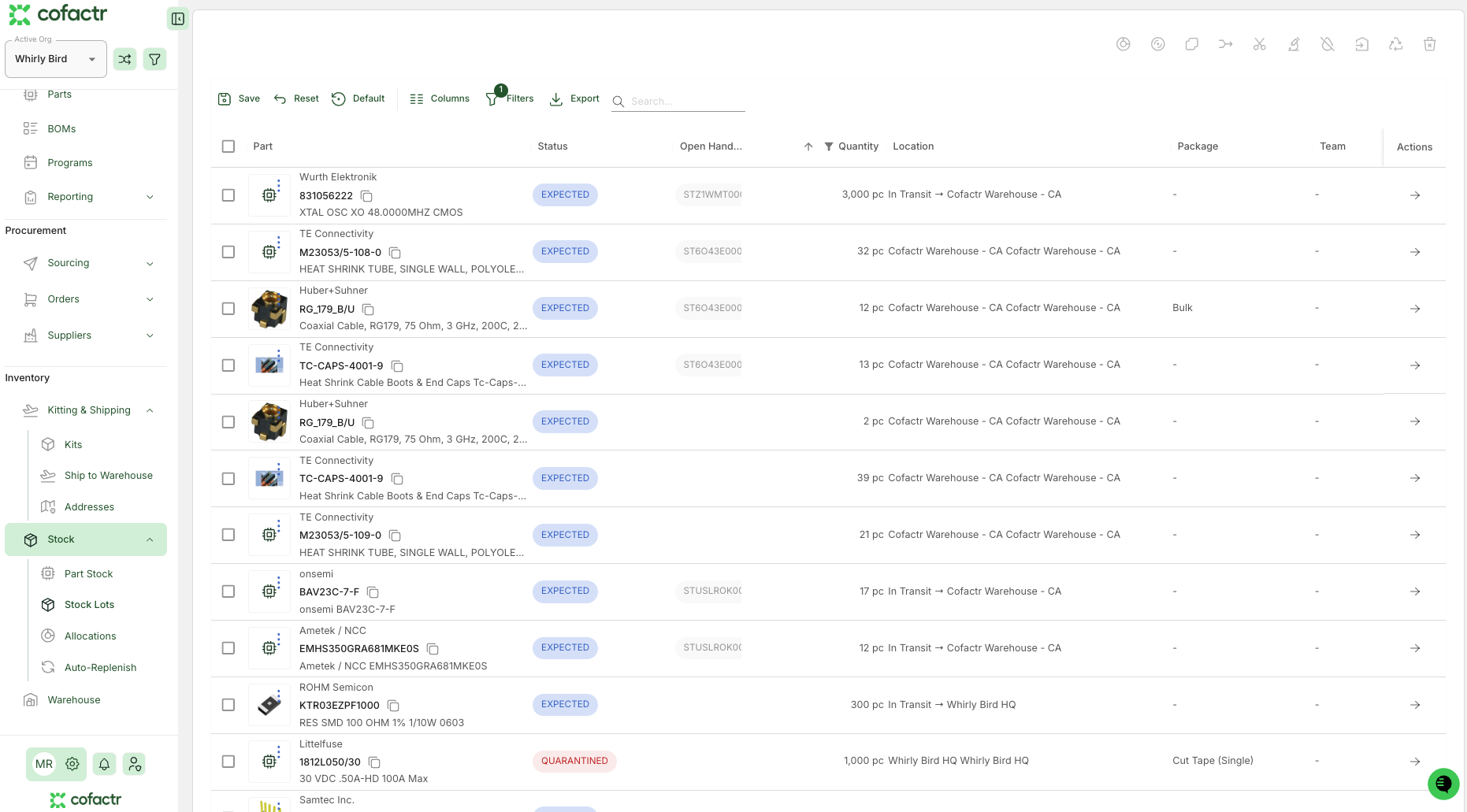
From the individual stock lot view you'll see listed the part quantity of each stock lot as well as the location of that stock lot, the handling tasks of that stock lot, the quantity, and the Status of the stock lot.
You can view other information on the stock lots by revealing columns via the Columns filter. Some of the available columns and their meanings are listed below:
Checkbox Selection:
The toggle that allows you to select or multi-select lines for actions.
Part:
Manufacturer Part Number and description. This is permanently toggled on.
Quantity:
The number of individual parts contained in the stock lot.
Expected Delivery:
The anticipated delivery date of a stock lot that is being delivered to Cofactr from a distributor.
Location:
The current location of the stock lot.
Package:
The way that the stock lot is currently packaged (bulk, cut tape, etc.)
Date Code:
The date of manufacture for the stock lot
Manufacturer Lot ID:
The lot ID assigned by the manufacturer
Cofactr Lot ID:
The lot assigned by Cofactr
Clicking into a stock lot will take you to an Individual Stock Lot View that looks like this:
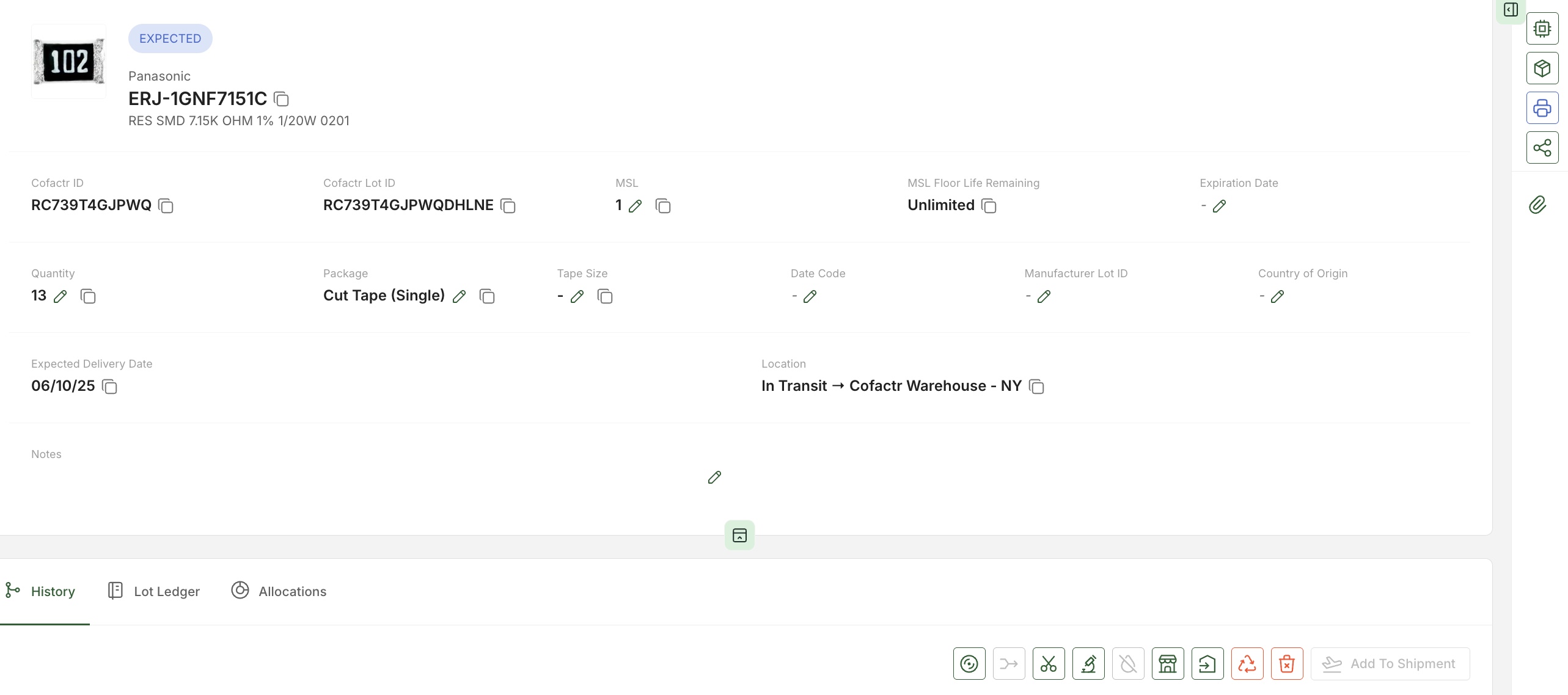
From this view you can request a handling request, see any handling tasks that have been completed or need to be completed to the stock lot from the 'Handling Tasks' tab and any changes to the stock lot ledger via the 'Lot Ledger' tab.
You can also submit handling requests from this view. More on handling requests HERE: 📄 Handling Task Requests For Stock Lot
Written by Phillip Gulley and Morgan Seeton