Searching for Parts In Cofactr
Last updated: May 4, 2026
A guide to searching for parts and an overview of the parts view
Once you're logged into Cofactr, you'll land on your Dashboard view. This shows a collection of the individual Cofactr apps. You'll see "Parts" as an option. Click on this to open your Parts tool.
You should see this:
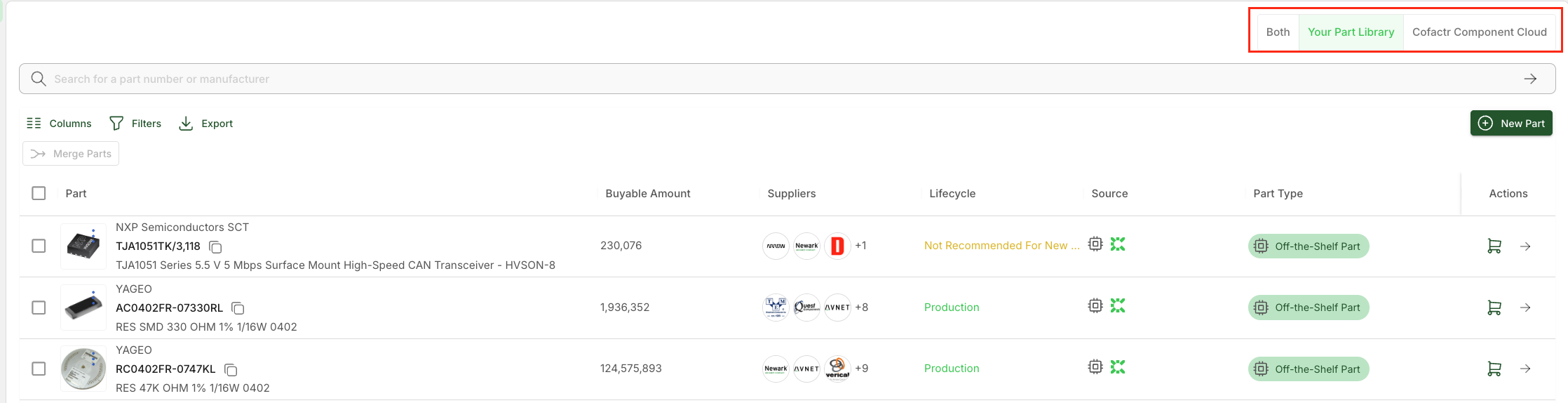
At the top of the Parts app, you'll find the unified search functionality. You can specify which parts you want to search over with the selector at the top right. The default is "Your Part Library". Here's what the different selections mean:
Your Part Library: This includes any parts you've created or parts you've chosen to add to your library from the Cofactr Component Cloud. This is a good place to look for parts that are used by your organization.
Cofactr Component Cloud: Includes EE parts that Cofactr maintains as part of its offering. Search for parts that might not yet be in your library but meet your specifications.
Both: This includes any custom parts you've added to your library and all parts available in the Cofactr Component Cloud. Search here for the broadest set of results.
In the search field, you can search by a partial MPN (Manufacturer Part Number), a complete MPN, or type in a subfamily of parts to search more generally.
Once you've entered your preferred search content into the search field you can hit 'return' or 'enter' on your keyboard or click the search button to start your search.
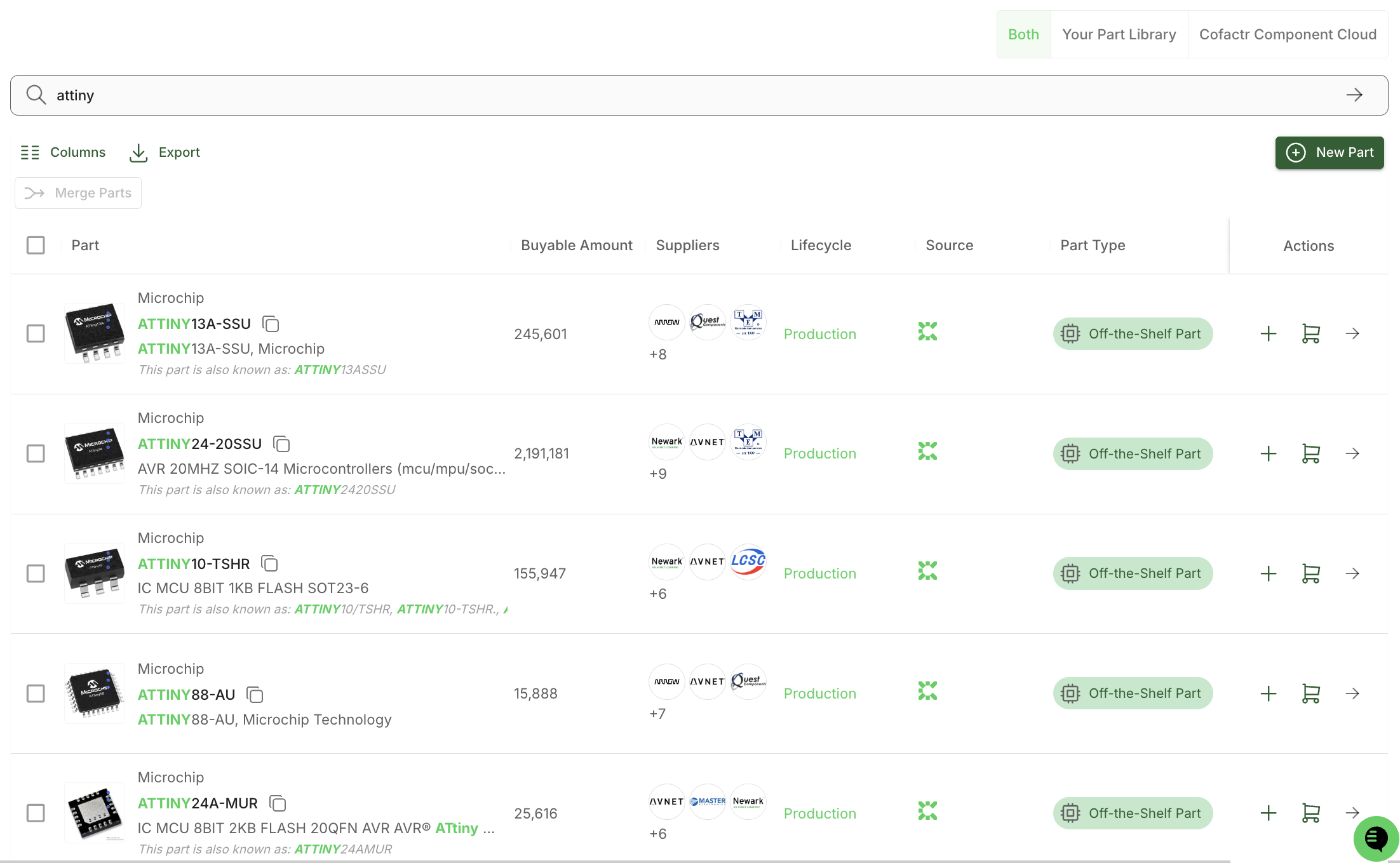
Once you search for a part you'll see every source for the part, or a summary of the kind of part you're looking for. For example, if you search "attiny," you'll see a collection of available attiny products.
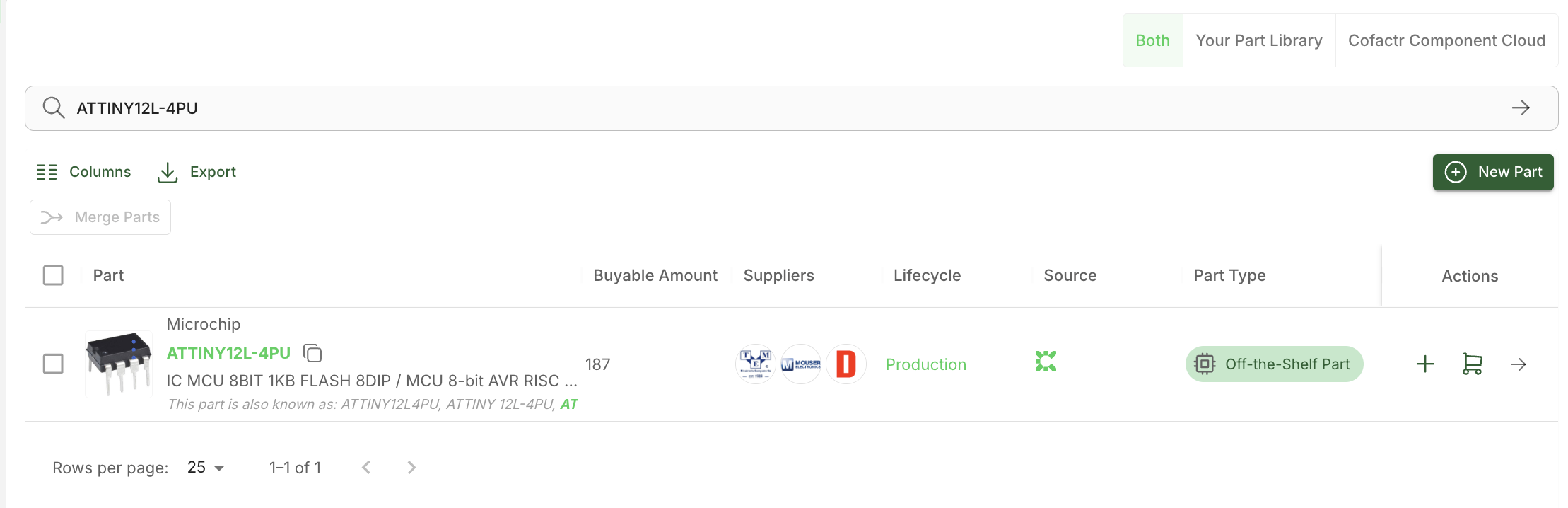
If you search a specific MPN (like ATTINY12L-4PU) you'll see listing for that part, aggregated by Cofactr to be the most accurate possible.
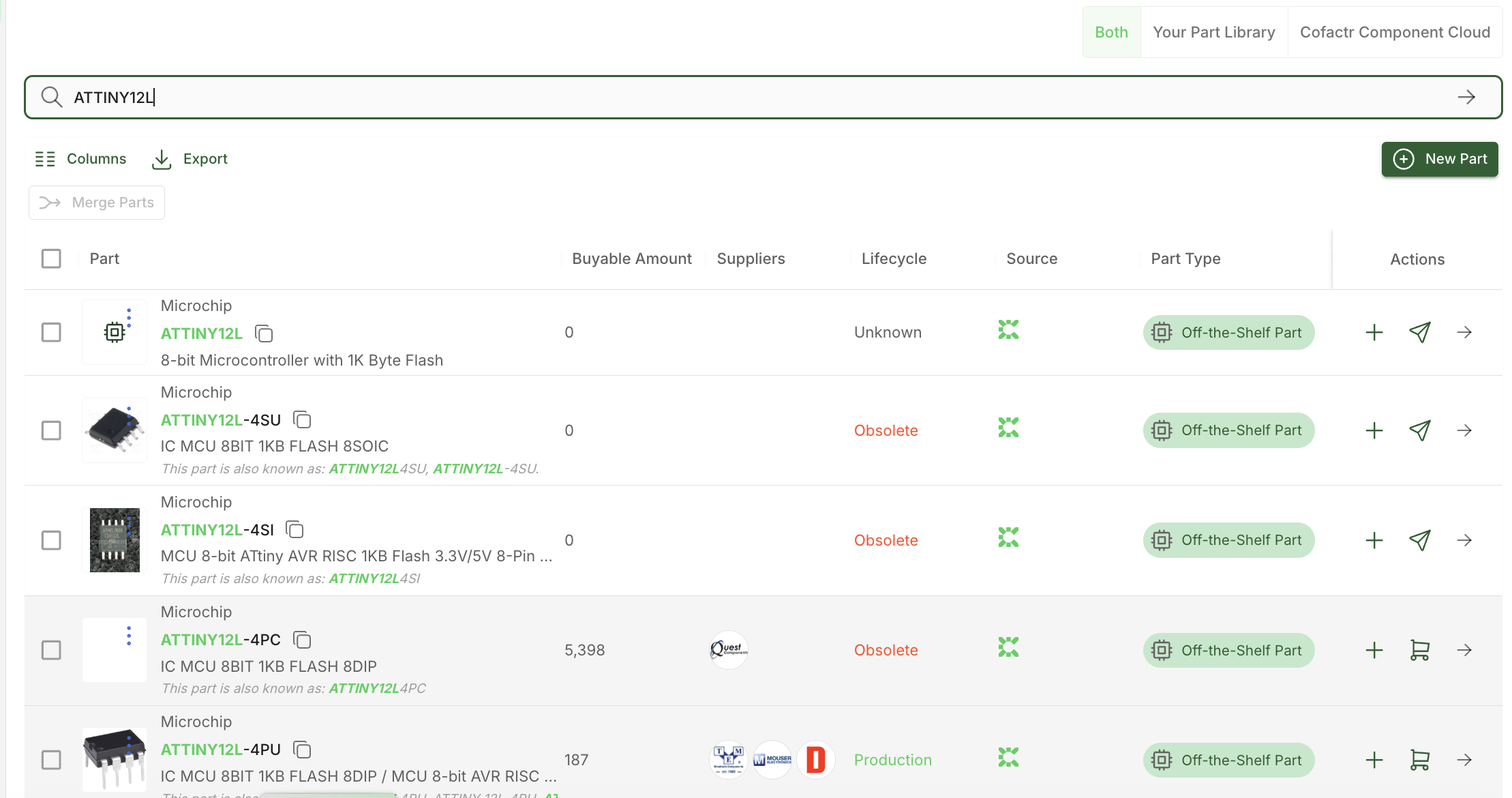
If you enter a partial MPN or a slightly incorrect MPN, Cofactr will do its best to match your entered data to the appropriate part. For example, here is the list of results for a search of "ATTINY12L."
Select the listing that most accurately represents what you're looking for and you'll see global supply chain information, documents, specifications, and contextual information on if that part is in any existing BOMs or your inventory, if you have existing quotes out for that part, or if you have any sourcing requests open on that part.
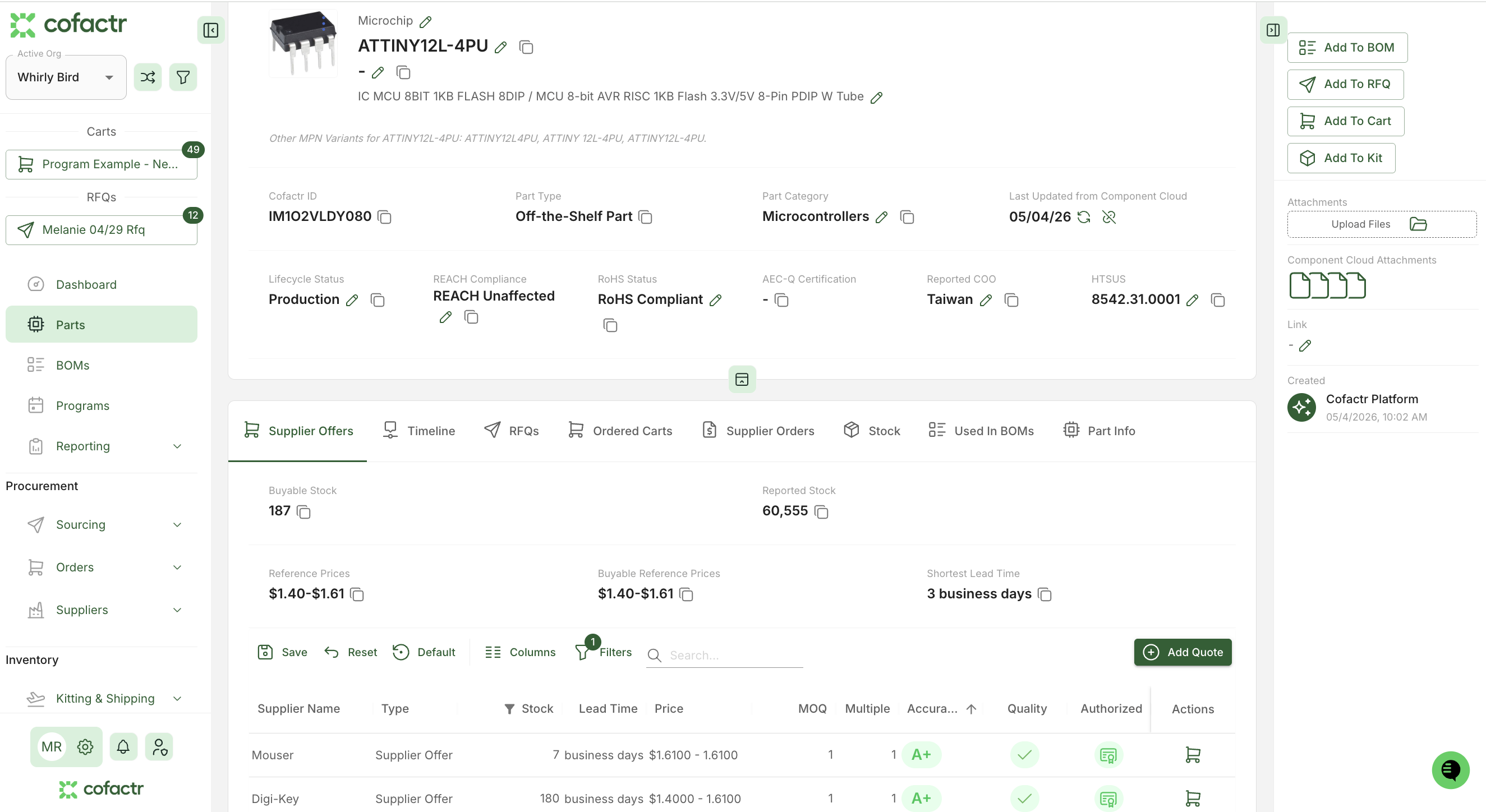
You can buy the part by adding it to a cart (right hand column), add the part to an RFQ (right hand column), or add the part to an existing BOM for your account.
If you have questions on the Part feature in Cofactr, please reach out to success@cofactr.com, or, use the green chat bubble in the bottom right of your Cofactr org.
Written by Phillip Gulley and Morgan Seeton